
Analytics and Activity Logs
CEQUENS Analytics provides comprehensive insights into request-related data to help businesses make informed decisions and optimize their customer service strategies.
The Activities feature in CEQUENS Chat Console enables users to track and monitor all agent-related activities. It offers transparency and accountability by allowing administrators to view logs of agent actions and system events.
CEQUENS History feature allows users to review past interactions and closed requests for reference and analysis. It provides valuable insights into customer behavior and service trends, enabling businesses to improve their support processes and customer satisfaction.
Analytics
- Click on "Analytics" from the left menu to access request-related analytics.
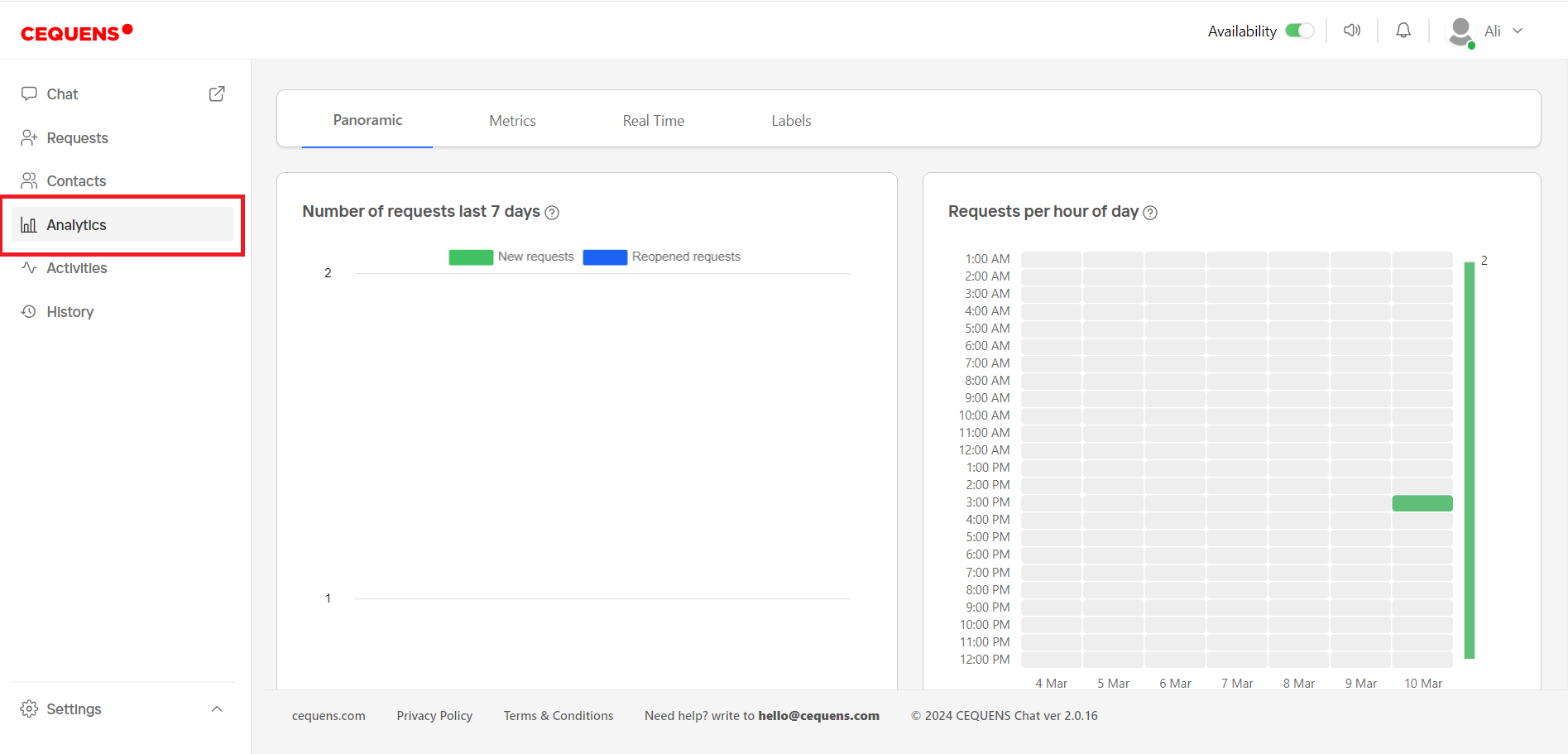
- There are four tabs: Panoramic, Metrics, Real Time, and Labels.
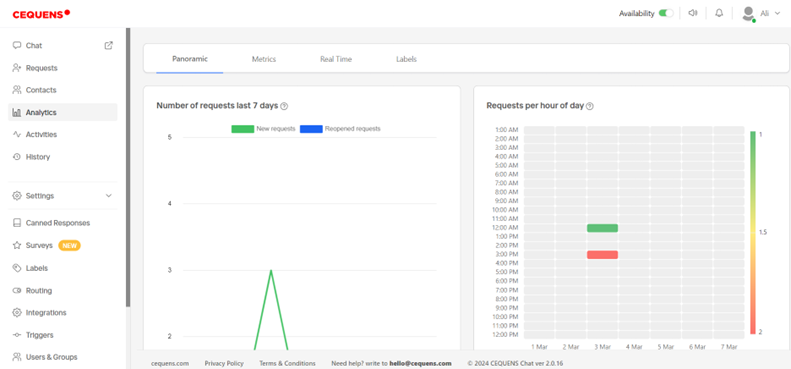
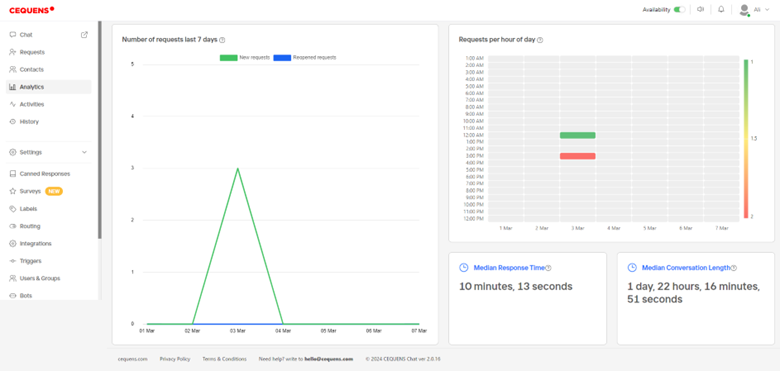
- In the Panoramic tab, view graphs showing new requests, reopened requests, a heat map of traffic peaks, median response time, and conversation length.
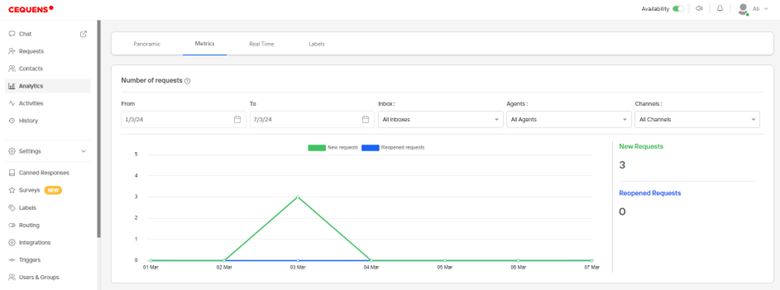
- The Metrics tab displays the number of requests received, with filters for date, inbox, agents, and channels.
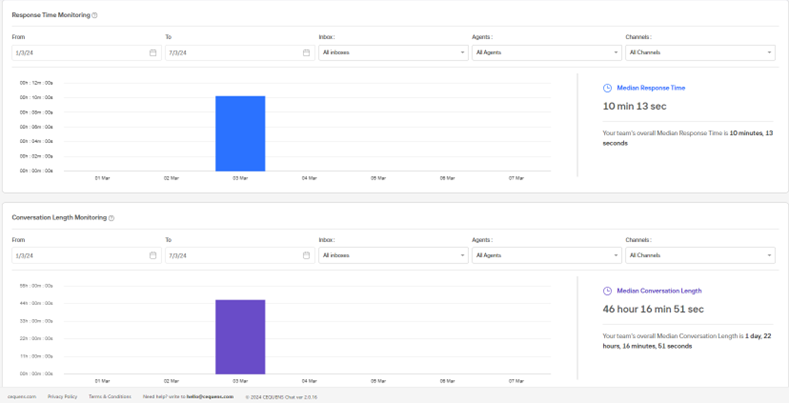
- Graphs for response time and conversation length are also available.
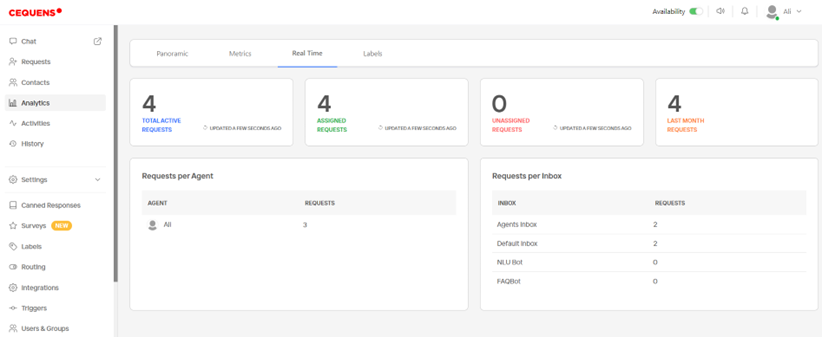
- The Real Time tab shows metrics on active requests, assigned/unassigned requests, requests from the previous month, requests per agent, and requests per inbox.
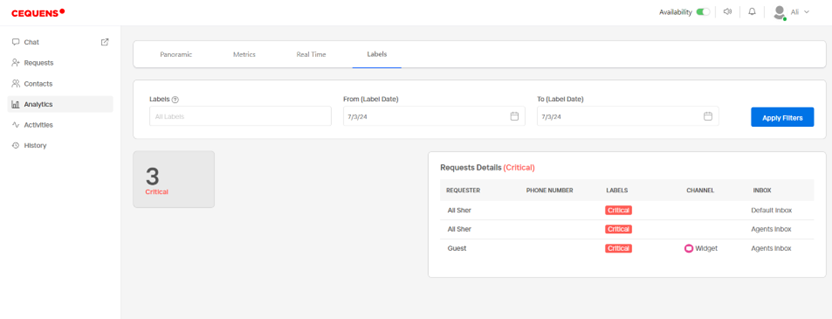
- In the Labels tab, view requests per label with filters for labels and dates.
Activities
- Click on "Activities" from the left menu on Cequens chat console.
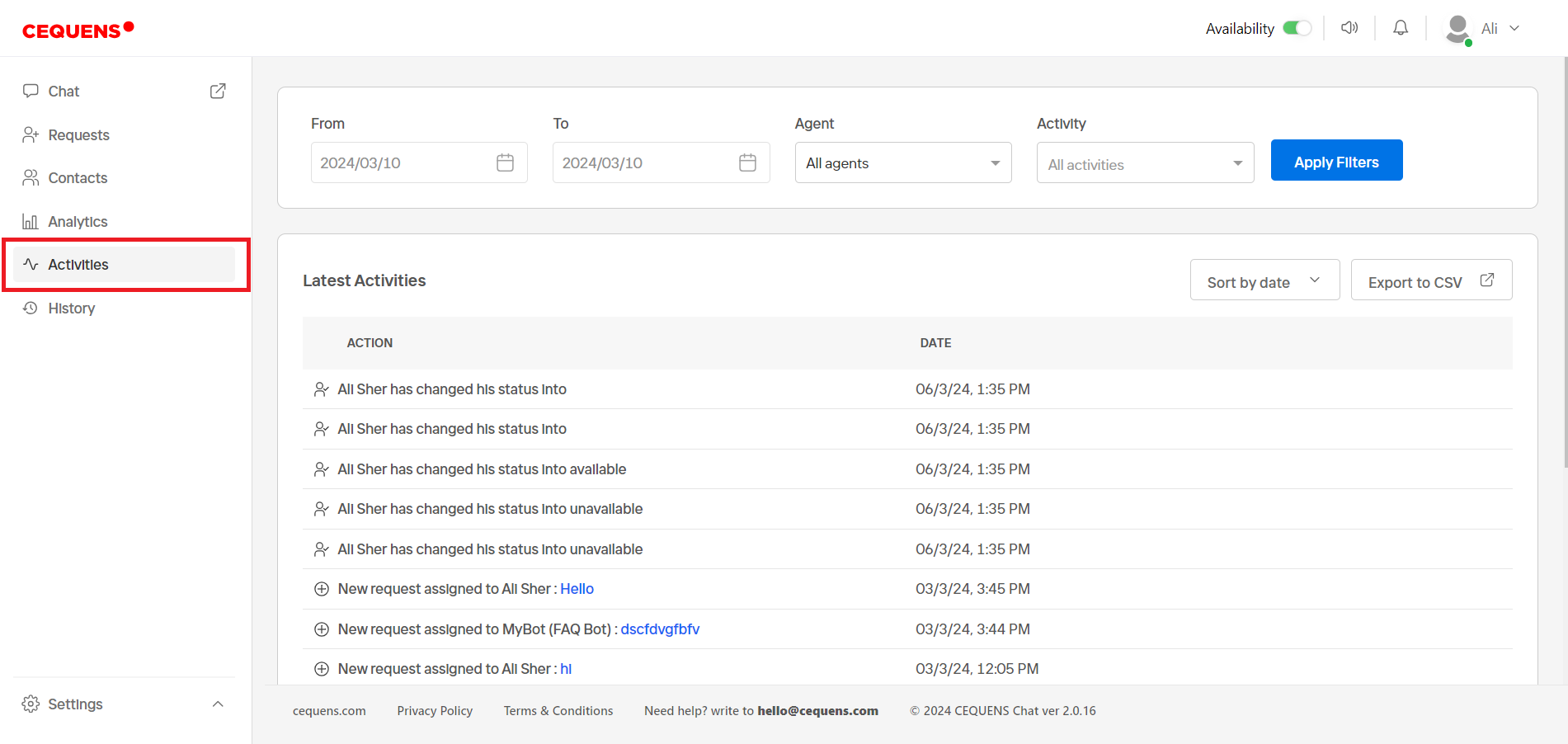
- View activity logs of all agents.
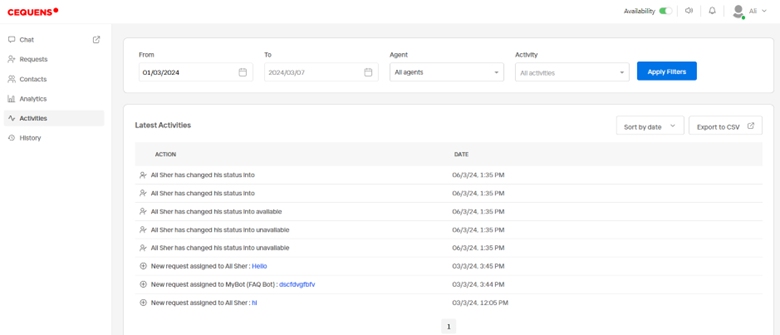
- Filter activities by date, agents, and activity type (e.g., agent update, agent invitation, new request).
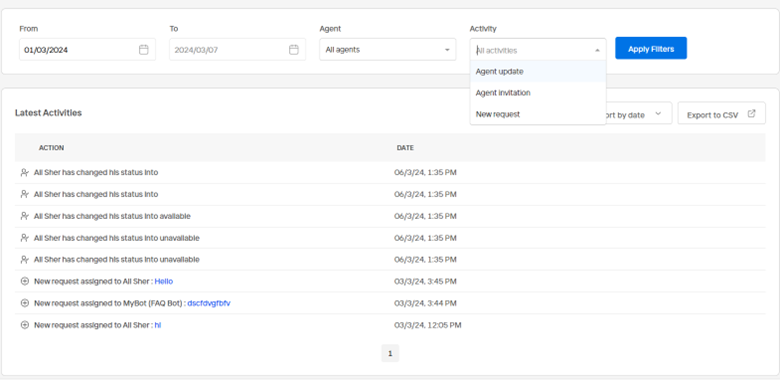
- Sort results by date by clicking on the Sort By button on top right corner.
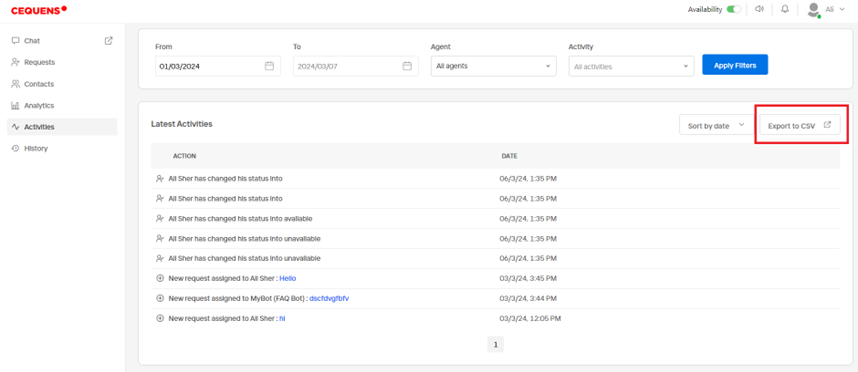
- Export activity logs to a CSV file by clicking the "Export to CSV" button at the top right corner of the activity logs.
History
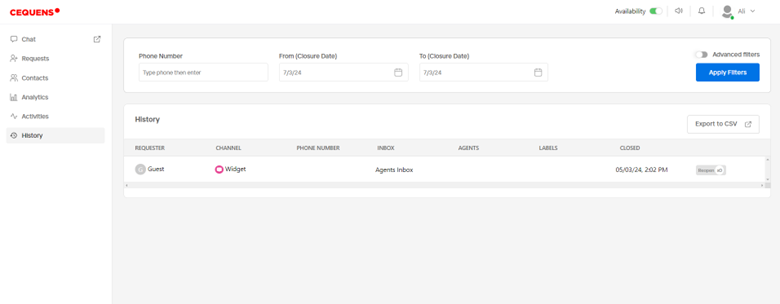
- Click on "History" from the left menu on the chat console.
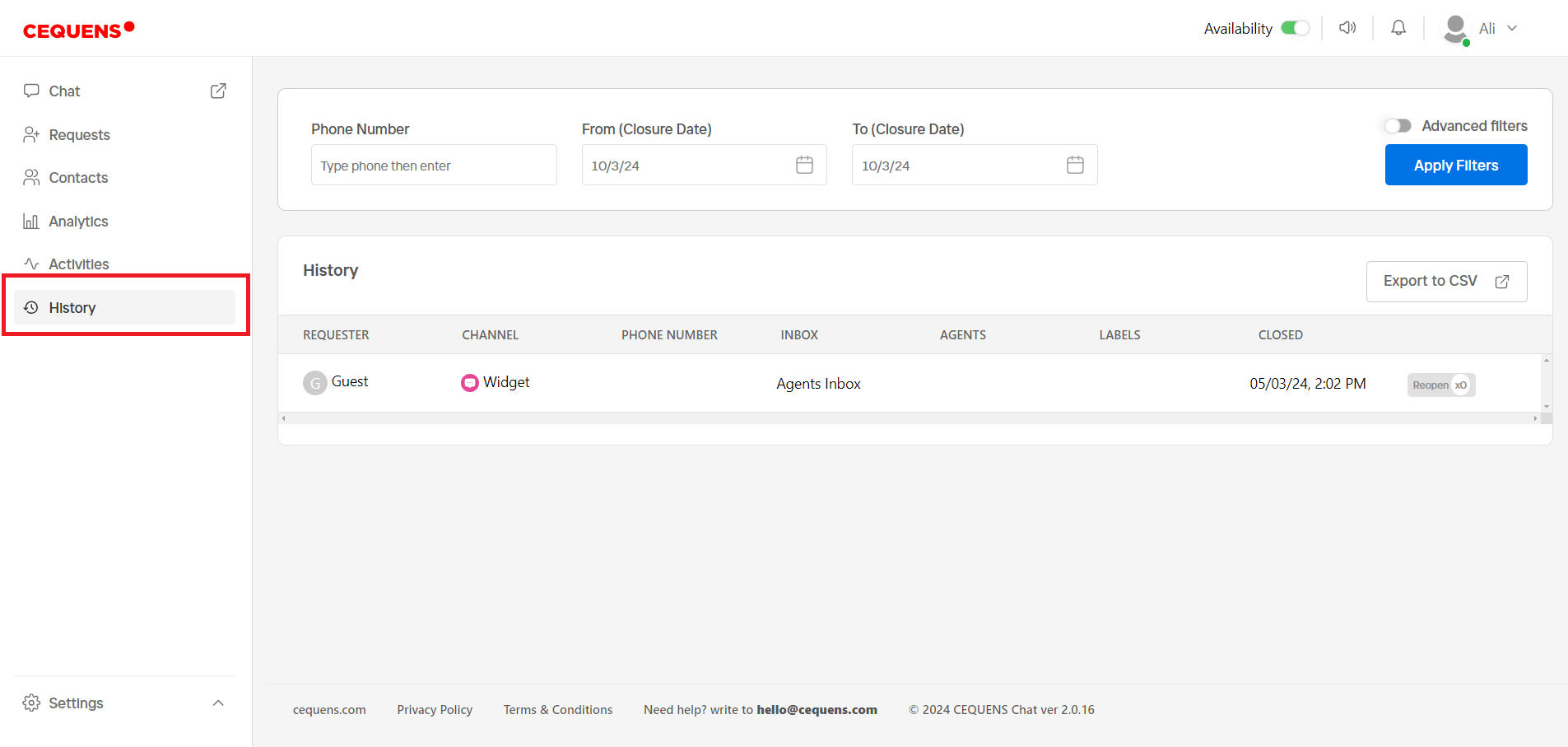
- View details of closed requests and filter history by date, phone number, and advanced filters like agents, channels, inbox, labels, and new/reopen requests.
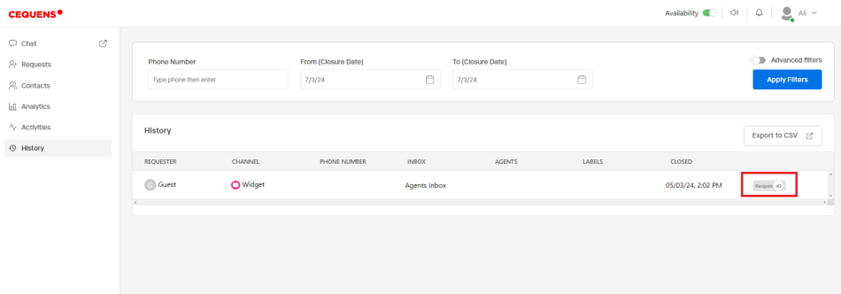
- Reopen requests from the history page by clicking the "reopen" button at the end of each request row.
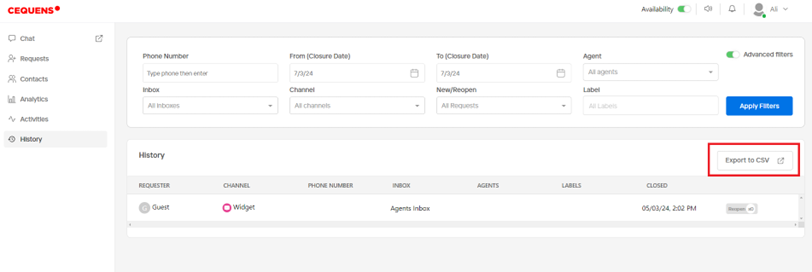
- Export history to a CSV file by clicking the "Export to CSV" button at the top right corner of the history table.
Updated about 2 months ago