
Conversation Tools
Replying to Customers
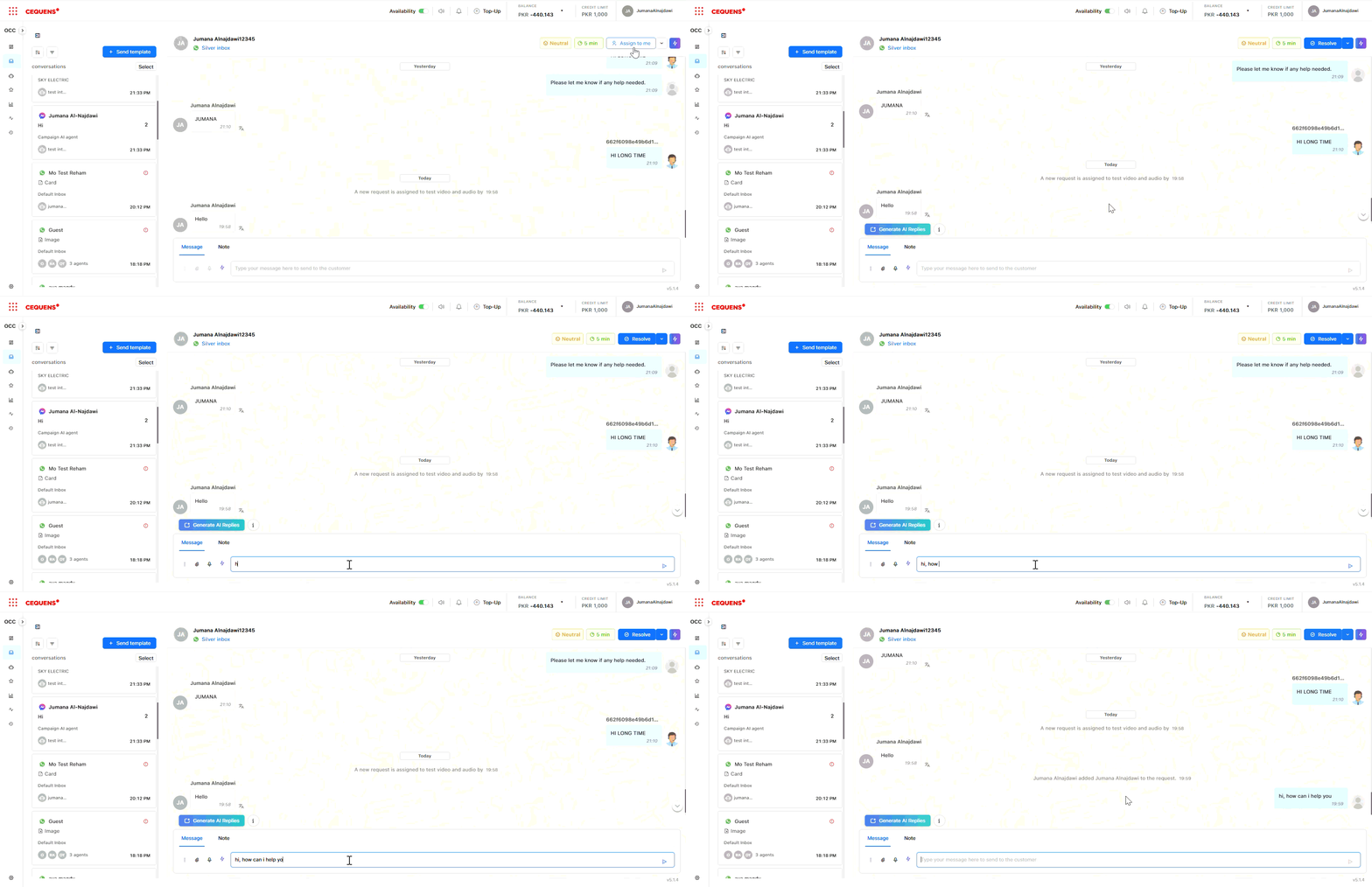
To send a message:
- Open a conversation in the Inbox
- Type your message in the text box at the bottom
- Press Enter or click Send
Formatting options:
- Line breaks: Press
Shift + Enter
Using Canned Responses
Canned responses are pre-written messages you can insert quickly for common replies.
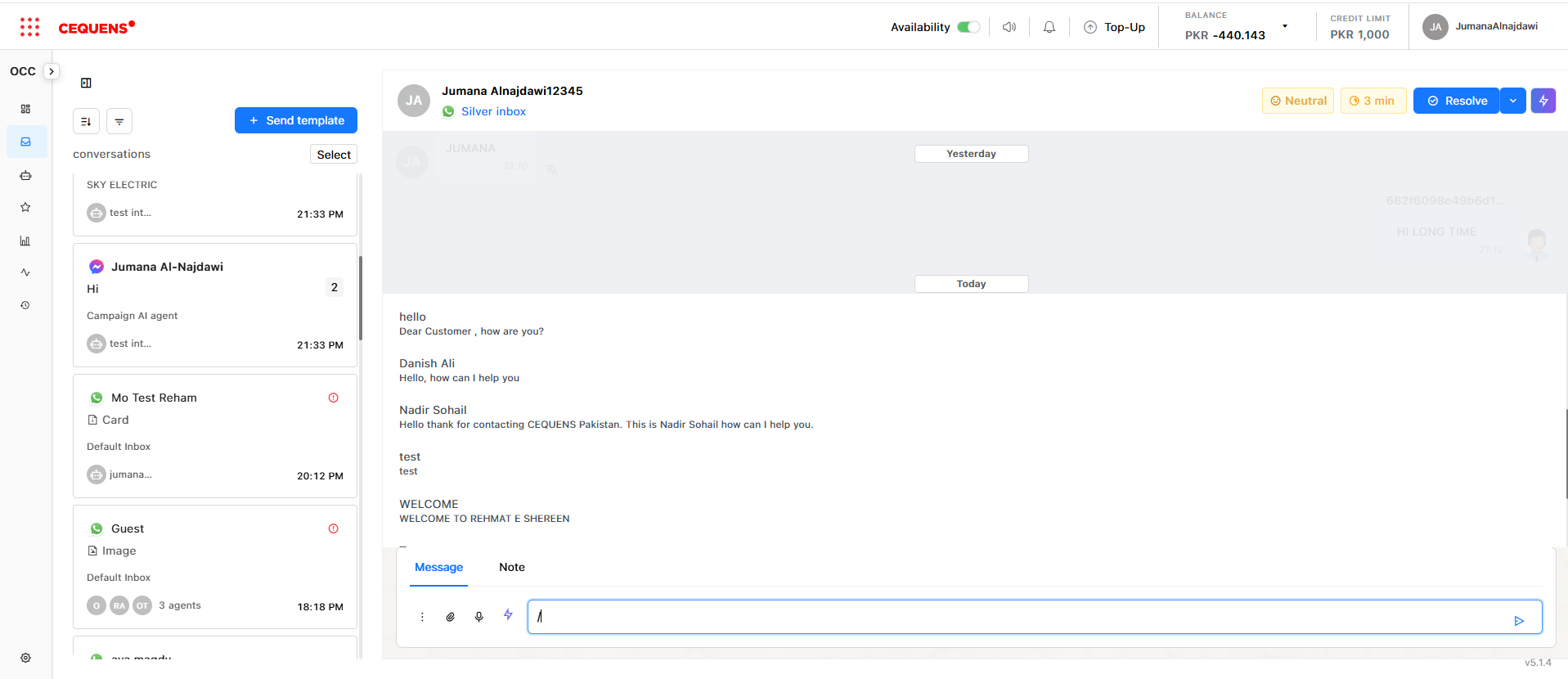
To use a canned response:
- In the message box, type
/(forward slash) - A dropdown menu appears with available canned responses
- Select the response you want
- The message is inserted—edit if needed and send
To create canned responses:
- Go to Settings → Chat Assets → Canned Responses
- See the Canned Responses Guide for details
Adding Labels
Labels help you categorize and organize conversations (e.g., "Billing," "Technical Issue," "VIP Customer").
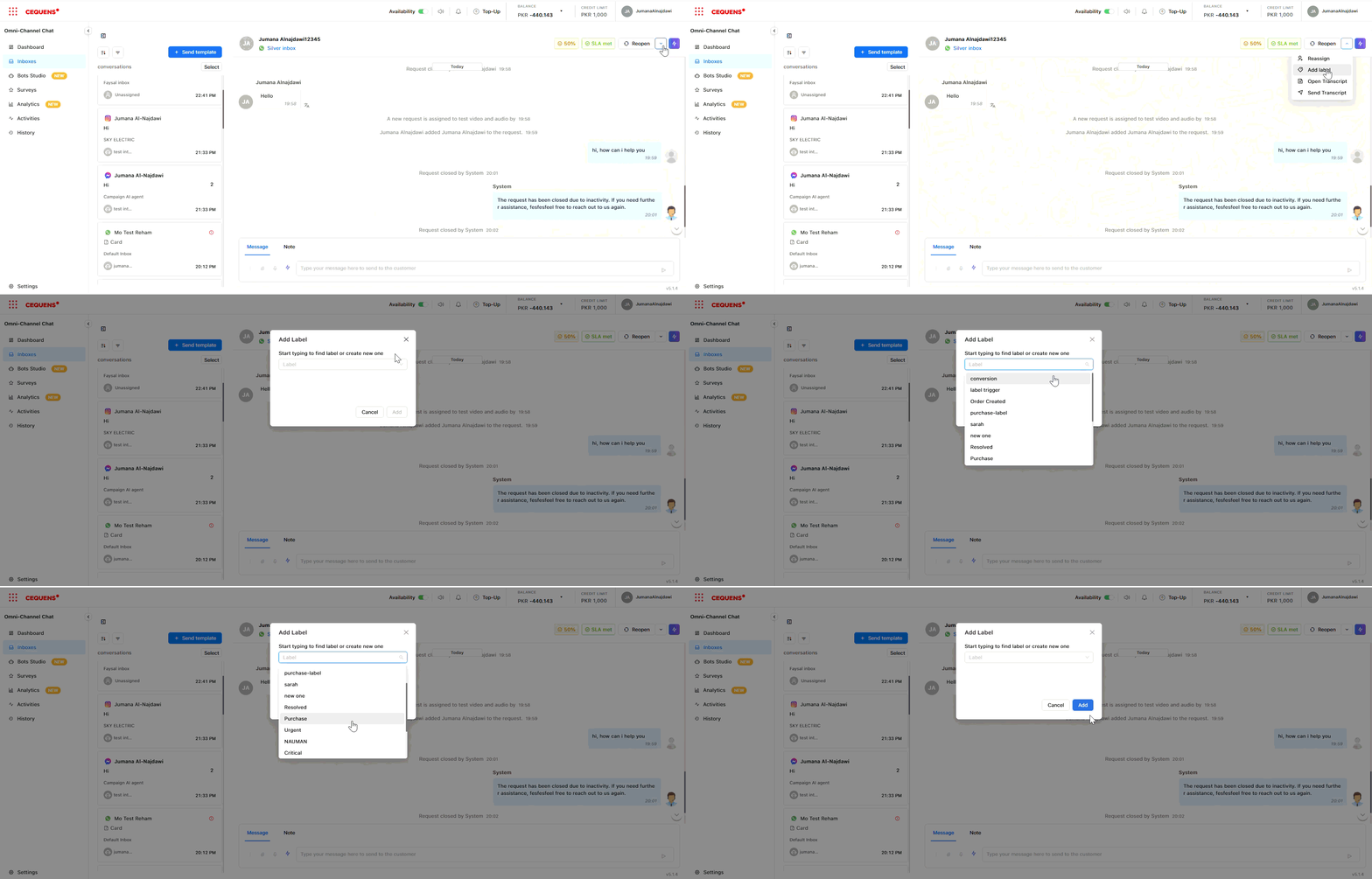
To add a label to a conversation:
- Open the conversation
- Click the "Labels" icon or button in the conversation panel
- Select one or more labels from the list
- Labels appear as colored tags on the conversation
To filter by label:
- Use the filter dropdown in Dashboard/Inbox and select a label
To create labels:
- Go to Settings → Chat Assets → Labels
- See the Labels Guide for details
Internal Mentions
Use mentions to notify teammates about a conversation without the customer seeing it.
To mention a teammate:
- In the message box, type
@followed by the team member's name - Select the user from the dropdown
- Type your internal note
- Click the "Internal Note" toggle or button (this ensures the message is NOT sent to the customer)
- Click Send
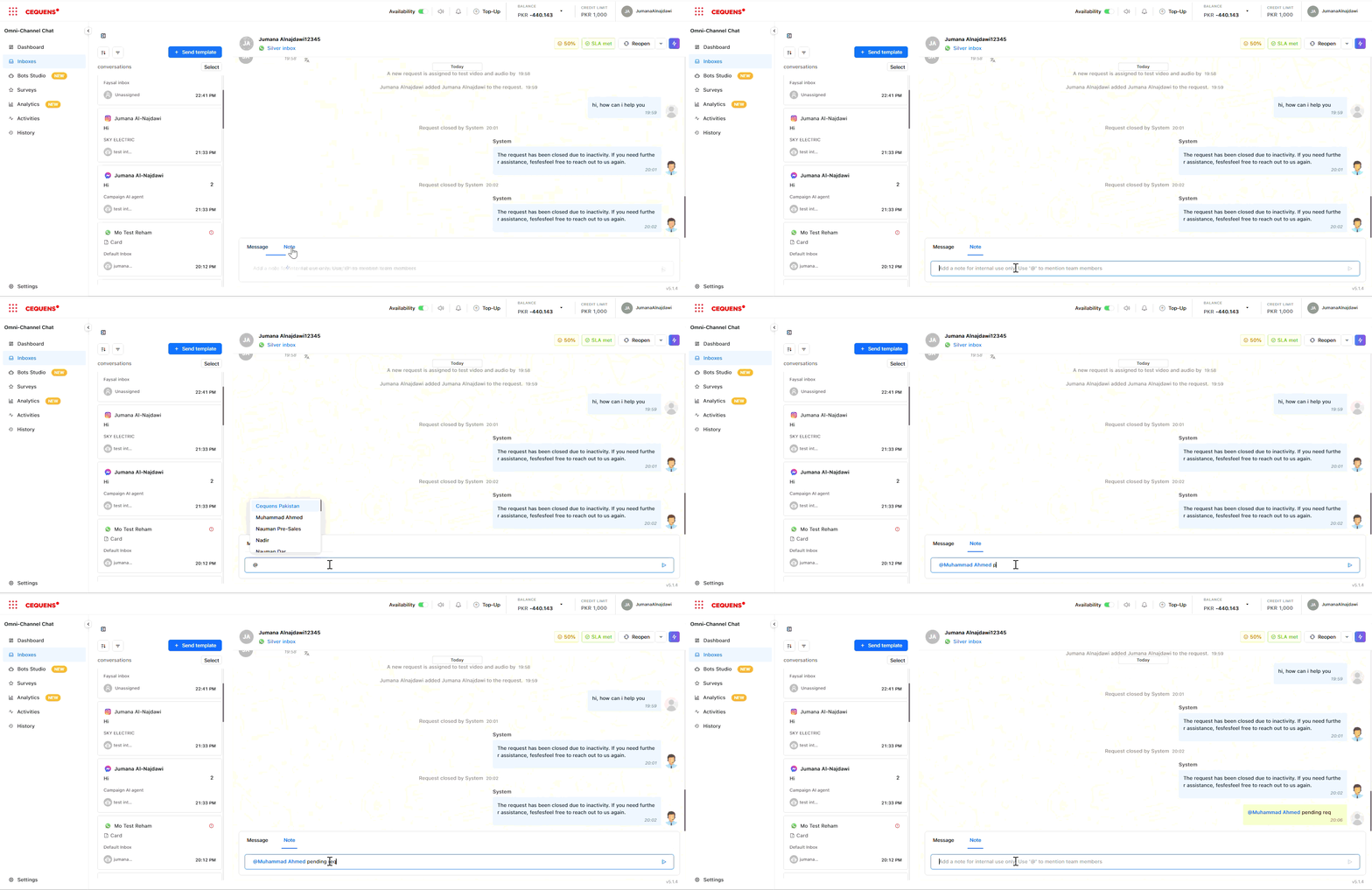
The mentioned user receives a notification and can view your note in the conversation.
Important: Always verify the "Internal Note" tab is selected before sending mentions—internal notes are NOT visible to customers.
Using AI Tools
OCC includes AI-powered tools to help you respond faster and more professionally.
Available AI tools:
- Summarize: Get a quick summary of a long conversation
- Suggest Reply: AI generates response suggestions based on the conversation
- Improve Writing: Enhance grammar, tone, and clarity of your message
- Translate: Translate messages between languages
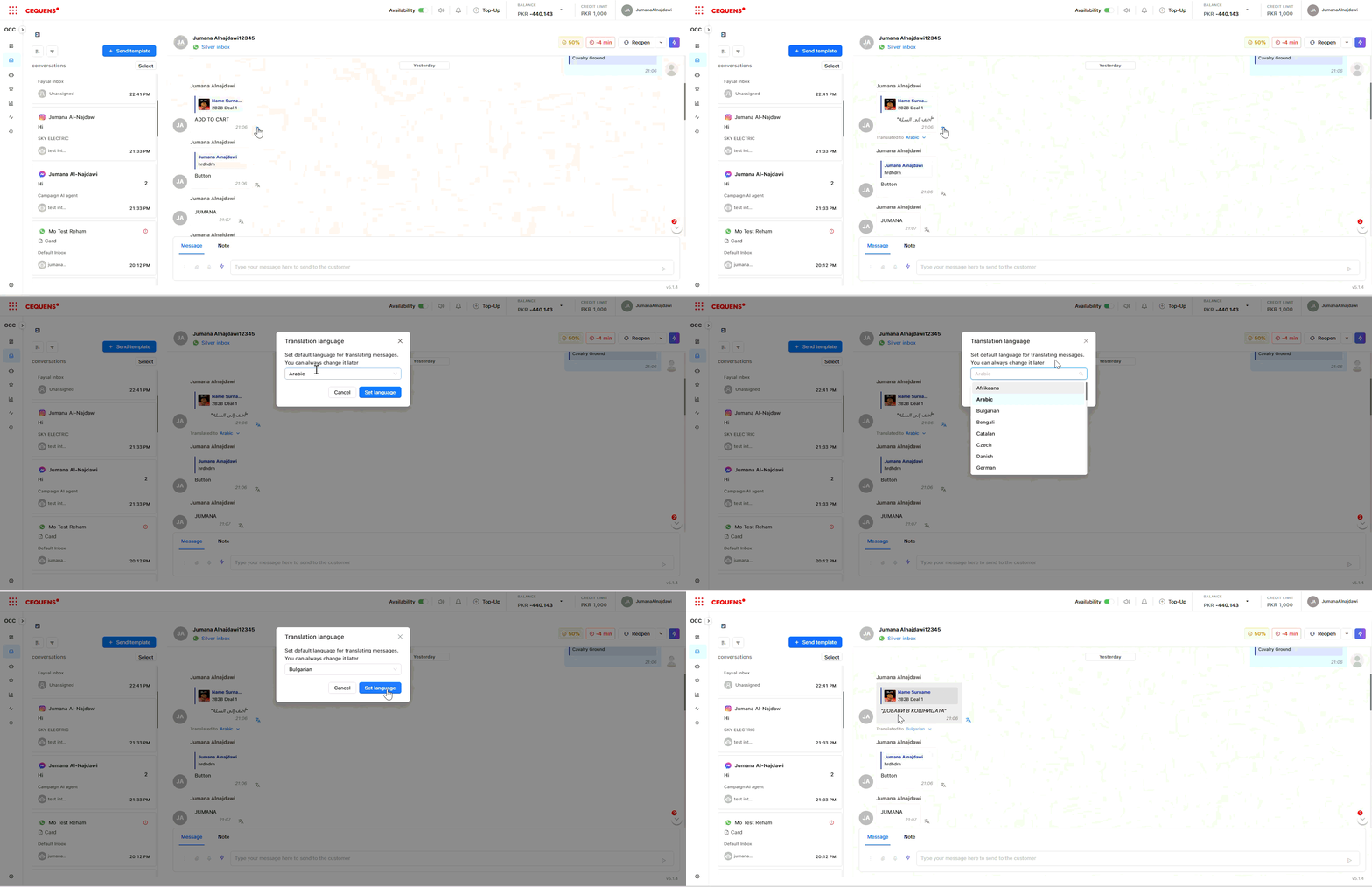
To use AI tools:
- Open a conversation
- Click the AI Tools icon in the message box
- Select the tool you want to use
- Review the AI-generated output
- Edit if needed and send
Pro Tip: Use "Suggest Reply" for quick responses to common questions, but always review AI suggestions before sending.
Sending and Receiving Media
To send media files:
- Click the attachment icon (📎) in the message box or the audio recorder icon
- Select a file from your computer:
- Audio: .aac, .amr, .mp3, .m4a, .ogg → max 16 MB - whether as a file from the device or as a recorded audio
- Document: .txt, .xls/.xlsx, .doc/.docx, .ppt/.pptx, .pdf → max 100 MB
- Image: .jpeg/.jpg, .png → max 5 MB
- Video: .3gp, .mp4 → max 16 MB
- Click Send
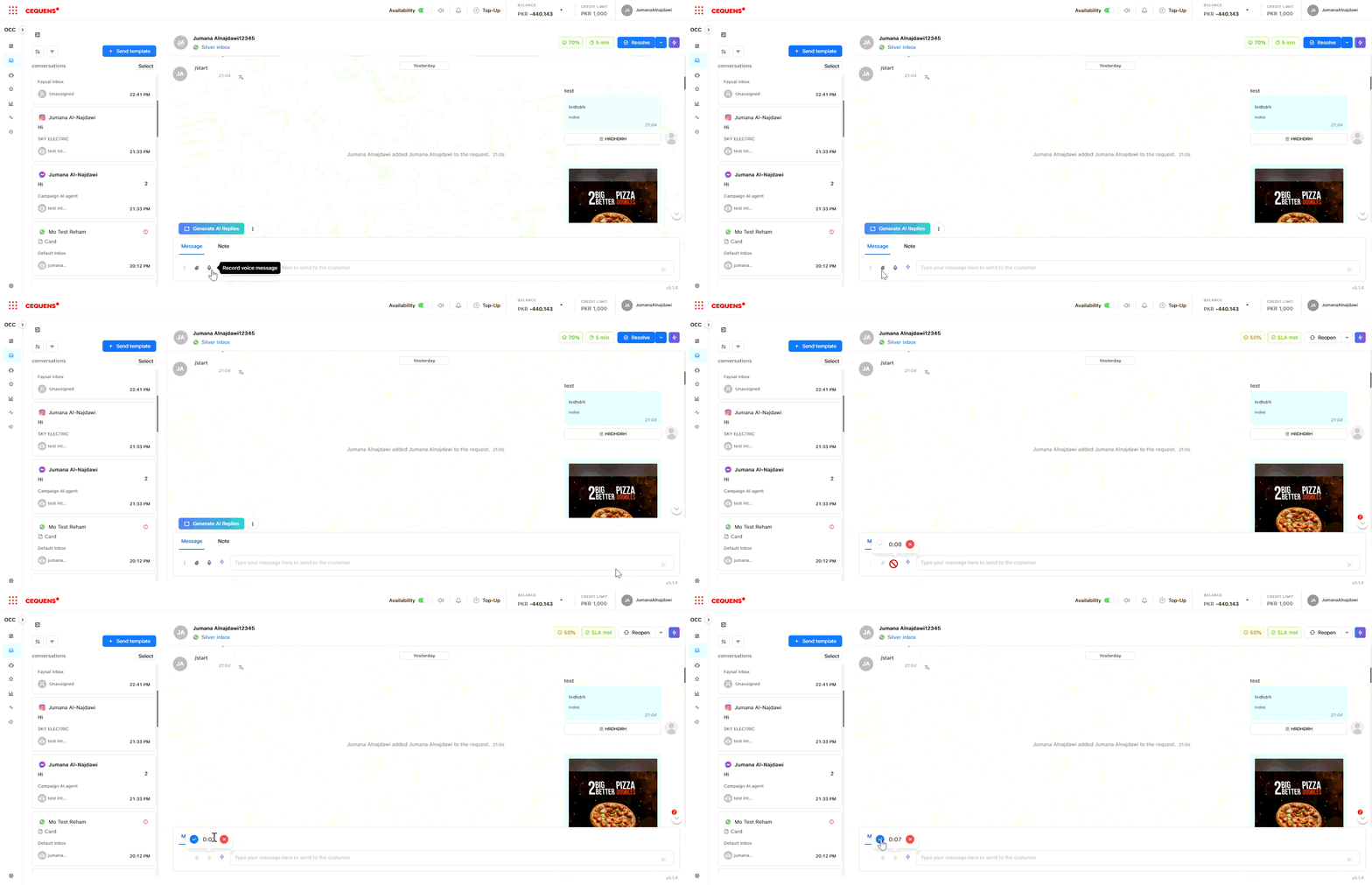
Media settings:
You can control whether agents can send or receive media files from customers:
- Go to Settings → Inbox → Select inbox → Media Settings
- Enable/disable "Send Media" or "Receive Media."
- If "Receive Media" is disabled, customers will see a custom message when they try to send files
Pro Tip: Disable "Receive Media" if you want to prevent customers from sending files (e.g., for security or compliance reasons).
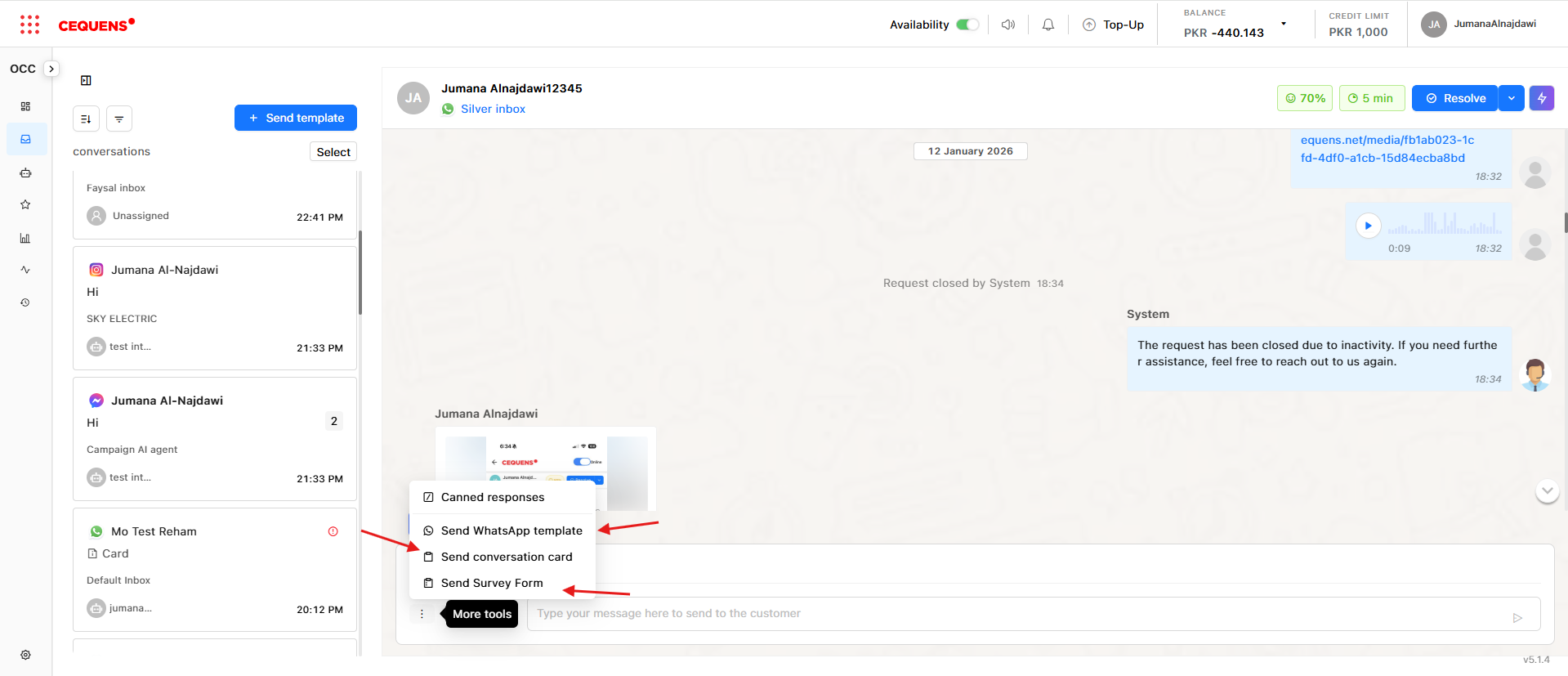
Other Tools
-
Sending WhatsApp Templates
- Sending a WhatsApp template message to the user outside of the 24-hour window, or sending a specific message to the user once needed
-
Sending Conversation Card
- A pre-built message card that might be: text, interactive messages, location, attachment, etc., for quick action
-
Sending a survey
- To collect feedback from the customer to see the responses later through the survey module.
Best Practices
For Efficient Communication:
- ✅ Use canned responses for FAQs to save time
- ✅ Add labels to conversations for better organization
- ✅ Use AI tools to improve response quality
- ✅ Mention teammates for internal collaboration on complex issues
- ✅ Send media files when visual explanations are needed
For Quality:
- ✅ Always review AI-generated responses before sending
- ✅ Personalize canned responses with customer names
- ✅ Use proper formatting for clarity
- ✅ Keep responses concise and friendly
Updated 9 months ago