
Instagram Onboarding Guide
Connect your Instagram Business account to manage conversations, automate replies, and use bots through Instagram Messaging.
1. Prerequisites
- Your Instagram account must be:
- A Business or Creator account
- Public (not private)
- Logged in at least once on the Instagram mobile app
- Instagram → Settings → Account → Switch to Professional Account
- A Facebook Page Linked to Your Instagram Account
- To verify: Facebook Page → Settings → Linked Accounts → Instagram
- A Facebook Account With Admin Access
- You must have admin access to the Facebook Page connected to the Instagram account.
- Access to Meta Business Manager
- Your Facebook account should have permissions for the Page and associated Instagram account.
2. Begin Setup
- Go to Channels → Instagram in our platform. https://console.cequens.com/instagram/settings
- Click Manage Instagram Accounts.
- Select Continue with Instagram.
A Meta popup will open to continue the setup.
3. Log in With Your Facebook Account
In the Meta popup:
- Sign in with the Facebook account that has admin access to the connected Page.
- Select the Instagram Business account you want to use.
- Select the Facebook Page linked to that Instagram account.
- Approve all requested permissions.
These permissions allow us to receive and send Instagram messages for you.
4. Grant Required Permissions
Meta will ask you to allow:
- Access to Instagram messages
- Access to the Instagram profile details
- Access to the connected Facebook Page
- Permission to manage conversations
- (Optional but recommended) access to account insights
- Press Continue to proceed.
| Select FB Page/s | Select Business Asset/s | Select Insta Page/s |
|---|---|---|
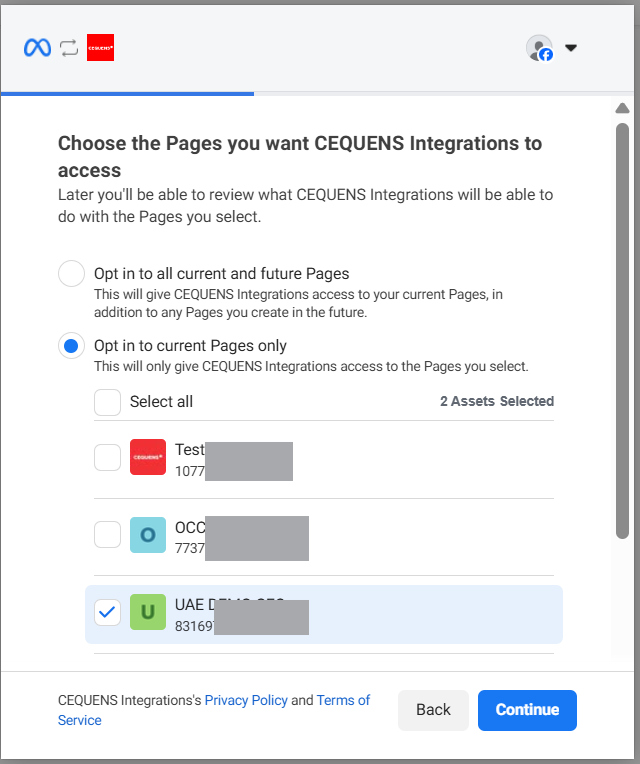 | 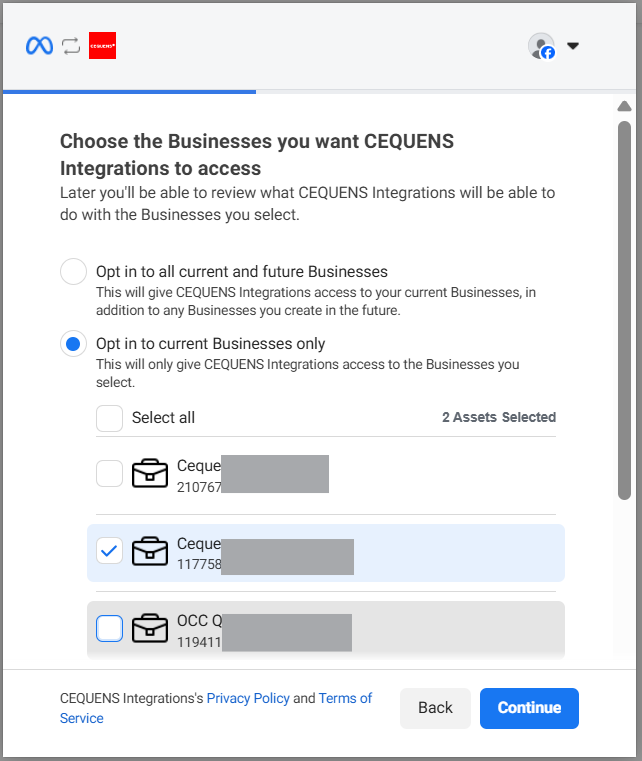 | 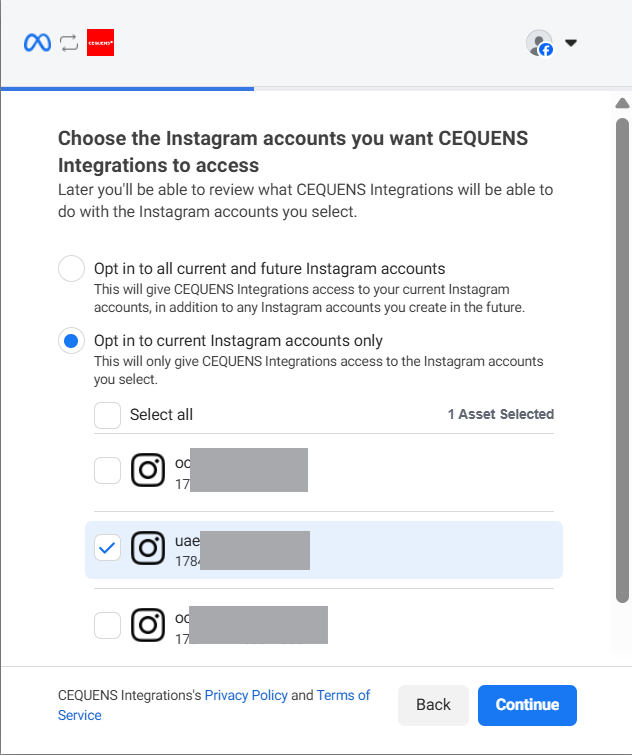 |
- View the selected items, and click Save
- Don't close the page until all changes are configured
5. Complete the Connection
After you approve permissions, Meta will redirect back to our platform.
We will automatically:
- Link your Instagram Business account
- Validate permissions
- Activate messaging
Your Instagram channel will show as Active once everything is ready.
6. Configure Your Channel
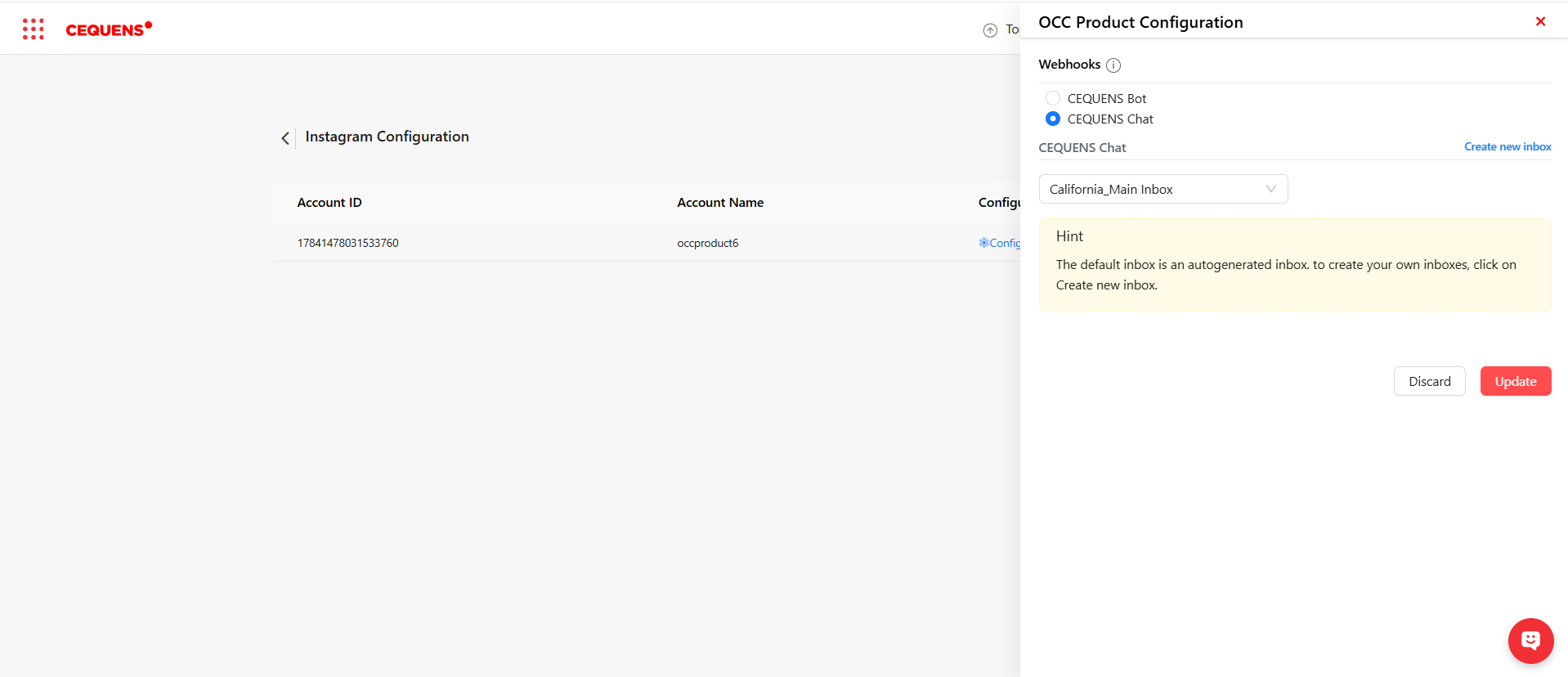
Once your channel is connected, you need to link it with a messaging endpoint so you can start sending and receiving messages. You can do this in one of two ways:
1️⃣CEQUENS Bot
- Link this channel with a Rule-based bot created in the CEQUENS system.
- Messages received on this channel will be handled by the bot according to your defined rules.
- Outgoing messages can also be automated using the bot’s workflows.
2️⃣CEQUENS Chat
- Link this channel to CEQUENS Omni-Channel Chat (OCC) service.
- All messages will flow directly to the Omni-Channel Chat inbox, allowing your agents to manage customer conversations in real-time.
- Ideal for businesses that want agent-assisted chat instead of full automation.
Note: Only one linking method can be selected per channel at a time. You can change this later by reconfiguring the channel in the console.
7. Troubleshooting
⚠ Instagram account doesn’t appear during Meta selection
- Make sure the Instagram account is Business/Creator
- Confirm it's linked to a Facebook Page
- Check that you have Admin access
- Ensure you're logged into the correct Facebook account
⚠ Messages are not being received
- Go to:
Instagram App → Settings → Privacy → Messages → Connected Tools
Ensure that message access is allowed - Confirm the account is not private
- Check message inbox filters (Primary / General / Requests)
⚠ Permissions error after connecting
If you see any permission-related errors:
- Go to Facebook → Settings → Business Integrations
- Remove our platform integration
- Reconnect Instagram through our console
This refreshes permissions.
⚠ I changed my Instagram or Facebook Page password
Changing your password will invalidate some permissions.
To restore full functionality:
👉 Open our console → go to Channels → Instagram → click Reconnect
This will reauthorize your Instagram Page and fix the issue.
⚠ I connected Instagram directly through Meta instead of through the console
If you connected Instagram manually through Meta:
- Required permissions may not be granted
- Webhooks may not be configured
- Messaging will not work correctly
To fix this, you must:
👉 Redo the entire onboarding through our console so all settings are configured properly.
⚠ Instagram Messaging is not available or restricted
This may happen if:
- The account is new
- The account is restricted or under review
- Activity thresholds have not been met
Wait 24–48 hours or contact support if the issue continues.
🎉 You're All Set!
Your Instagram Business account is now connected.
You can start receiving DMs, automating replies, handling story responses, and building powerful Instagram experiences through our platform.
Updated 10 months ago