
Inbox & Conversations
Overview
The Inbox is your main workspace for managing customer conversations. This is where agents spend most of their time—viewing requests, replying to customers, collaborating with teammates, and using tools to provide faster, better support.
Understanding Conversation Views
OCC displays conversations in three different locations depending on their status:
Dashboard
Who sees it: Admins and Agents
What it shows: All active requests across all inboxes
- Unassigned requests
- Requests assigned to agents
- Requests assigned to bots
- Real-time metrics (total requests, response times, etc.)
- Tables showing request distribution by agent and inbox
Use it for:
- Monitoring overall team workload
- Assigning conversations to agents
- Bulk actions (assign, close, or label up to 20 requests at once)
- Filtering by inbox, channel, agent, or status
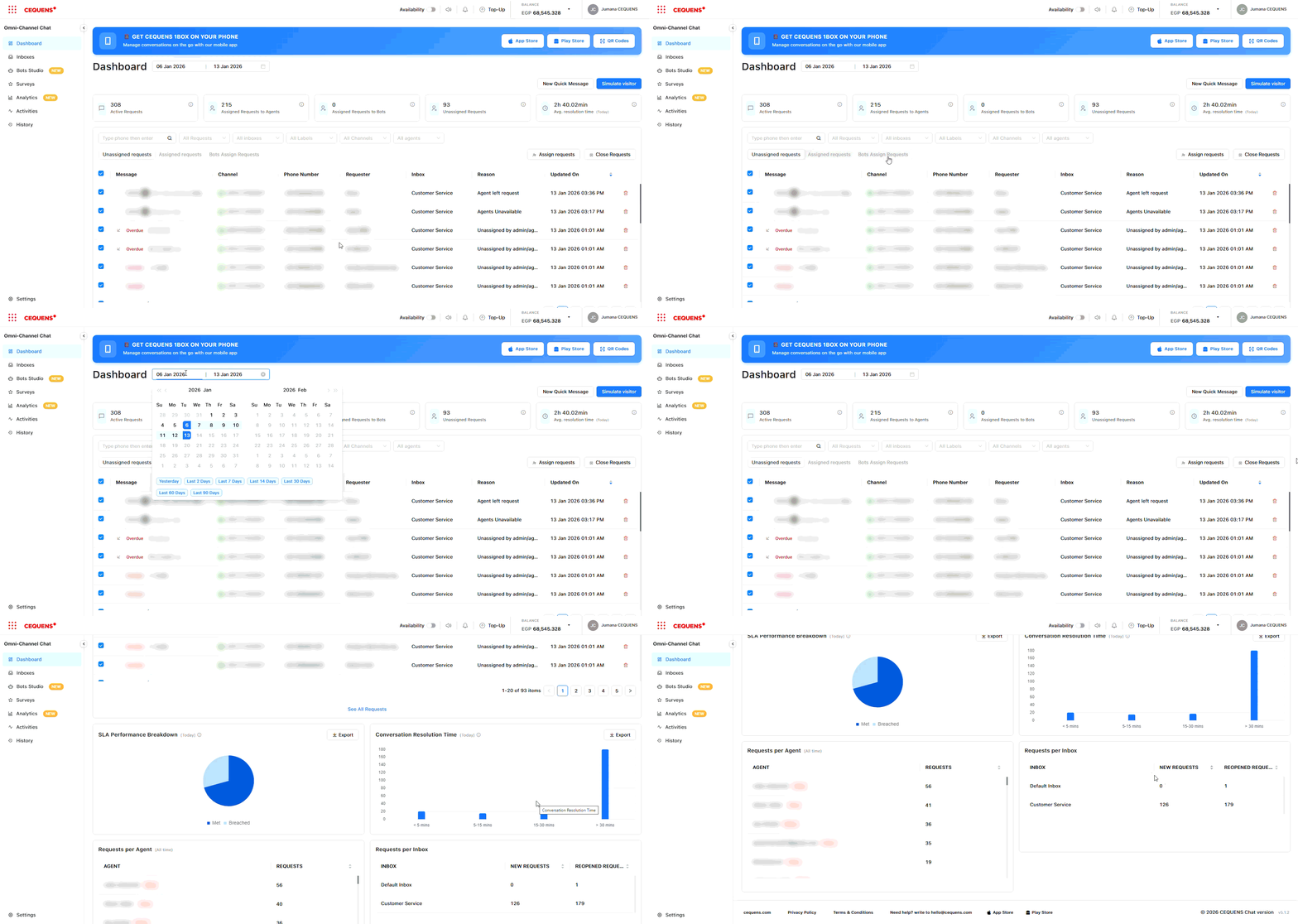
Pro Tip: Use Dashboard filters to quickly find specific conversations, such as "unassigned requests in the Support inbox."
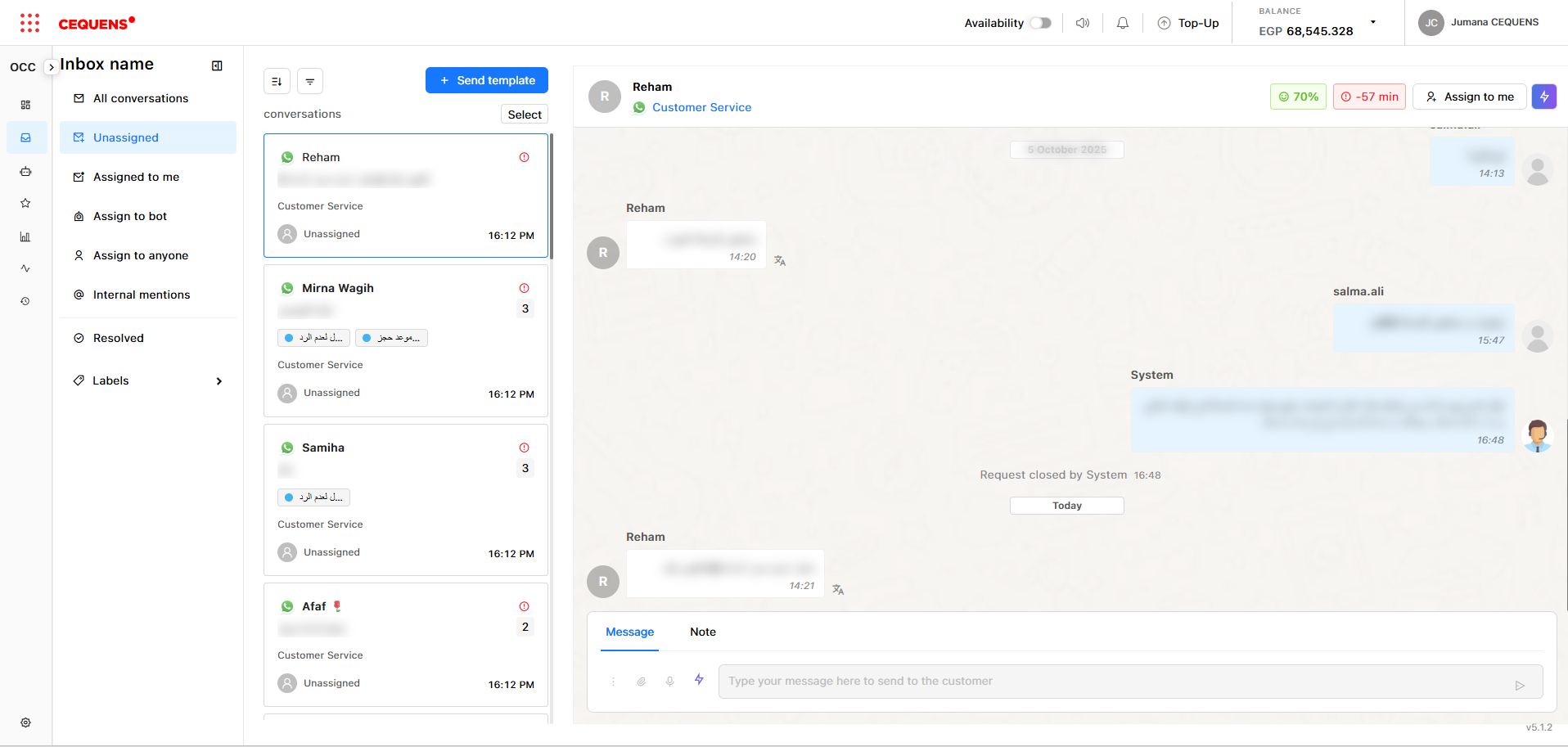
Inbox
Who sees it: All users (Admins, Agents)
What it shows:
- For Agents: Requests assigned to them
- For Admins/Supervisors: All active requests (same as Dashboard, but in conversation view)
Use it for:
- Daily conversation management
- Reading and replying to customer messages
- Using conversation tools (labels, AI, mentions, etc.)
- Viewing conversation history and customer details
History
Who sees it: Admins and Supervisors
What it shows: All resolved or closed requests
Use it for:
- Reviewing past conversations
- Auditing agent performance
- Finding conversation details after resolution
- Exporting historical data
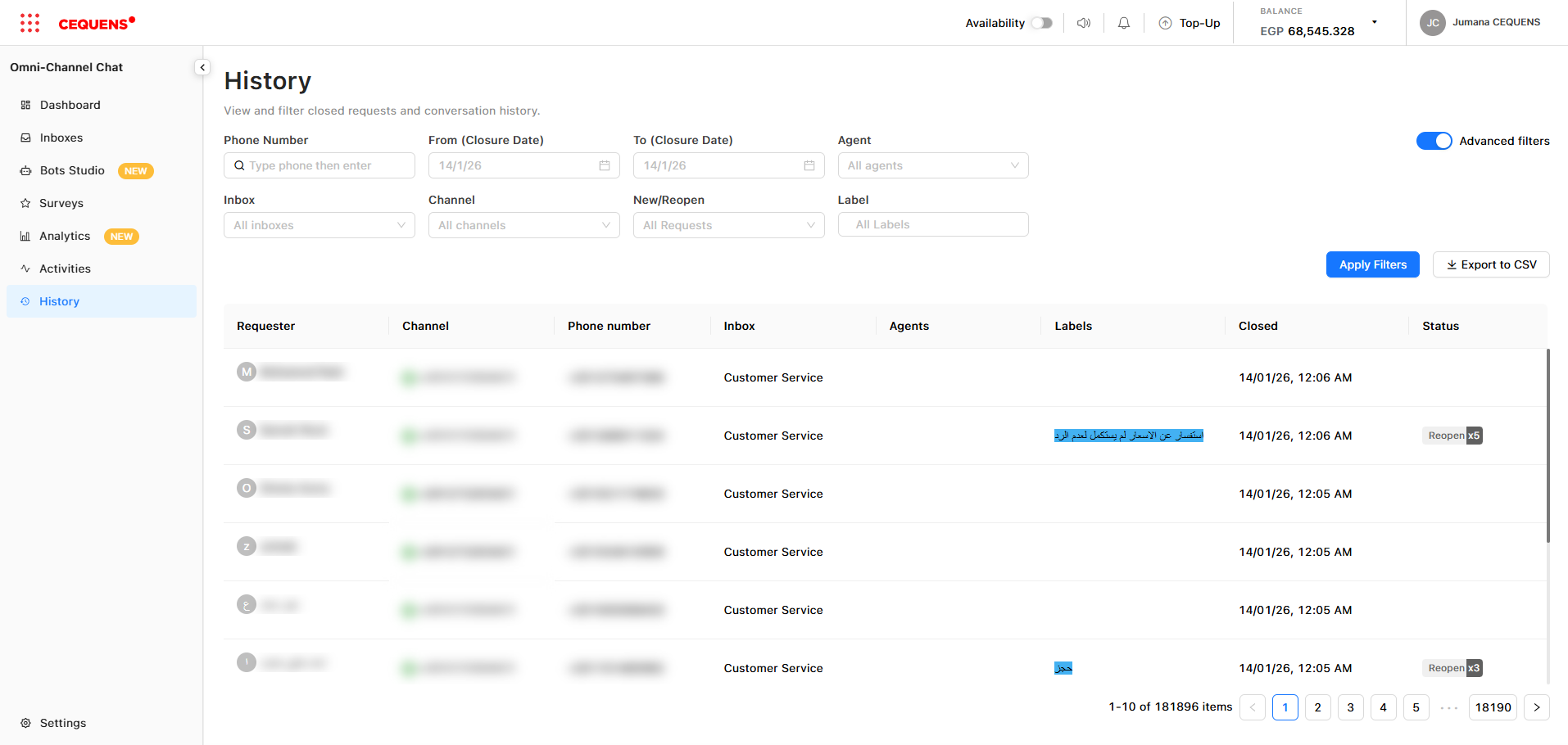
Key Difference: Dashboard shows active requests, History shows closed requests.
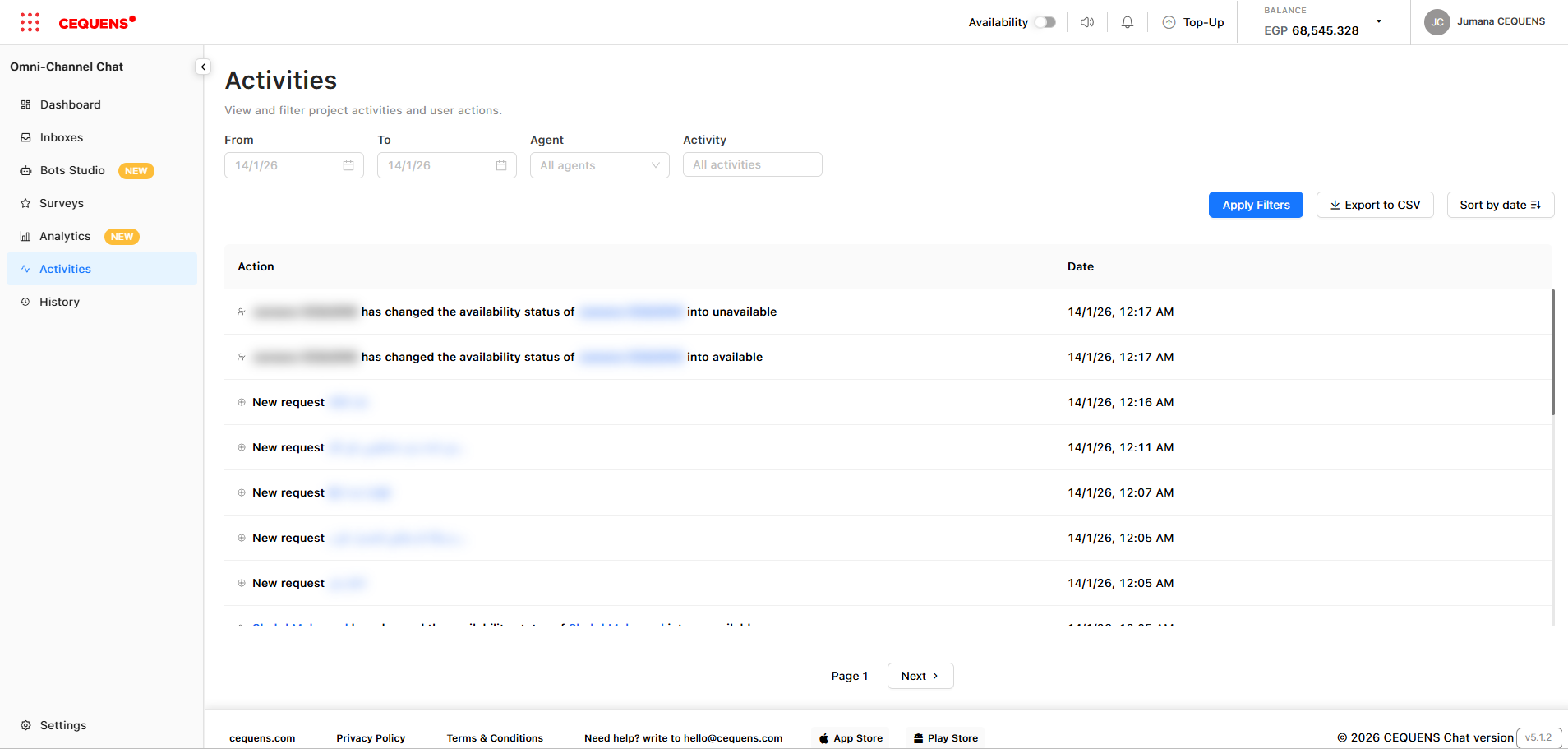
Activities
Who sees it: Admins and Supervisors
What it shows: System activity log displaying:
- New requests created
- Agent updates (assignments, status changes)
- Agent invitations sent
Use it for:
- Monitoring system activity in real-time
- Tracking agent actions
- Auditing user management changes.
Updated 9 months ago