
Media Settings
Overview
Media settings control whether agents can send files to customers and whether customers can send files to agents. This helps maintain security, compliance, and control over file sharing in conversations.
To access media settings:
- Go to Settings → Inbox
- Select your inbox
- Click the "Media Settings" tab
Send Media (Agent to Customer)
Control whether agents can send files to customers.
To configure:
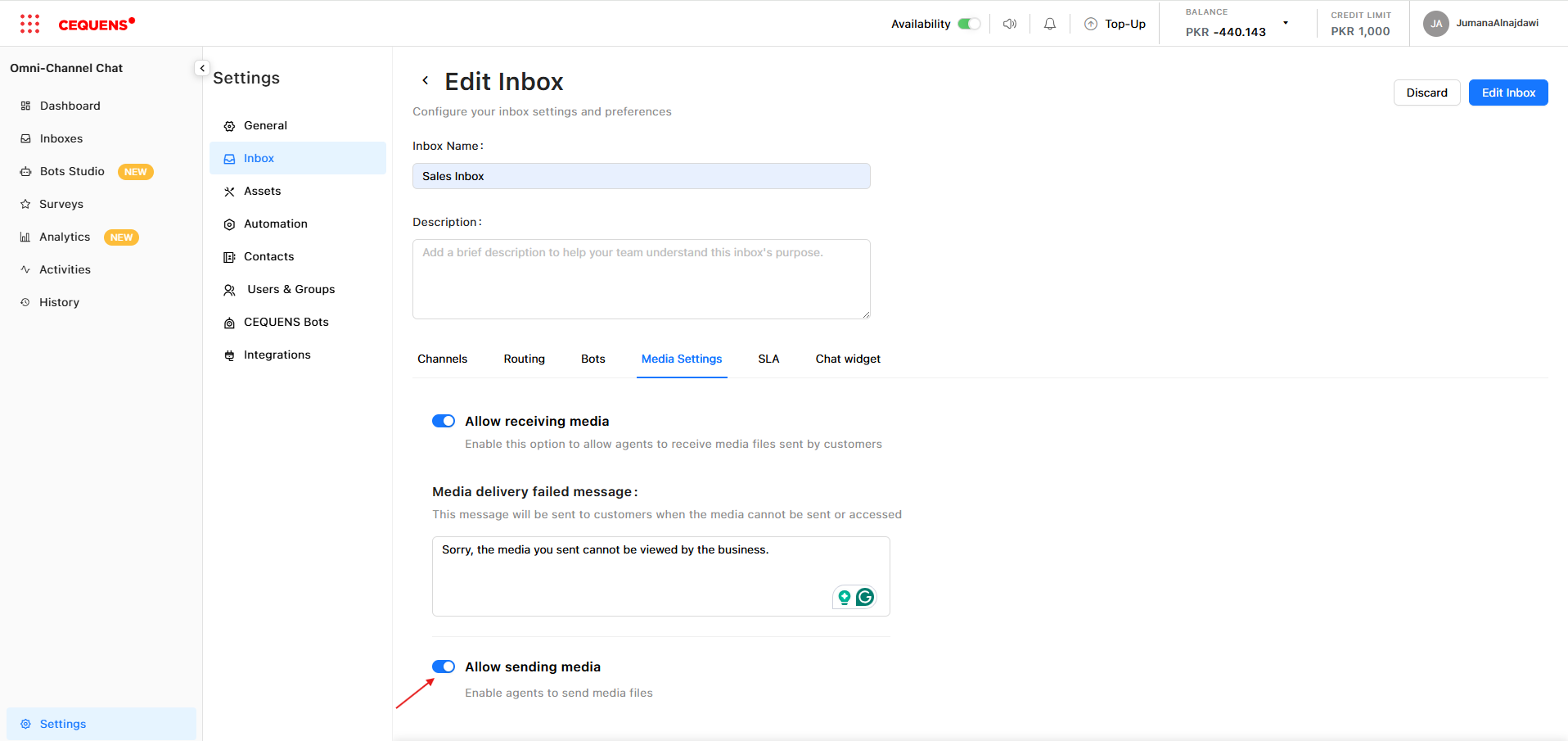
- In Media Settings, find "Send Media"
- Toggle ON or OFF
- Click Save
When enabled:
- Agents see the attachment icon (📎) in the message box
- Agents can send images, documents, videos, and other files
- File types supported: JPG, PNG, GIF, WEBP, PDF, DOCX, MP4, etc.
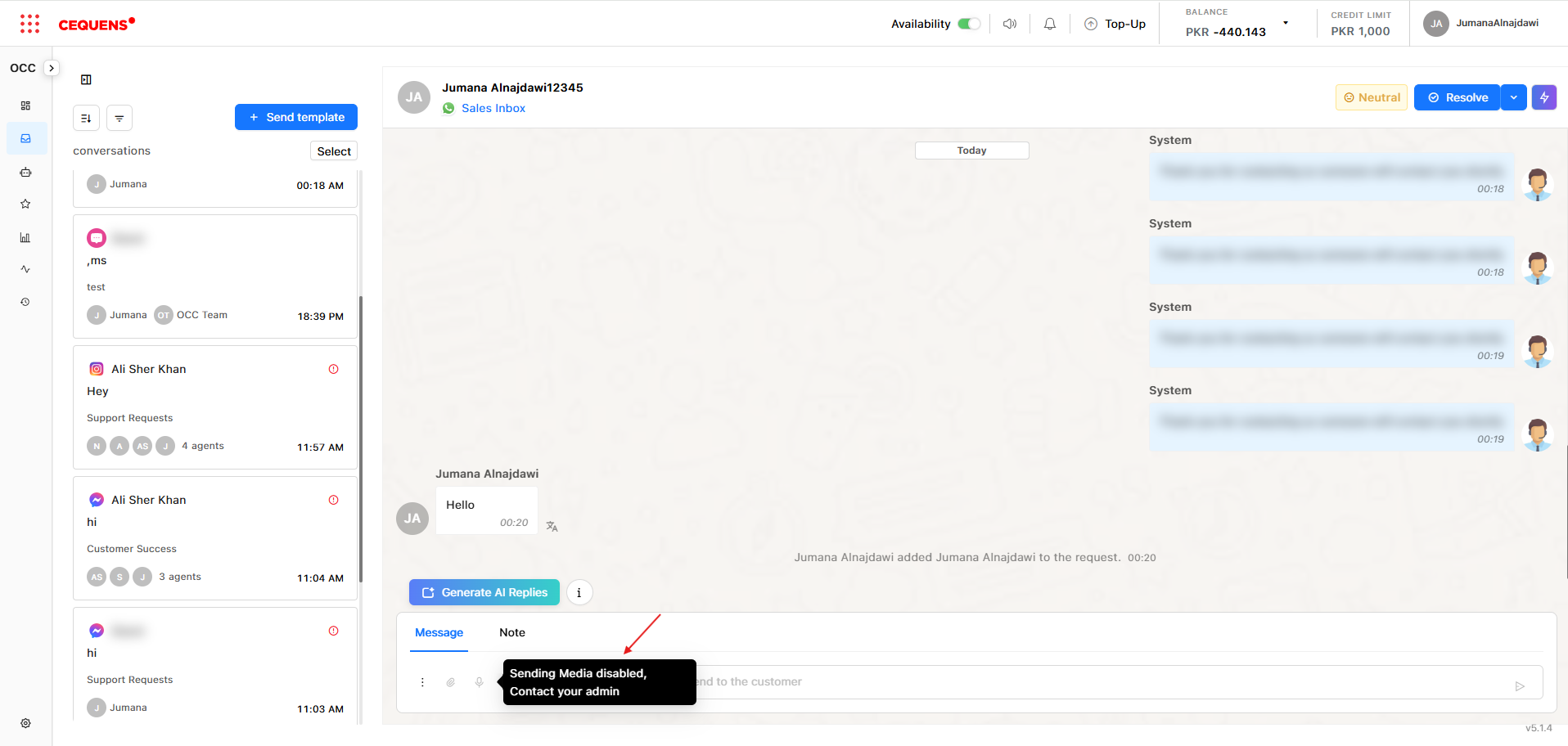
When disabled:
- The attachment icon is hidden from agents
- Agents can only send text messages
When to disable:
- Compliance requirements prohibit file sharing
- You want to limit support to text-only interactions
- Security concerns about agents accidentally sending sensitive files
Receive Media (Customer to Agent)
Control whether customers can send files to agents.
To configure:
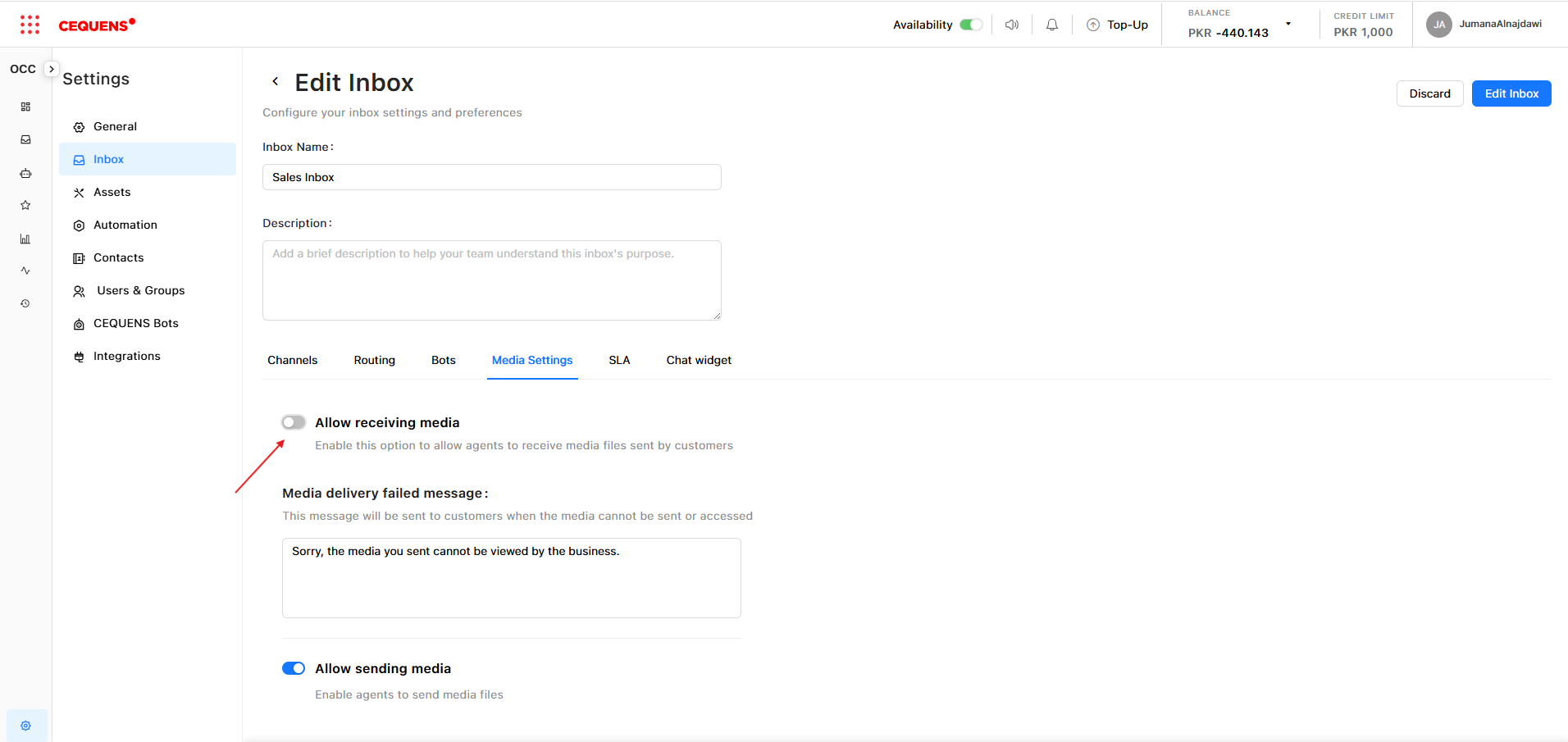
- In Media Settings, find "Receive Media"
- Toggle ON or OFF
- If OFF, enter a custom message customers will see when they try to send files
- Click Save
When enabled:
- Customers can send images, documents, and other files
- Files appear in the conversation for agents to view and download
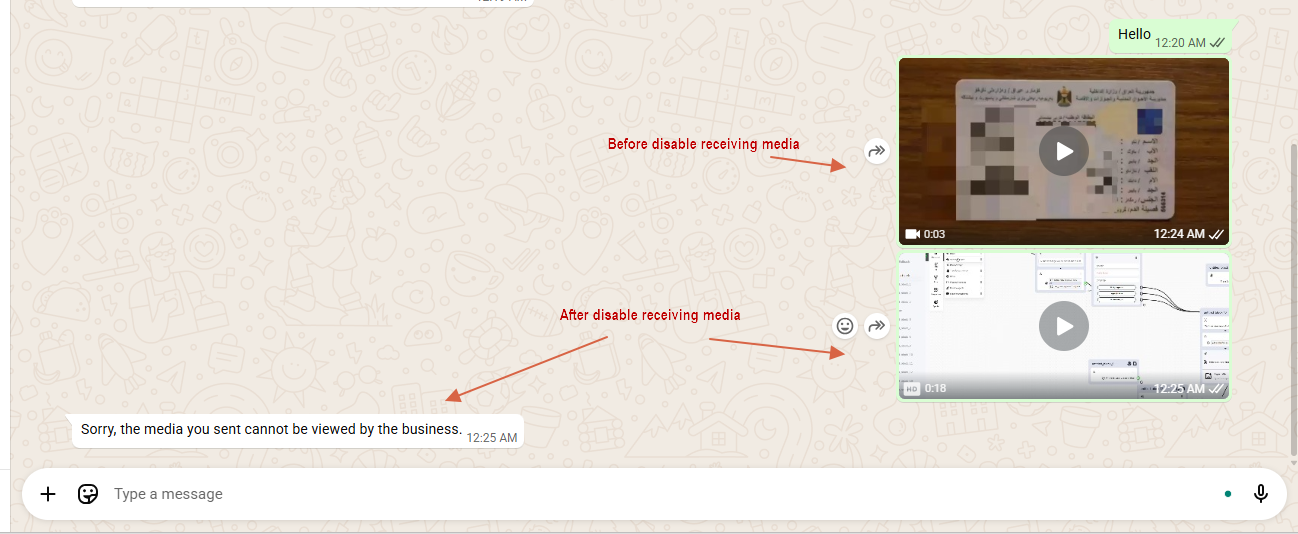
When disabled:
- Customers cannot upload files
- If a customer tries to send a file, they see your custom message
- Agents see an indicator that the customer attempted to send media
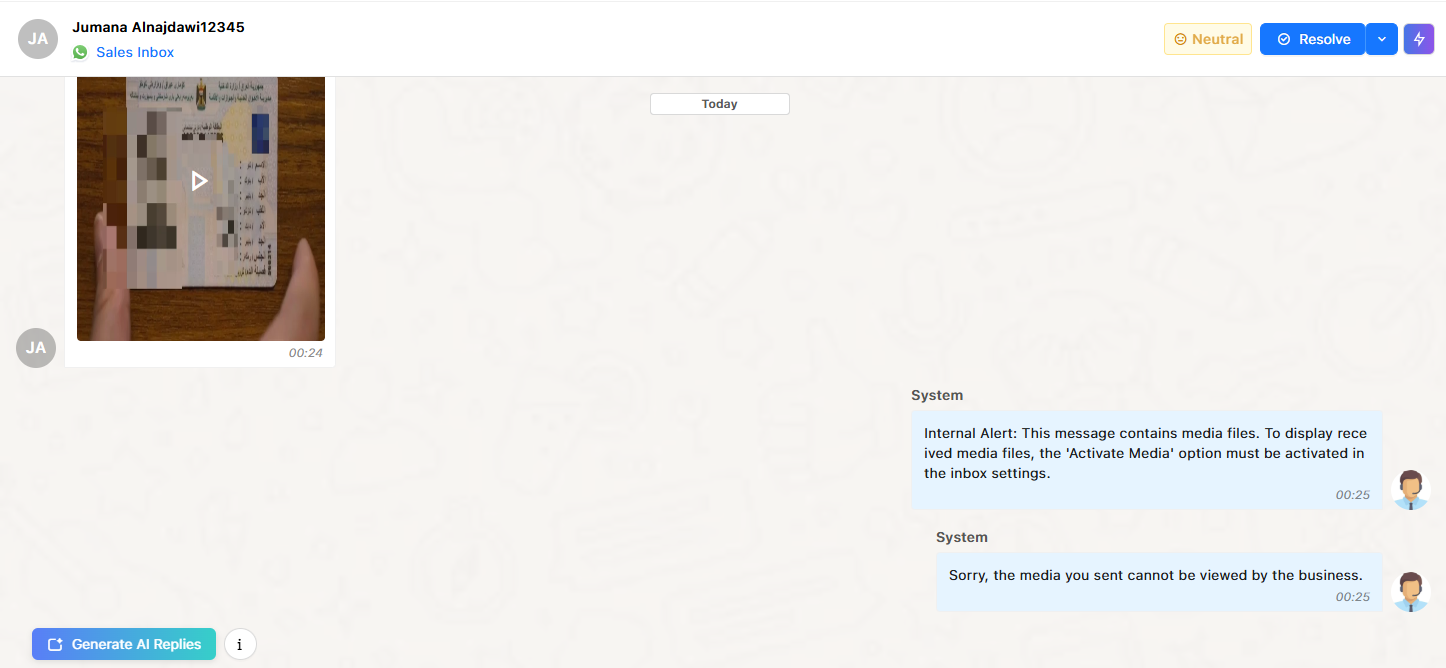
Custom message example:
"Sorry, the media you sent cannot be viewed by the business."
Supported File Types
- Audio: .aac, .amr, .mp3, .m4a, .ogg → max 16 MB
- Document: .txt, .xls/.xlsx, .doc/.docx, .ppt/.pptx, .pdf → max 100 MB
- Image: .jpeg/.jpg, .png → max 5 MB
- Video: .3gp, .mp4 → max 16 MB
Security Considerations
Receiving Media from Customers:
Risks:
- Large files can consume storage space
- Inappropriate content may be shared
Best practices:
- ✅ Scan files with an antivirus before opening
- ✅ Train agents not to open suspicious files
- ✅ Set up file retention policies to delete old media
- ✅ Consider disabling media for high-security inboxes
Sending Media to Customers:
Risks:
- Agents might accidentally send sensitive internal documents
- Large files can impact customer experience on slow connections
Best practices:
- ✅ Train agents on what files are appropriate to share
- ✅ Use a standard library of approved files (e.g., product guides, FAQs)
- ✅ Compress large files before sending
- ✅ Verify file contents before sending
Use Cases
Enable both send and receive:
- Standard customer support: Customers send screenshots of issues; agents send instructional documents
- E-commerce support: Customers send photos of products; agents send order confirmations
- Technical support: Customers send error logs; agents send troubleshooting guides
Disable receive media:
- Financial services: Compliance regulations prohibit receiving customer documents
- High-security environments: Prevent malware risks
- Text-only support: Keep conversations simple and fast
Disable send media:
- Compliance requirements: Agents cannot share files externally
- Branding control: All documents must go through approval process
- Minimize agent errors: Prevent accidental file sharing
Best Practices
For Security:
- ✅ Disable media for inboxes handling sensitive information
- ✅ Train agents on file security best practices
- ✅ Regularly audit what files are being shared
- ✅ Implement file retention policies
For User Experience:
- ✅ Enable media when it improves support quality (e.g., screenshots help troubleshoot)
- ✅ Use clear custom messages when media is disabled
- ✅ Provide alternative ways to share files (e.g., "Email documents to [email protected]")
Troubleshooting
Agent can't send files
Check:
- ✅ Send Media is enabled in Media Settings
- ✅ File type is supported
- ✅ File size is within limits
- ✅ Agent has proper permissions
Customer says they can't send files
Check:
- ✅ Receive Media is enabled in Media Settings
- ✅ Custom message is set if media is disabled
- ✅ File type is supported by the channel (e.g., WhatsApp, Widget)
- ✅ Customer's file size is within limits
Files aren't displaying in conversation
Check:
- ✅ File was successfully uploaded (check for upload errors)
- ✅ Agent has permission to view media
- ✅ File type is supported by OCC
- ✅ Clear browser cache and refresh
Updated 9 months ago