
Integrations
Overview
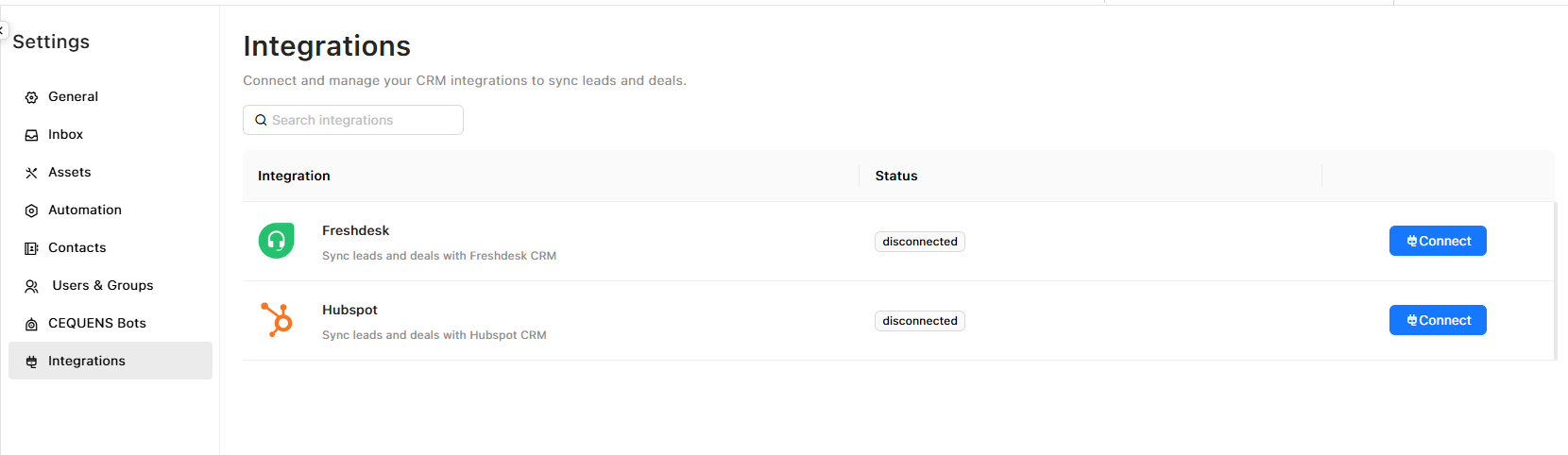
Integrations connect OCC with third-party tools to sync data, automate workflows, and enhance your customer support operations. Currently, OCC supports integrations with HubSpot, Freshdesk, and CEQUENS Bots.
To access Integrations:
- Go to Settings from the sidebar
- Click Integrations
Available Integrations
HubSpot
Sync customer contact data between OCC and HubSpot CRM.
What syncs:
- Contacts created in OCC are automatically created/updated in HubSpot
- Contact information (name, email, phone)
Use cases:
- Maintain a single source of truth for customer data
- Track support interactions in your CRM
- Segment customers based on support history
- Trigger HubSpot workflows from OCC conversations
Freshdesk
Integrate OCC conversations with Freshdesk ticketing system.
What syncs:
- Create Freshdesk tickets from OCC conversations
- Sync contact information
- Update ticket status from OCC
- View ticket details in OCC
Use cases:
- Escalate complex issues to your ticketing system
- Track conversations as support tickets
- Maintain unified customer history
- Report on support metrics across both platforms
Setting Up HubSpot Integration
Prerequisites
Before connecting HubSpot:
- ✅ Active HubSpot account
- ✅ Admin access to HubSpot
- ✅ HubSpot API key or OAuth credentials
Connection Steps
To connect HubSpot:
- Go to Settings → Integrations
- Find HubSpot in the integrations list
- Click "Connect"
- Choose authentication method:
- OAuth (Recommended): Click "Connect with HubSpot" and log in
- API Key: Enter your HubSpot API key
- Select sync settings:
- Which contact fields to sync
- Sync direction (OCC → HubSpot, bidirectional, etc.)
- How to handle conflicts (OCC overwrites HubSpot or vice versa)
- Click "Connect"
What happens:
- OCC and HubSpot begin syncing immediately
- Existing OCC contacts are synced to HubSpot (initial sync)
- Future contacts created in OCC are automatically synced
Configuring Sync Settings
Field mapping:
- Map OCC contact fields to HubSpot properties
- Default mappings: Name → Name, Email → Email, Phone → Phone
- Custom mappings: Map OCC custom attributes to HubSpot custom properties
Sync frequency:
- Real-time: Contacts sync immediately (recommended)
- Scheduled: Sync every X minutes/hours
Conflict resolution:
- OCC as master: OCC data overwrites HubSpot
- HubSpot as master: HubSpot data overwrites OCC
- Manual review: Prompt user to resolve conflicts
Testing the Integration
To verify HubSpot integration:
- Create a test contact in OCC (start a conversation)
- Wait a few seconds for sync
- Check HubSpot to confirm contact appears
- Update contact info in OCC
- Verify changes appear in HubSpot
Setting Up Freshdesk Integration
Prerequisites
Before connecting Freshdesk:
- ✅ Active Freshdesk account
- ✅ Admin access to Freshdesk
- ✅ Freshdesk API key
Connection Steps
To connect Freshdesk:
- Go to Settings → Integrations
- Find Freshdesk in the integrations list
- Click "Connect"
- Enter your Freshdesk domain (e.g.,
yourcompany.freshdesk.com) - Enter your Freshdesk API key (found in Freshdesk under Profile Settings → API Key)
- Configure sync settings:
- When to create tickets (e.g., on conversation creation, on specific label)
- Ticket priority mapping
- Which OCC fields map to Freshdesk ticket fields
- Click "Connect"
What happens:
- OCC conversations can now create Freshdesk tickets
- Contact information syncs between platforms
- Ticket updates in Freshdesk can reflect in OCC (if bidirectional sync is enabled)
Creating Tickets from Conversations
Manual ticket creation:
- Open a conversation in OCC
- Click "Create Ticket" or Freshdesk icon
- Ticket is created in Freshdesk with conversation details
- Ticket ID/link appears in OCC conversation
Automatic ticket creation (via automation):
- Set up an automation to create Freshdesk tickets based on conditions
- Example: Create ticket when label "Escalated" is added
Managing Integrations
Viewing Integration Status
To check integration status:
- Go to Settings → Integrations
- View list of integrations with status indicators:
- 🟢 Connected: Integration is active
- 🔴 Disconnected: Integration is not active
Click on an integration to view:
- Connection details
- Last sync time
- Error logs (if any)
- Sync statistics (contacts synced, tickets created, etc.)
Editing Integration Settings
To modify integration settings:
- Go to Settings → Integrations
- Click on the integration you want to edit
- Update:
- Sync settings
- Field mappings
- Sync frequency
- Click Save
Changes take effect immediately.
Disconnecting Integrations
To disconnect an integration:
- Go to Settings → Integrations
- Click on the integration
- Click "Disconnect" or "Remove"
- Confirm disconnection
What happens:
- Syncing stops immediately
- Existing synced data remains in both systems
- No data is deleted from either platform
- You can reconnect at any time
Integration Best Practices
HubSpot:
- ✅ Map all relevant contact fields for complete data sync
- ✅ Set OCC as master if agents primarily update info in OCC
- ✅ Monitor sync logs weekly for errors
- ✅ Use HubSpot workflows triggered by OCC data
Freshdesk:
- ✅ Only create tickets for conversations needing escalation
- ✅ Use labels or automations to control ticket creation
- ✅ Train agents on when to manually create tickets
- ✅ Set up ticket priority mapping based on conversation urgency
General:
- ✅ Test integrations with dummy data first
- ✅ Document integration workflows for your team
- ✅ Review integration logs regularly
- ✅ Keep API keys secure and rotate them periodically
- ✅ Disable unused integrations to reduce complexity
Troubleshooting
HubSpot: Contacts not syncing
Check:
- ✅ Integration is Connected (green status)
- ✅ Contact has required fields (email or phone)
- ✅ No API rate limits exceeded in HubSpot
- ✅ Field mappings are correct
- ✅ Review error logs for specific issues
Try:
- Disconnect and reconnect integration
- Manually trigger a sync (if option available)
- Check HubSpot API key hasn't expired
Freshdesk: Tickets not creating
Check:
- ✅ Integration is Connected
- ✅ Freshdesk API key is valid
- ✅ Ticket creation trigger/automation is configured correctly
- ✅ Required Freshdesk fields are mapped
- ✅ No API rate limits exceeded
Try:
- Test manual ticket creation from a conversation
- Review error logs in OCC
- Verify Freshdesk domain is correct
Updated 9 months ago