
Managing Conversations
Viewing Conversations
From Dashboard or Inbox:
- Navigate to Dashboard or Inbox from the sidebar
- Click on any conversation to open it in the right panel
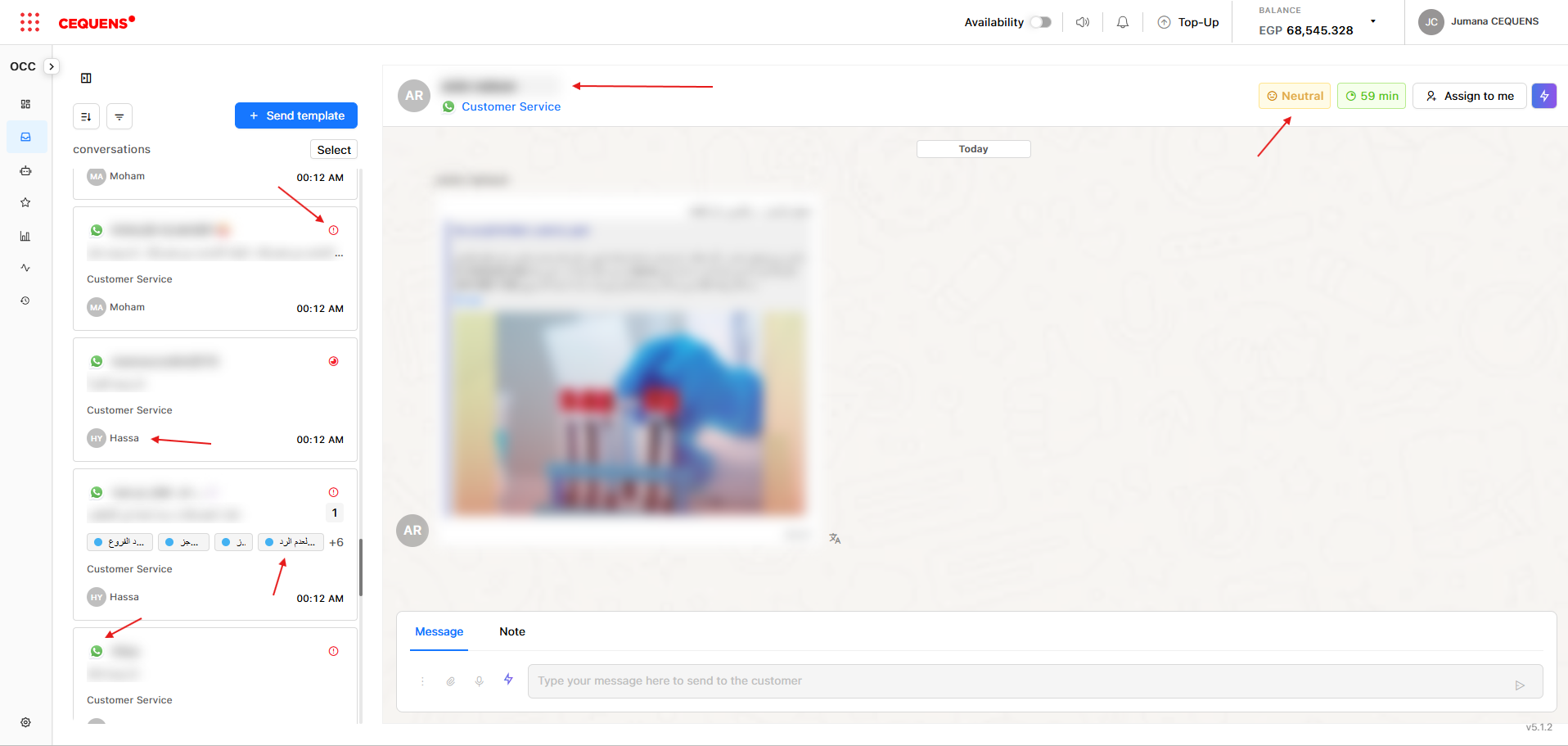
- View:
- Customer details (name, contact info, channel)
- Full message history
- Assigned agent (if any)
- Labels
- SLA status indicator
- Sentiment
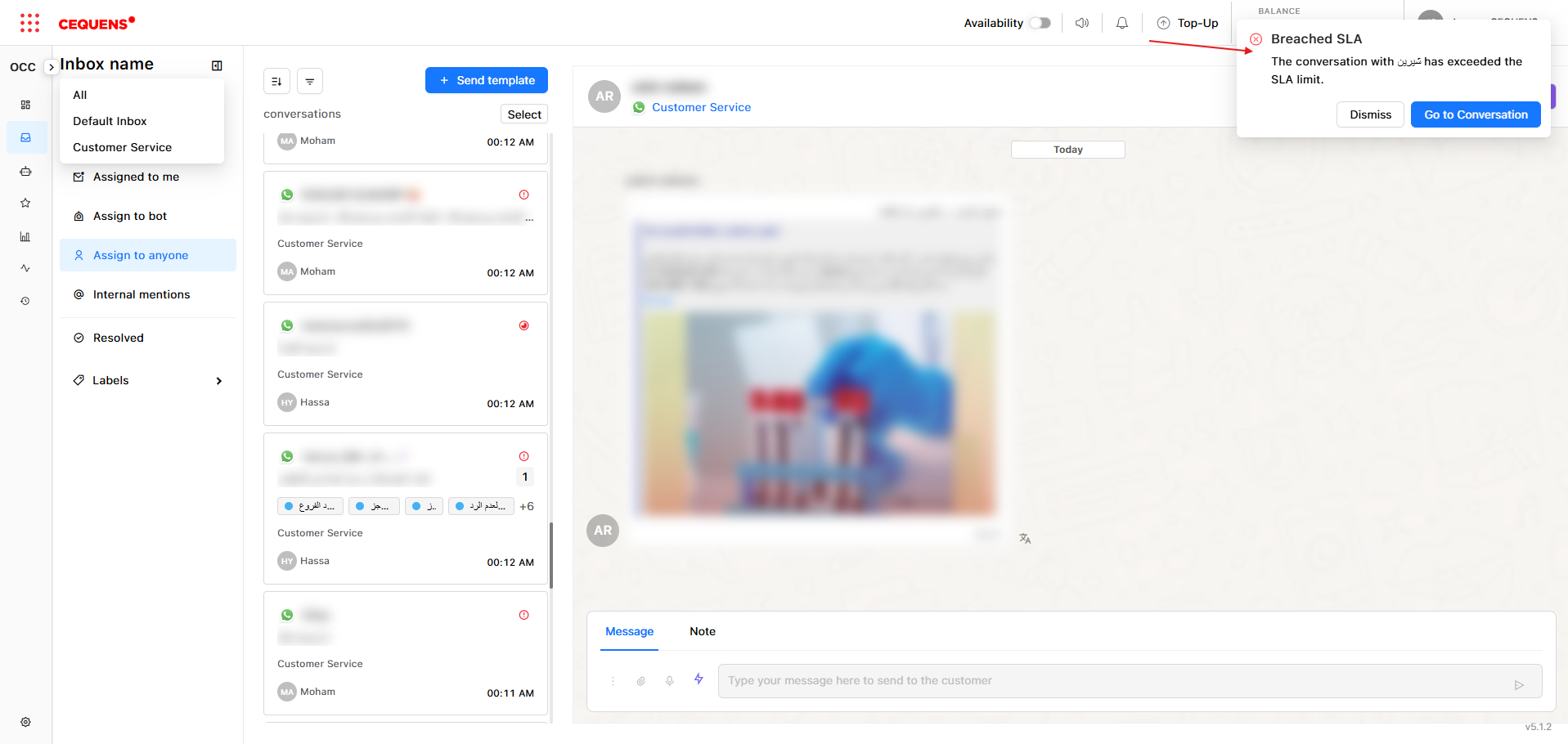
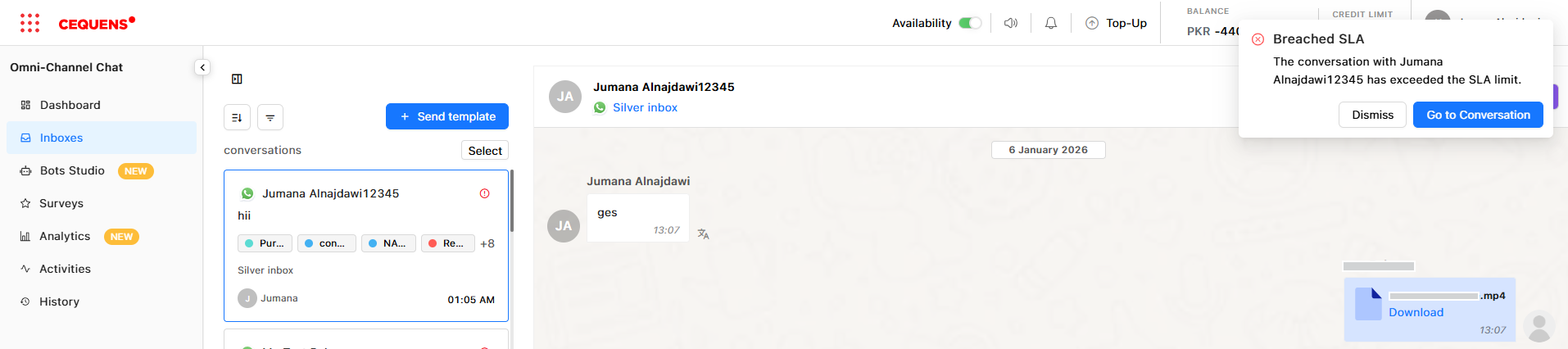
- Real-time notification for breached SLA conversations
-
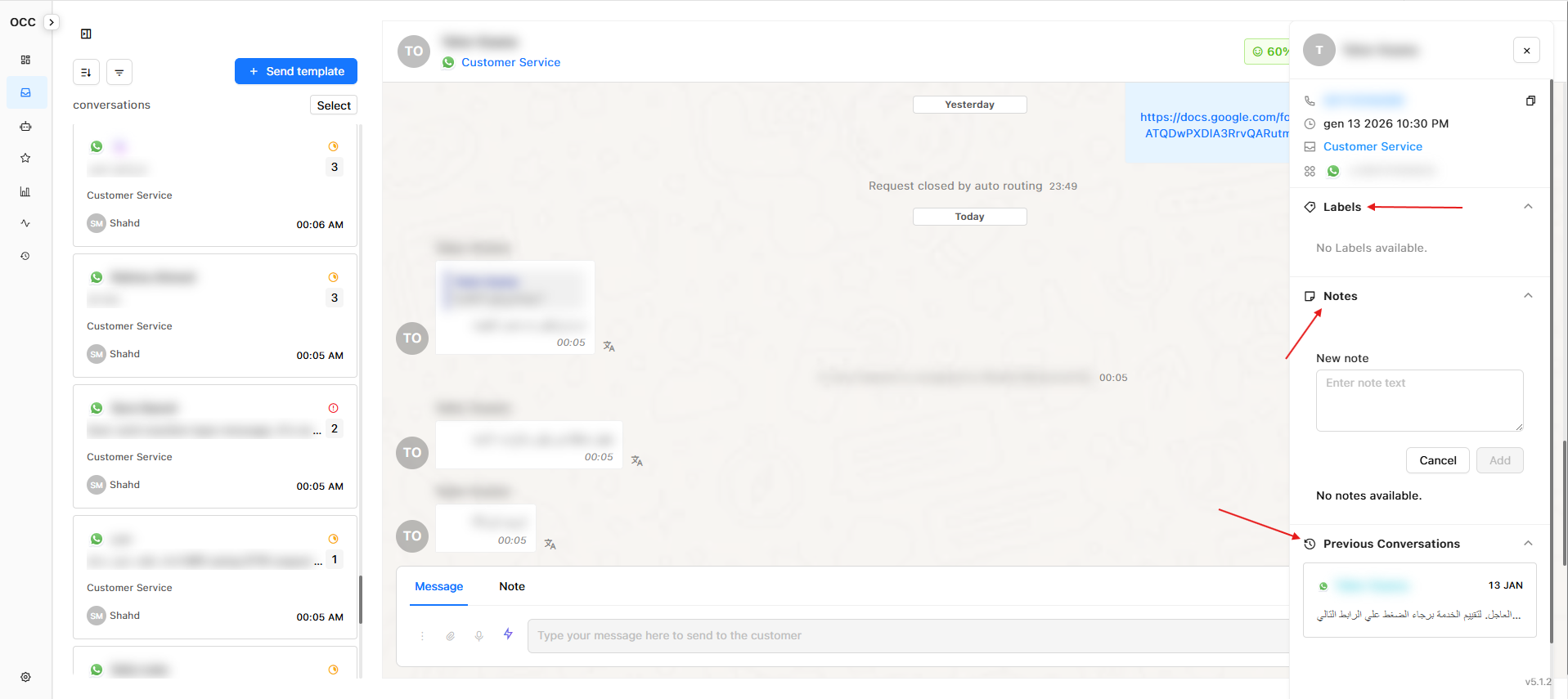
View 'Previous Conversations', labels or notes added for the user's request
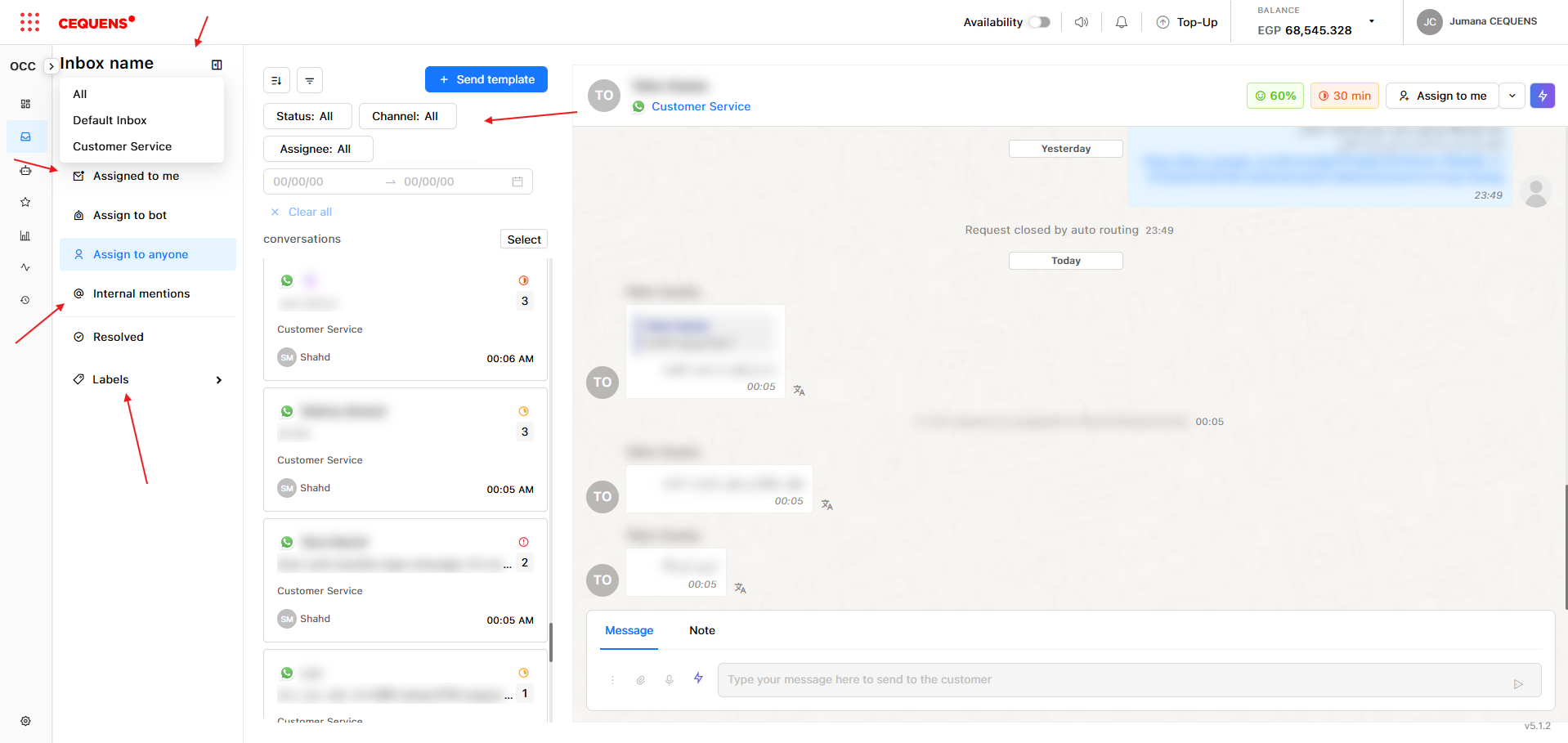
Filtering conversations:
- Click the filter or sort icons to narrow by:
- Inbox
- Quick filters: all conversations, unassigned conversations, assigned to me, assigned to bot, assign to anyone/agents, conversations with internal mentions, resolved conversations & labels
- Filters: channel (WhatsApp, Instagram, Widget, etc.), status, assignee, and time
- Sort: date, send name, message update & remaining time --> ascending and descending
Assigning Conversations
Manual assignment:
- Select one or more conversations from the inbox
- you can use the 'Assign to me' as a quick action or
- Click "Assign" button
- Choose an agent, inbox, or bot from the dropdown
- Click Reassign
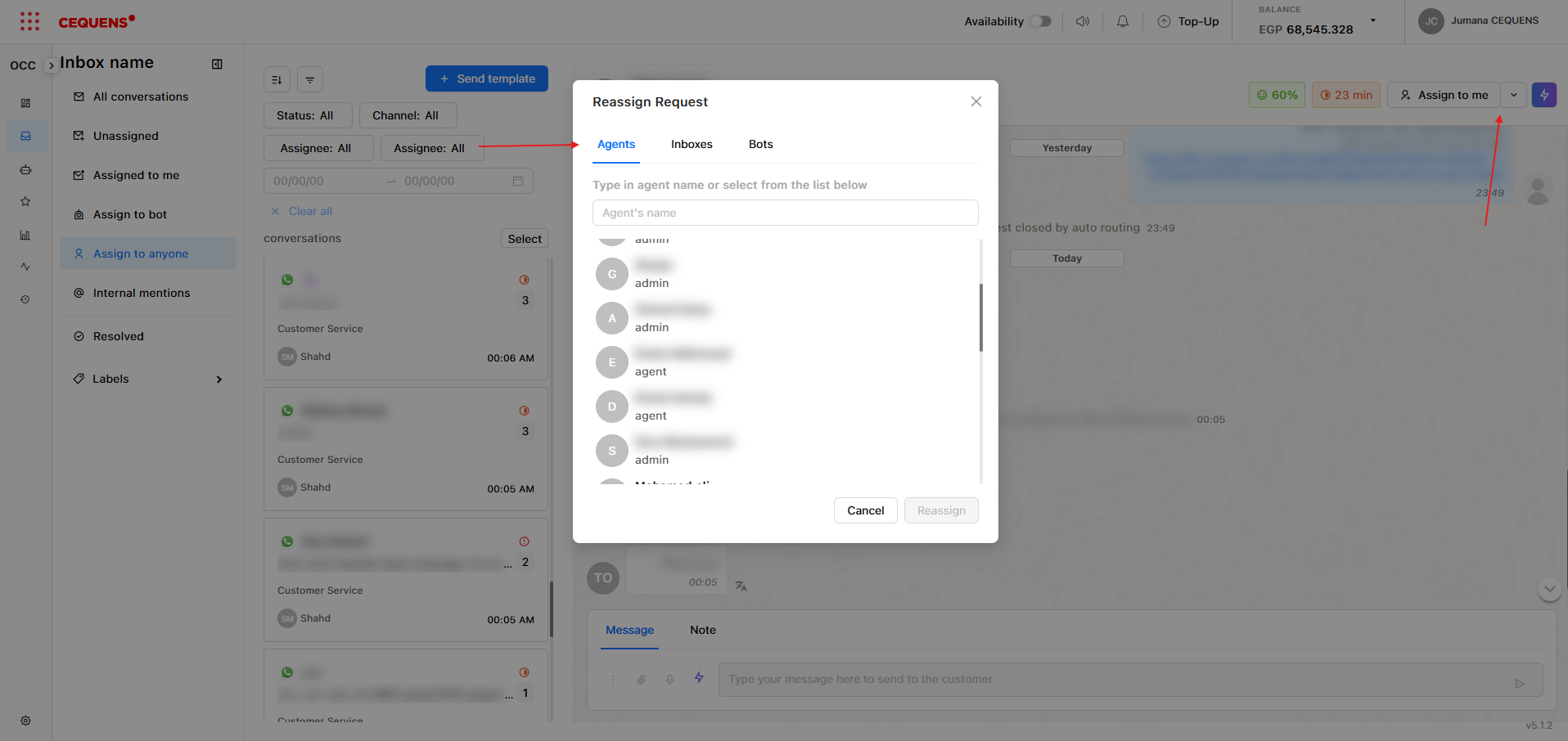
Bulk assignment:
- Select up to 20 conversations using checkboxes
- Click "Bulk Actions" → "Assign"
- Select the agent
- Click Confirm
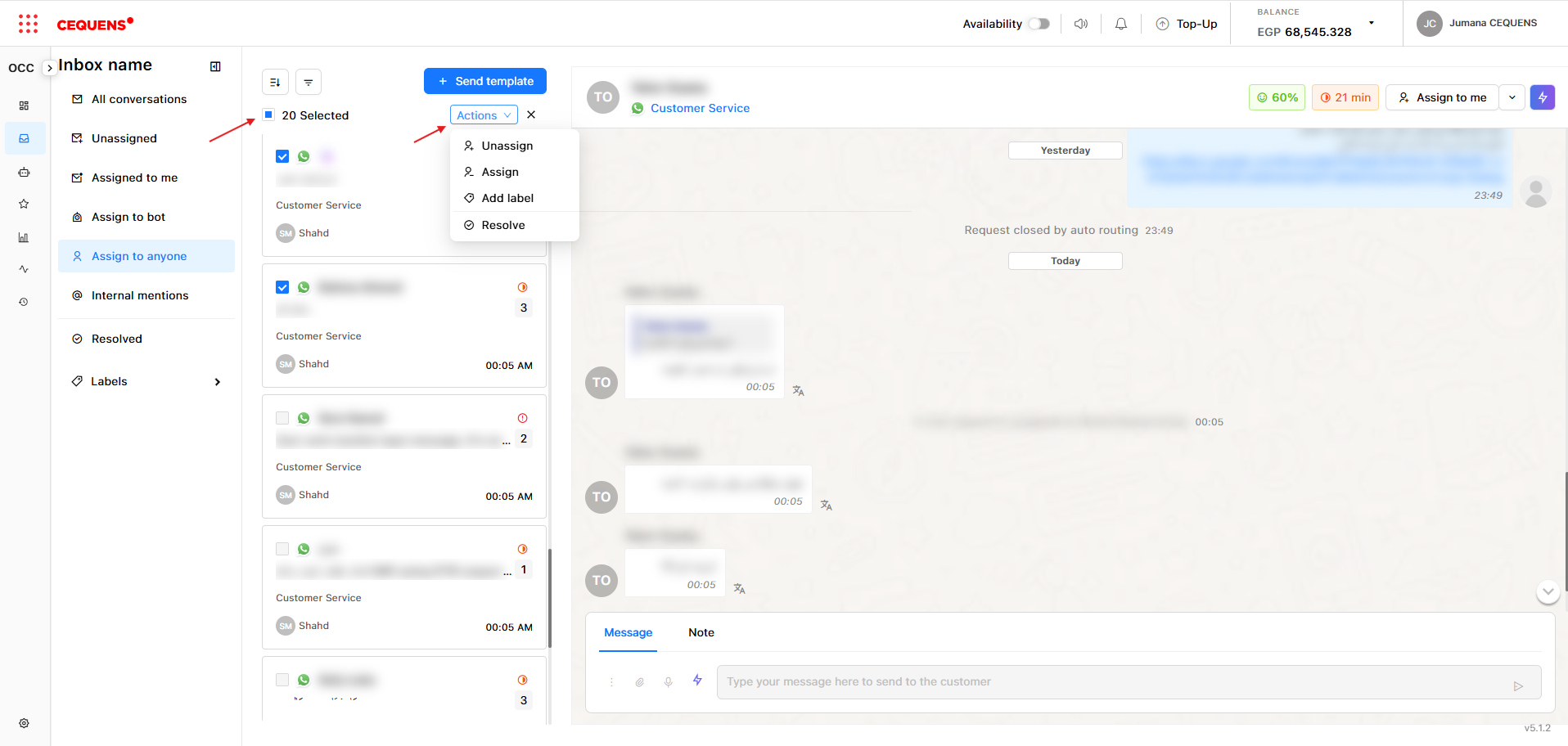
Pro Tip: If you've configured automatic routing in Inbox Settings, new conversations will be assigned automatically based on your routing rules.
Closing Conversations
Manual close:
- Open the conversation
- Click the "Resolve" button
- Optionally add a closing note
- Or select the aimed action from the dropdown list: reassign, add agent, leave request, leave and resolve, add label, open transcript, or send transcript.
The conversation moves from Dashboard/Inbox to History.
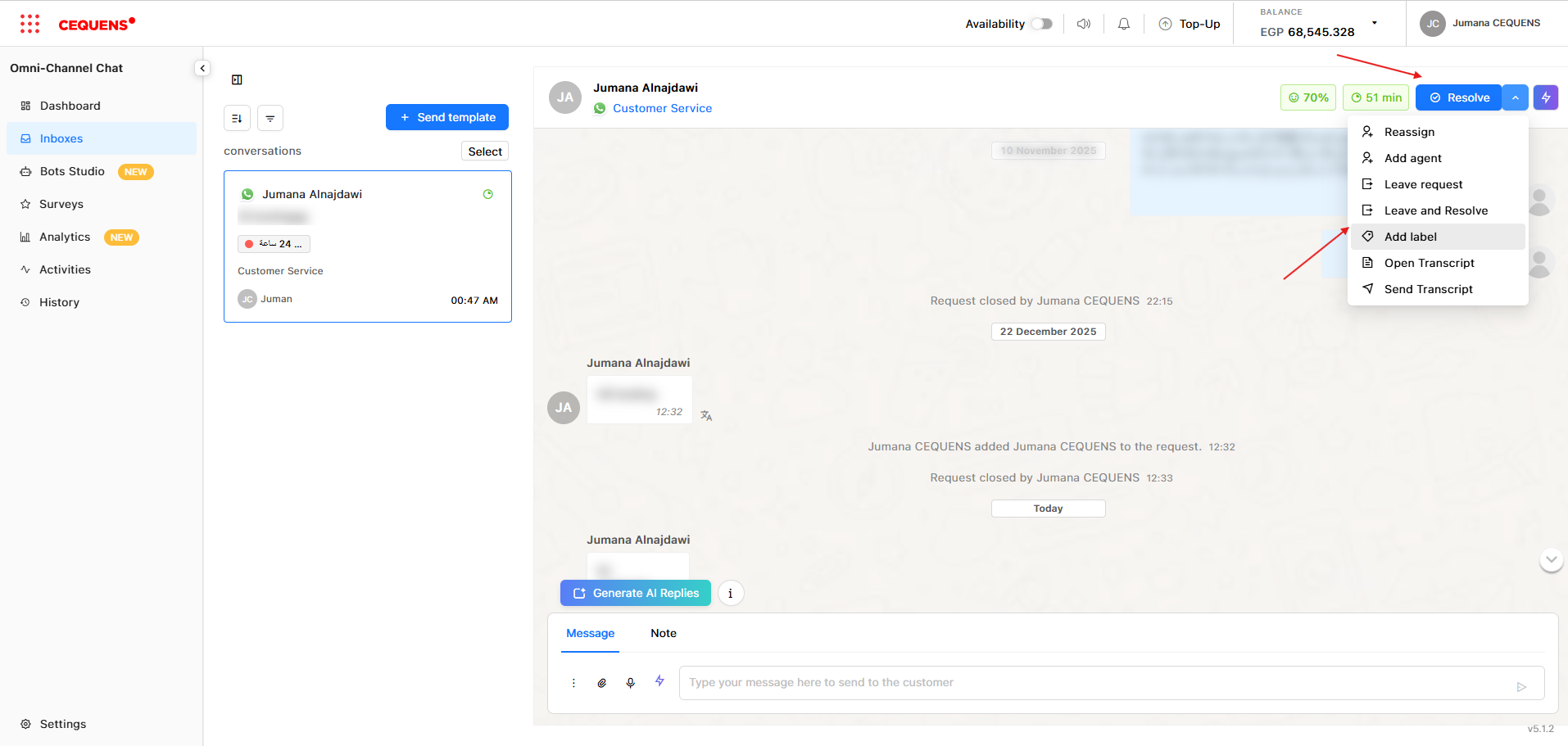
Auto-close:
You can configure inboxes to automatically close conversations after a period of inactivity:
- Go to Settings → Inbox → Select inbox → Routing → Auto Close Chat
- Enable and set the time period (e.g., "Close after 2 hours of inactivity")
- Add send a message to the customer when the conversation closes
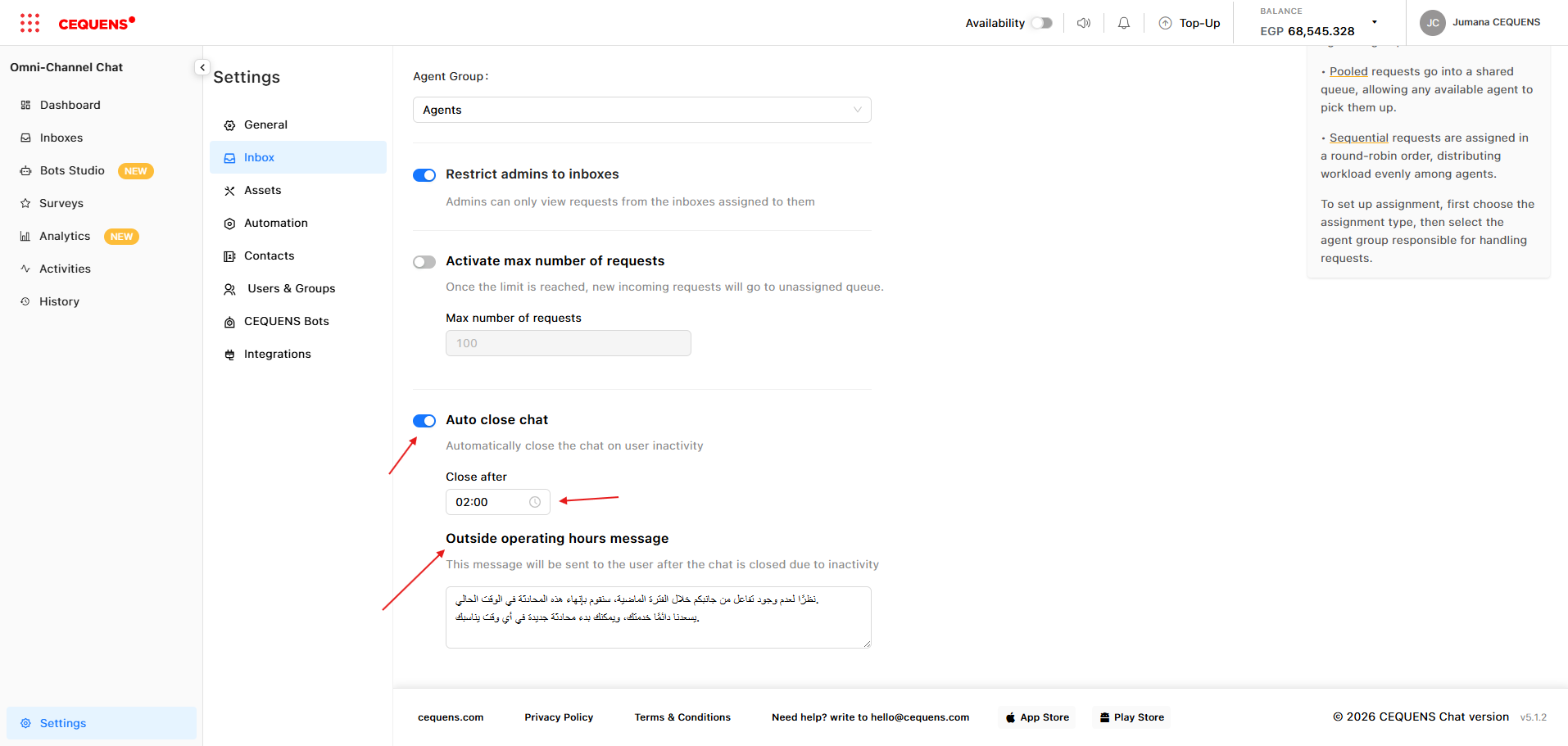
Pro Tip: Enable auto-close to keep your inbox clean and ensure resolved conversations don't linger indefinitely.
Understanding SLA Indicators
SLA (Service Level Agreement) timers help you track how long conversations have been open.
How it works:
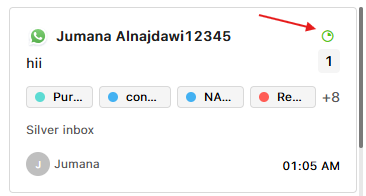
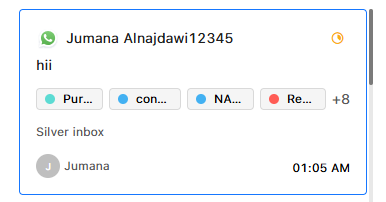
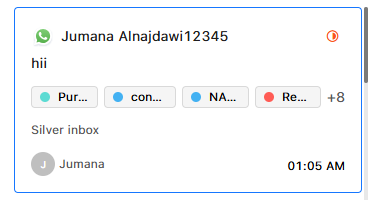
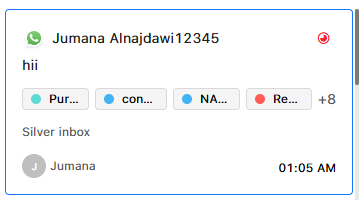
- OCC displays a colored tag on each conversation based on how long it's been active
- The timer starts when the conversation is opened and stops when it's closed
- There are 5 SLA levels, each with a different color
Example SLA levels:
- 🟢 Green: within the first 25% of the set SLA time
- 🟡 Yellow: within 25-50% of the set SLA time
- 🔴 Red half circle: within 50-75% of the set SLA time
- 🔴 Almost red: within 75-100% of the set SLA time
- ❗ Red Exclamation Mark: (overdue) with notification sweetAlert
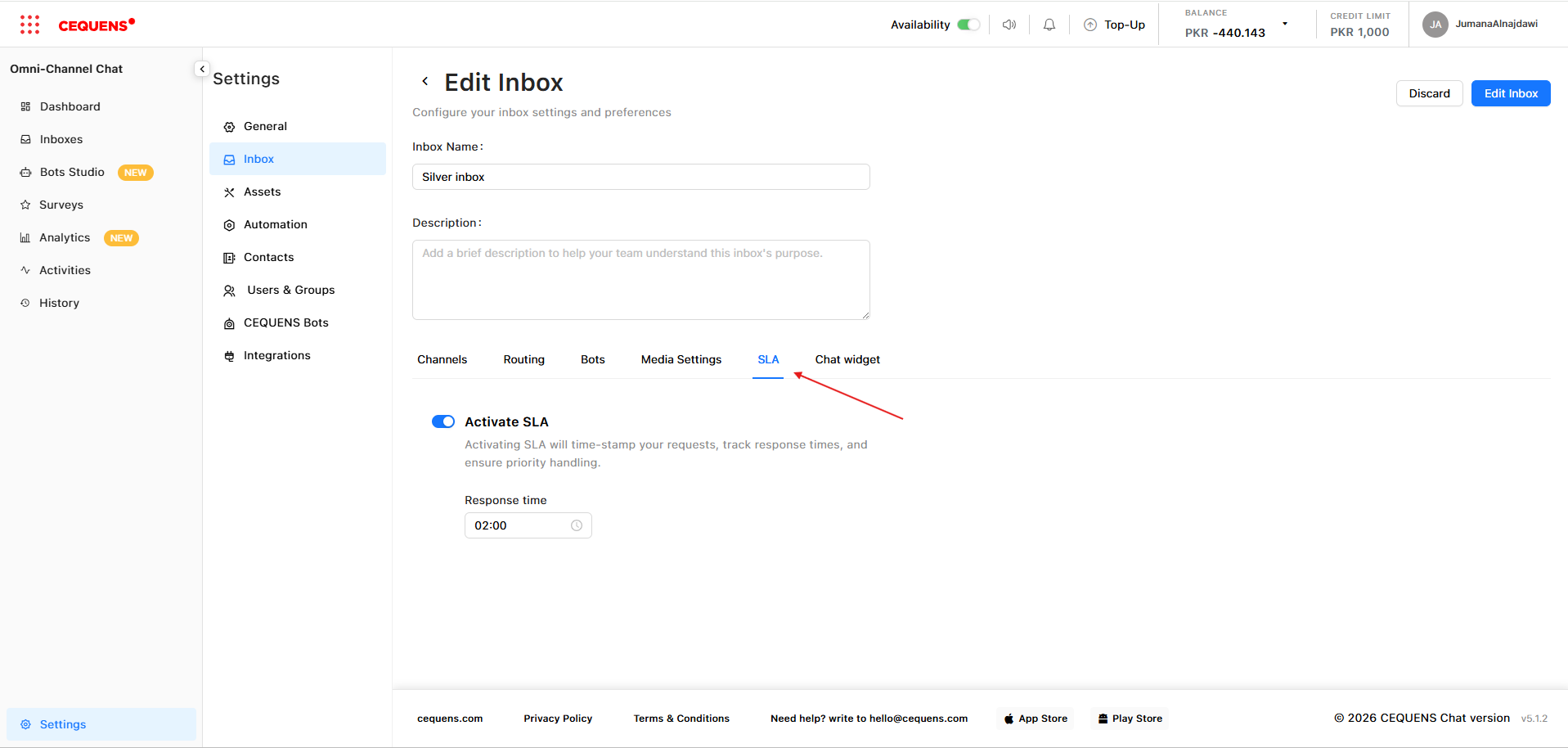
To configure SLA timers:
- Go to Settings → Inbox → Select inbox → SLA
- See the SLA Configuration guide for details
Pro Tip: Use SLA tags to prioritize which conversations to handle first—focus on red and orange tags to avoid breaching SLA targets.
Best Practices
For Agents:
- ✅ Check your Inbox regularly for new assigned conversations
- ✅ Keep an eye on SLA indicators and prioritize urgent conversations
- ✅ Close conversations promptly after resolution
- ✅ Add notes when reassigning conversations to provide context
For Admins:
- ✅ Monitor the Dashboard to ensure conversations are assigned evenly
- ✅ Use bulk actions to quickly assign or label multiple conversations
- ✅ Review agent performance metrics daily
- ✅ Set up automation rules to reduce manual work
Updated 9 months ago