
Voice Templates
Creation
- To create a template for the Voice channel, simply select "Voice" after clicking the Create New Template button from MFA listing page and then click on the "Create New Template" button on the pop-up.
- Select the caller ID, enter the template name, choose the voice caller from the dropdown menu, and specify the time for the recording to be played from the Repetition dropdown menu. Then, select the desired service from the options provided (OTP or IVR).
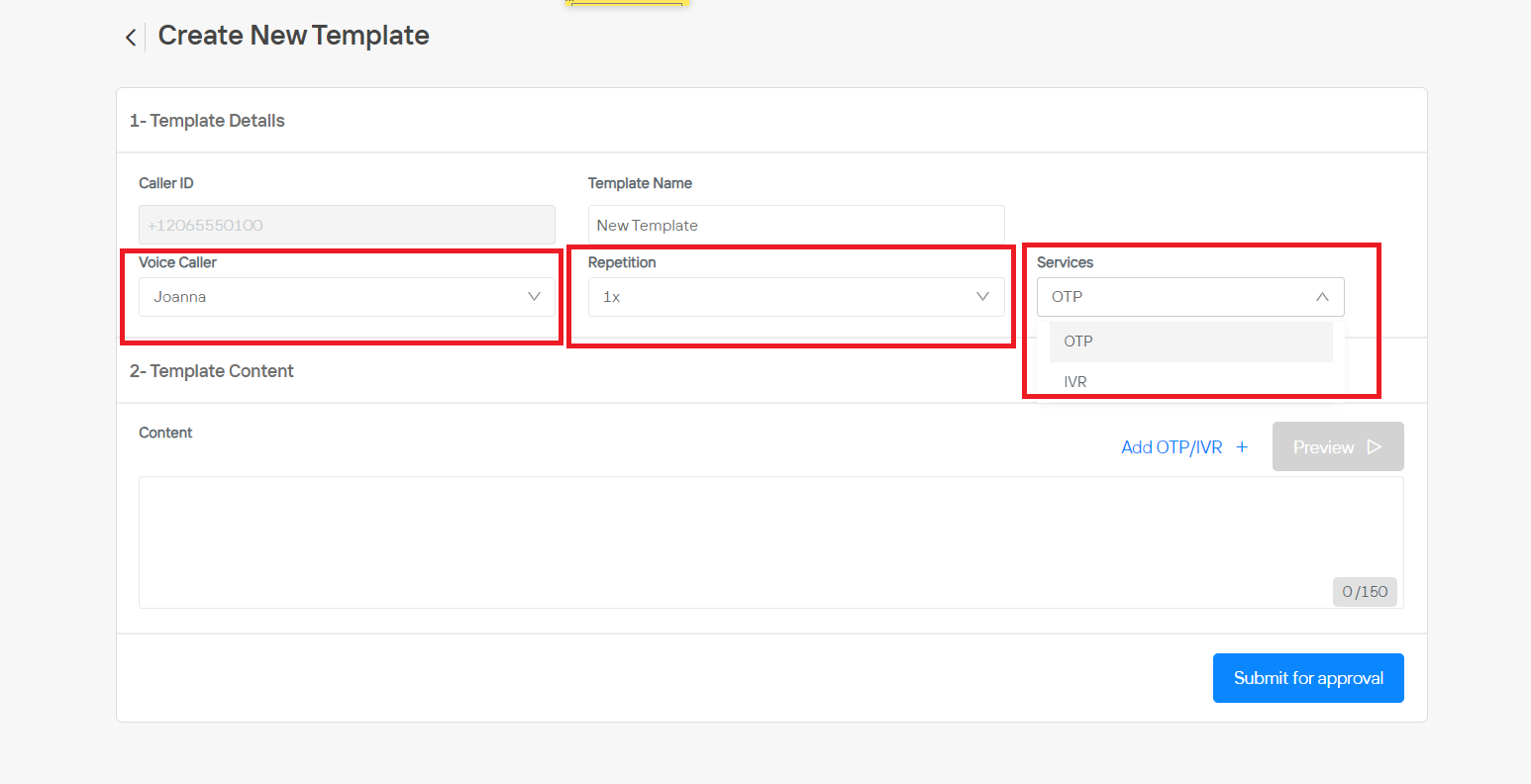
- In the message content section, compose the message in either English or Arabic that the operator will speak over the call. Click on the "Add OTP/IVR" button to insert the code. If "OTP" is selected from the Services dropdown, clicking "Add OTP/IVR" will insert an OTP code. If "IVR" is selected, an IVR code will be inserted.
- Click on the "Preview" button to review the call recording and how it will be heard by the user during the call.
- Finally, click on the "Submit for Approval" button to submit the template for review. Once approved, you will be able to use the templates for Voice channel communications.
Listing View
- All created Voice templates will be displayed in the Voice tab on the Multi-Factor Authentication (MFA) page.
- To view a specific Voice template, click on the eye icon in front of the template name.
- A pop-up window will appear, where you will find the template ID necessary for API usage.
- Click on the "Voice Verification" button. You will then be prompted to enter a webhook URL for the IVR (Interactive Voice Response) system. This URL will be utilized to send back the user's response.
Edit
- Templates can be edited directly from the templates listing page.
- To edit a template, click on the edit icon next to the template name.
- You can then modify the details of the template and submit it for approval.
- It's important to note that if an approved template is edited, it will undergo the approval process once again.
Delete
- Templates can be deleted directly from the template listing page.
- To delete a template, click on trash icon next to the template name.
Updated over 1 year ago