
Canned Responses
Overview
Canned Responses are pre-written message templates that agents can quickly insert into conversations. They save time, ensure consistency, and help agents respond faster to common questions.
To access Canned Responses:
- Go to Settings from the sidebar
- Click Chat Assets → Canned Responses
Creating Canned Responses
To create a new canned response:
- Go to Settings → Chat Assets → Canned Responses
- Click "+ Create Canned Response" or "+ New Response"
- Enter a short code (e.g.,
greeting,hours,refund) - Enter the message content
- Click Save
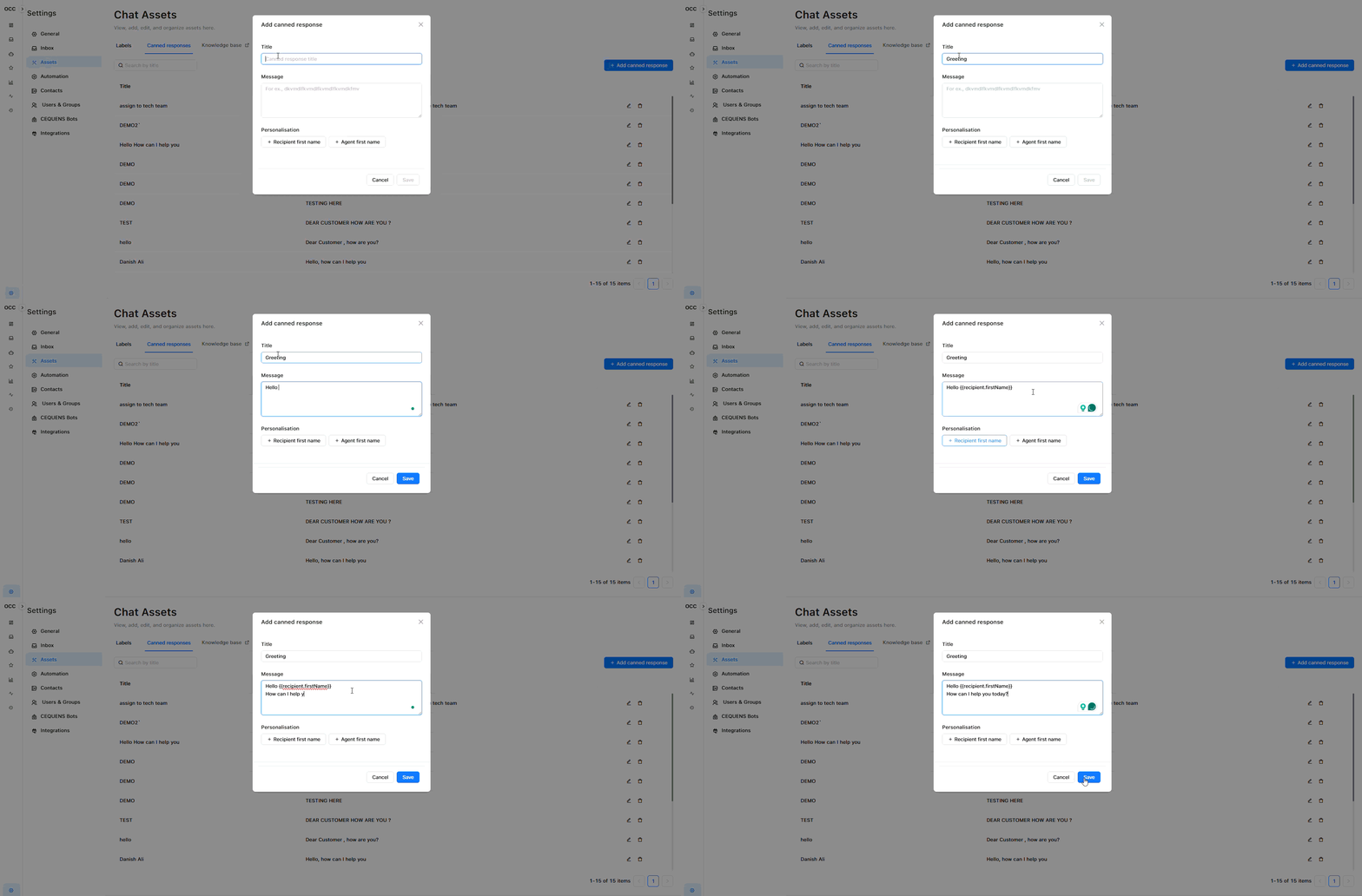
Examples:
greeting→ "Hi! How can I help you today?"hours→ "Our support hours are Monday-Friday, 9 AM - 6 PM EST."refund→ "I'd be happy to help with your refund. Can you provide your order number?"
Message Content Tips
Use Placeholders (if supported)
Some systems support variables that auto-populate:
recipient.firstName→ Customer's name{agent.firstName}→ Agent's name
Example with placeholders:
Hi {recipient.firstName}! My name is {agent.firstName}, and I'm here to help you today. Check your OCC version to see which placeholders are supported.
Keep It Personal
Even with templates, maintain a friendly, human tone:
✅ Good:
Thanks for reaching out! I understand you're having trouble with your account.
I'd be happy to help resolve this. Can you describe what's happening?
❌ Too Robotic:
Your request has been received. Please provide additional details for processing.Structure for Readability
Use formatting for longer responses:
Thanks for contacting us about your order!

Here's how to track your shipment:
1. Visit our tracking page
2. Enter your order number
3. Click "Track"

Need more help? Just let me know!
Using Canned Responses
In a Conversation
To insert a canned response:
- Open a conversation in the Inbox
- In the message box, type
/(forward slash) - A dropdown menu appears with available canned responses
- Type to search (e.g., type "greet" to find
/greeting) - Select the response with arrow keys or mouse
- Press Enter or click to insert
After insertion:
- The message appears in your message box
- Edit if needed to personalize
- Press Enter or Send to send the message
Editing Canned Responses
To edit an existing canned response:
- Go to Settings → Chat Assets → Canned Responses
- Click on the canned response you want to edit
- Update:
- Short code
- Message content
- Click Save
What happens:
- Changes take effect immediately
- Agents will use the updated version going forward
- Previous messages sent with the old version are not changed
Deleting Canned Responses
To delete a canned response:
- Go to Settings → Chat Assets → Canned Responses
- Select the canned response
- Click "Delete" or the trash icon
- Confirm deletion
What happens:
- The short code is removed
- Agents can no longer use it
- Previously sent messages remain unchanged
Common Canned Response Templates
Greetings
/greeting
Hi! Thanks for reaching out. How can I help you today?/greeting-name (with placeholder)
Hi {customer_name}! I'm {agent_name}, and I'm here to help. What can I assist you with?Operating Hours
/hours
Our support team is available Monday-Friday, 9 AM - 6 PM EST. We'll respond as soon as we're back online!/after-hours
Thanks for contacting us! We're currently offline but will respond within 24 hours during business hours (Mon-Fri, 9 AM - 6 PM EST).Asking for Information
/order-number
To help you faster, could you provide your order number? You can find it in your confirmation email./more-info
I'd love to help! Could you provide a bit more detail about the issue you're experiencing?/screenshot
A screenshot would really help me understand the issue better. Can you share one?Resolutions
/resolved
Great! I'm glad we could resolve this for you. Is there anything else I can help with today?/follow-up
I've made a note of this and will follow up with you within 24 hours. Thanks for your patience!Apologies
/sorry-wait
I apologize for the wait! Let me look into this for you right away./sorry-issue
I'm sorry you're experiencing this issue. Let's get it sorted out together.Escalations
/escalate
I'm escalating this to our specialist team. They'll reach out to you within 4 hours. Thanks for your patience!/tech-team
This requires our technical team's expertise. I've created a ticket, and they'll follow up within 24 hours.Closings
/closing
Thanks for chatting with us! Feel free to reach out anytime if you need further assistance./closing-feedback
Thanks for your time! We'd love your feedback on this conversation. You'll receive a short survey via email.Best Practices
Content Quality:
- ✅ Write in your brand's voice and tone
- ✅ Keep responses concise (2-4 sentences for most)
- ✅ Use friendly, empathetic language
- ✅ Avoid jargon or overly technical terms
- ✅ Always leave room for personalization
Organization:
- ✅ Use clear, memorable short codes
- ✅ Group related responses with prefixes (e.g.,
/greet-,/close-,/error-) - ✅ Add descriptions so agents know when to use each one
- ✅ Limit to 15-25 most-used responses (avoid overwhelming agents)
Maintenance:
- ✅ Review responses quarterly
- ✅ Update based on new policies or products
- ✅ Remove outdated or unused responses
- ✅ Get feedback from agents on what's missing
Training:
- ✅ Create a canned response guide for new agents
- ✅ Train agents to personalize responses before sending
- ✅ Share examples of good vs. robotic usage
- ✅ Monitor usage to identify missing templates
Troubleshooting
Can't find canned response when typing /
/Check:
- ✅ Short code starts with
/ - ✅ You're typing the exact short code (case-sensitive)
- ✅ Canned response exists and isn't deleted
- ✅ You have permission to use canned responses
Dropdown doesn't appear when typing /
/Try:
- Refresh the page
- Clear browser cache
- Check if feature is enabled in your OCC instance
- Try typing a known short code exactly
Updated 9 months ago