
Inbox Management
Overview
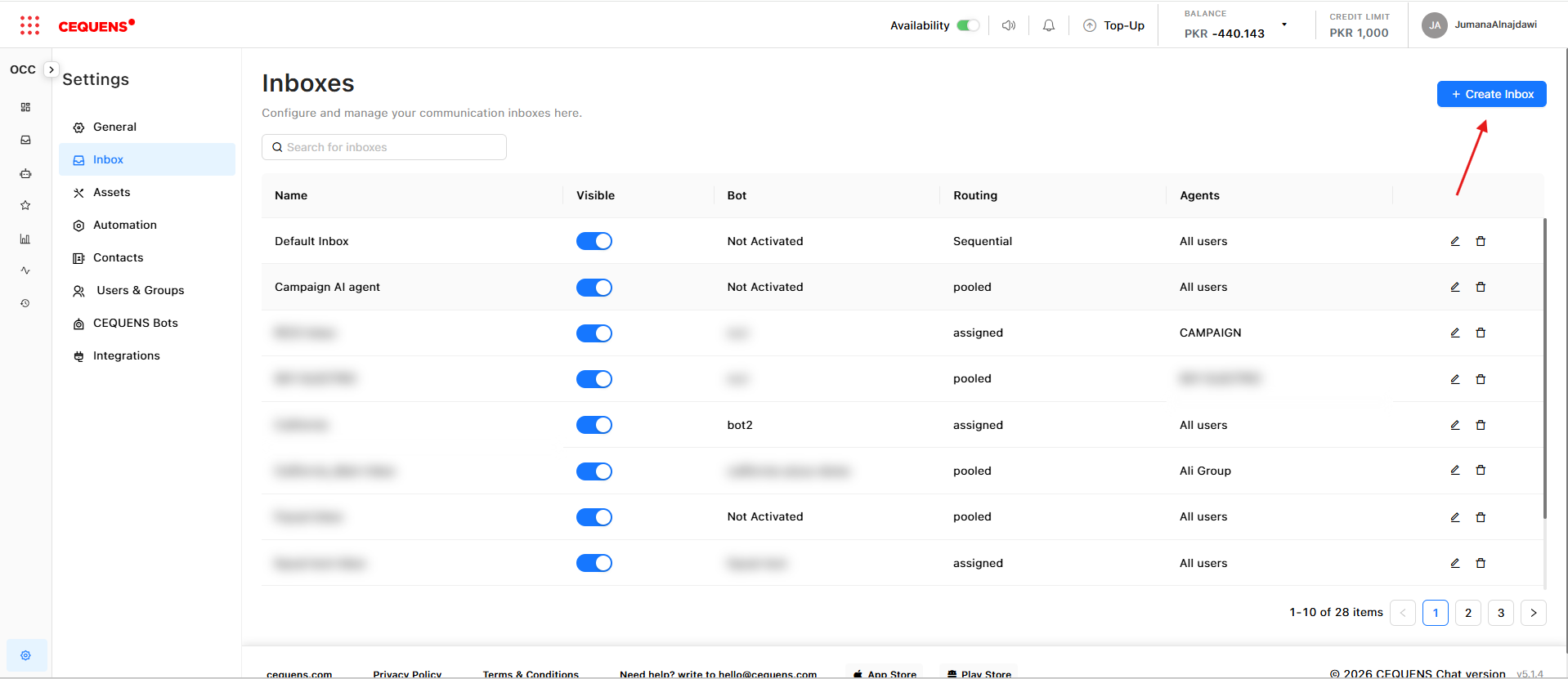
Inboxes are the core organizational unit in OCC. Each inbox can be linked to multiple channels, assigned to specific agent groups, and configured with unique settings.
To access Inbox settings:
- Go to Settings from the sidebar
- Click Inbox
Creating an Inbox
- In Inbox Settings, click "+ Create Inbox" or "+ New Inbox"
- Enter an inbox name (e.g., "Customer Support," "Sales," "Billing")
- Click Save
Pro Tip: Create separate inboxes for different teams or departments to organize conversations and assign them to the right groups.
Linking Channels to an Inbox
Connect one or more communication channels to your inbox so conversations from those channels appear together.
To link a channel:
- In Inbox Settings, select your inbox
- Click the "Channels" tab
- Click "+ Link Channel"
- Select a channel from the dropdown:
- WhatsApp Business API
- Facebook Messenger
- RCS
- Apple Business Chat
- Widget (if enabled)
- Click Save
Multiple channels in one inbox:
- You can link multiple channels to a single inbox
- Example: Link WhatsApp, Instagram, and your website widget to "Customer Support" inbox
- All conversations from these channels will appear together
Note: A channel can only be linked to ONE inbox at a time. If you need to change the inbox, unlink it first.
Best Practices
Inbox Organization:
- ✅ Create separate inboxes for different teams or functions
- ✅ Use clear, descriptive names
- ✅ Link related channels to the same inbox for unified management
Updated 9 months ago