
Bots in Inbox Settings
Overview
Bots can handle conversations automatically in OCC, responding to customer queries without human intervention. You can link bots to inboxes and configure how they interact with agents.
To access bot settings:
- Go to Settings → Inbox
- Select your inbox
- Click the "Bots" tab
Note: Bots must be created and configured separately (see Bot Studio documentation). This guide covers linking existing bots to inboxes.
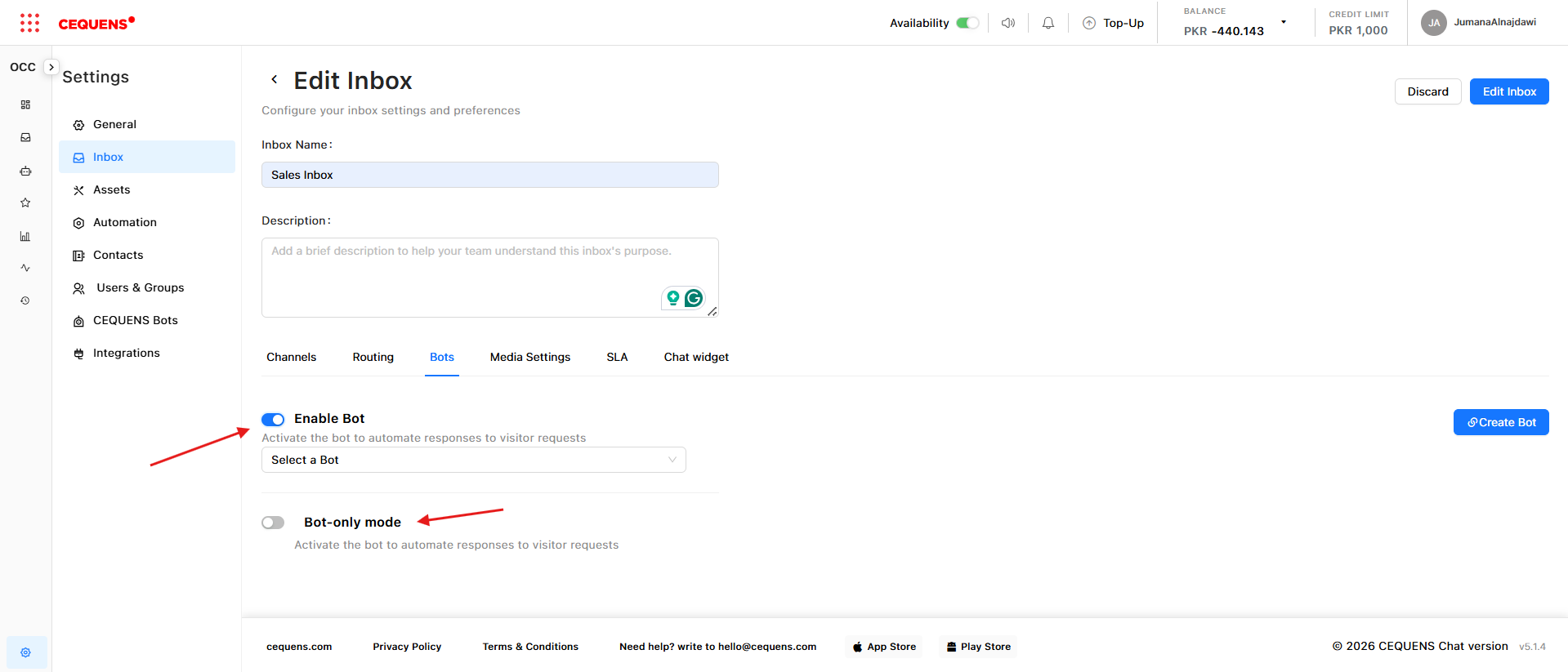
Linking a Bot to an Inbox
To link a bot:
- In the Bots tab of your inbox settings
- Click "+ Link Bot"
- Select a bot from the dropdown (only bots configured in Bot Studio appear here)
- Click Save
What happens after linking:
- New conversations in this inbox are automatically handled by the bot
- The bot responds based on its configured flow
- Agents can still view bot conversations in real-time
Bot-Only Mode
Enable Bot-Only Mode to let the bot handle all conversations without agent intervention.
To enable bot-only mode:
- In the Bots tab, find "Bot-Only Mode"
- Toggle ON
- Click Save
How it works:
- Bot-Only Mode ON: Only the bot can respond; agents cannot join or reply
- Bot-Only Mode OFF: Agents can join conversations at any time
When to use bot-only mode:
- Simple FAQ bots that don't need human backup
- After-hours support when agents aren't available
- High-volume, low-complexity queries (e.g., order status, hours of operation)
Allowing Agent Intervention
If bot-only mode is OFF, you can configure when and how agents can join bot conversations.
Agent intervention options:
- Agents can join at any time - Agents see all bot conversations and can reply when needed
- Agents join only on bot handoff - Bot must explicitly transfer the conversation to a human
- Agents join on customer request - Customer can ask to speak with a human
To configure:
- In the Bots tab, find "Agent Intervention"
- Select your preferred option
- Click Save
Pro Tip: Allow agents to join at any time during the initial bot rollout to monitor performance and step in when needed.
Bot Handoff Triggers
Configure when the bot should automatically transfer conversations to human agents.
Common handoff triggers:
- Customer requests human assistance (e.g., types "speak to a human" or "agent")
- Bot confidence is low (bot isn't sure how to respond)
- Conversation exceeds X messages without resolution
- Specific keywords or topics (e.g., "complaint," "refund," "cancel")
To set up handoff triggers:
- These are configured in Bot Studio during bot creation
- See Bot Studio → Handoff Configuration for details
Monitoring Bot Performance
View bot conversation metrics to understand performance:
In Analytics:
- Go to Analytics from the sidebar
- View bot-specific metrics:
- Conversations handled by bot
- Bot handoff rate
- Average resolution time
- Customer satisfaction scores
In Dashboard:
- Bot conversations show a bot icon next to the conversation
- Filter conversations by "Assigned to Bot" to see active bot chats
Best Practices
Bot Configuration:
- ✅ Start with bot-only mode OFF to monitor performance
- ✅ Test the bot thoroughly before enabling bot-only mode
- ✅ Create clear handoff triggers for complex queries
- ✅ Allow customers to request human assistance at any time
Agent Collaboration:
- ✅ Train agents on when to join bot conversations
- ✅ Use bot handoff for queries the bot can't handle
- ✅ Review bot conversations regularly to identify improvement opportunities
- ✅ Update bot flows based on common handoff scenarios
Performance Monitoring:
- ✅ Track handoff rate (should be low if bot is effective)
- ✅ Review customer feedback on bot interactions
- ✅ Monitor resolution time for bot vs. human conversations
- ✅ Adjust bot flows based on analytics data
Troubleshooting
Bot isn't responding to conversations
Check:
- ✅ Bot is linked to the inbox in Bots tab
- ✅ Bot is active in Bot Studio
- ✅ Inbox has conversations (bot only responds to new conversations)
- ✅ Bot flow is properly configured in Bot Studio
Agents can't join bot conversations
Check:
- ✅ Bot-Only Mode is turned OFF
- ✅ Agent has permission to access this inbox
- ✅ Agent is part of the correct agent group
Bot is handing off too many conversations
Solutions:
- Review handoff triggers in Bot Studio
- Improve bot training data and responses
- Adjust confidence thresholds for handoff
- Add more intents and flows to handle common queries
Updated 8 months ago