
Use Change Inboxes
Intro
Change inbox is one of the actions in Design Studio that enables you to move from one inbox to another in a conversation.
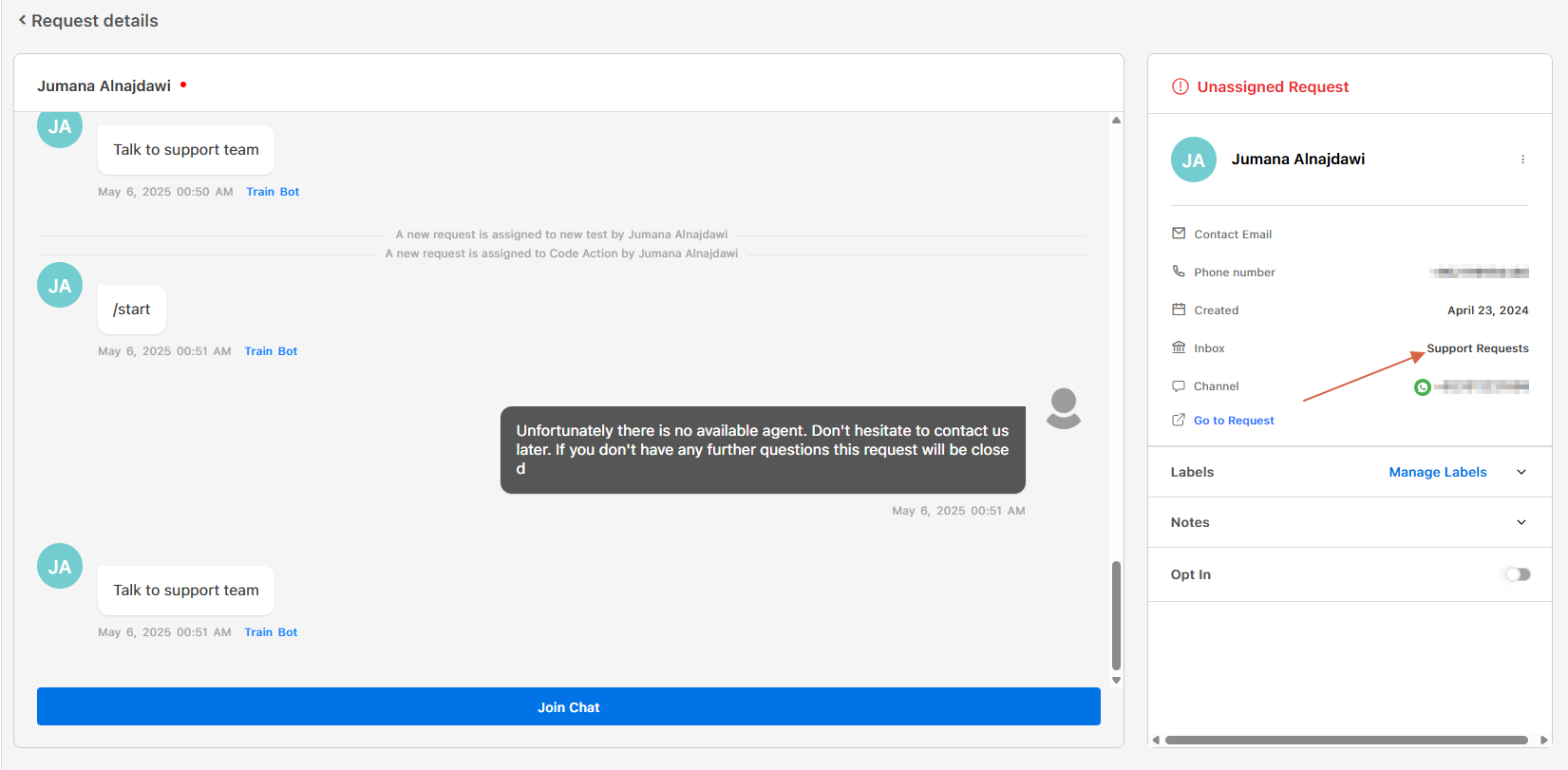
Imagine having different inboxes specified for support, sales, after-sales, etc. You can create a bot for each of these inboxes and, based on the user’s inquiries, activate the proper bot and inbox.
With this strategy, you will achieve first contact resolution as the appropriate bot will be assigned to the user’s request. Additionally, you can ensure that sales-oriented inquiries are not directed to the support team and vice versa.
If you haven’t created your inboxes yet, you can use this tutorial to create different inboxes for different purposes.
Embedding Change Inbox in conversations
First, navigate to the bots listing page and then to the Design Studio.
The Change Inbox action is located among the Special actions in the left-side menu.
Drop it onto the canvas as shown in the image below.
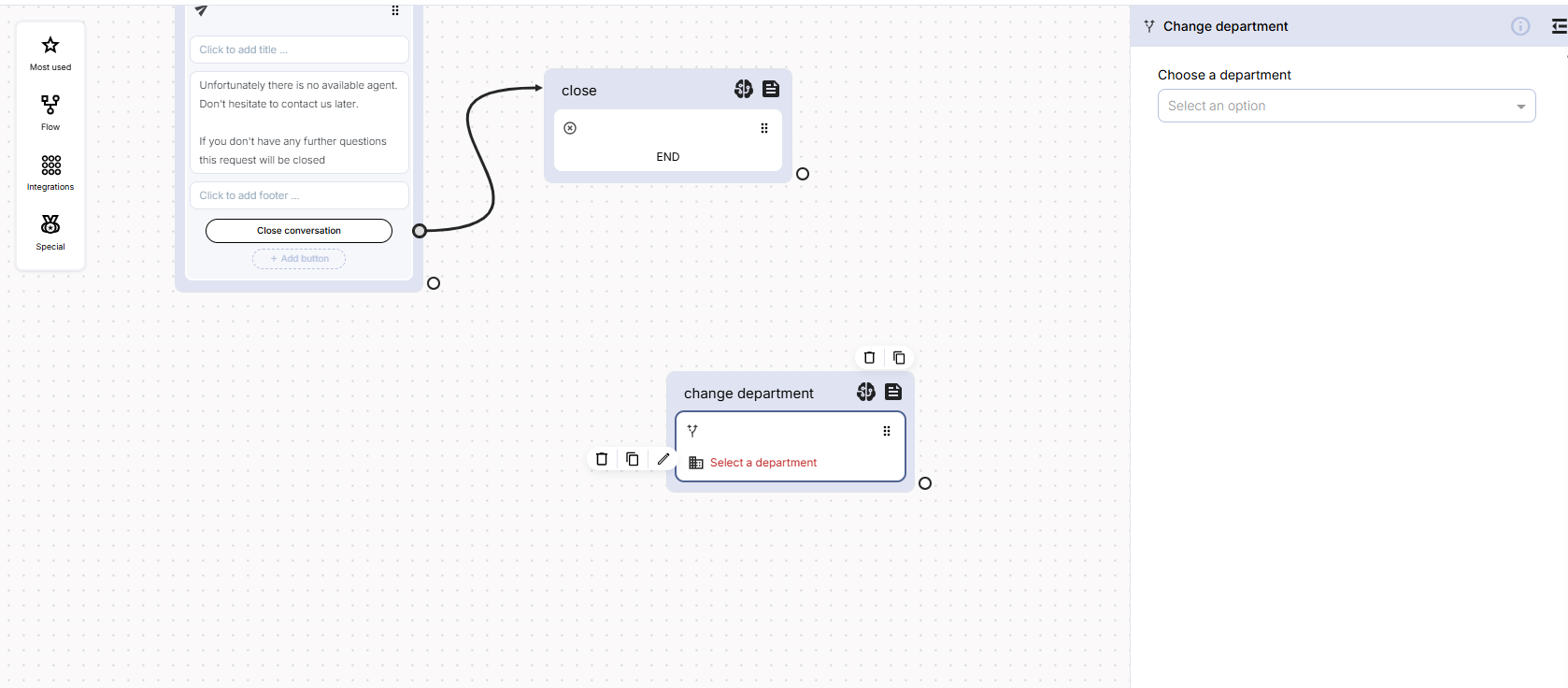
Then, from the “Talk with the support Team” button, continue the conversation to the Change Inobx action. By clicking on the block, the right-side menu will appear, allowing you to choose the proper inbox.
Updated over 1 year ago