
Create a Template
This guide explains how to create, manage, and troubleshoot WhatsApp message templates—including Marketing, Utility, and Authentication types—using your company’s business console. Learn best practices, template requirements, and solutions to common approval and delivery issues.
WhatsApp Template User Guide
Welcome to the WhatsApp Template section of your business console. This guide walks you through creating, managing, and understanding different types of WhatsApp message templates: Marketing, Utility, and Authentication — including Custom, Carousel, and Flow templates.
1. Templates Listing Page
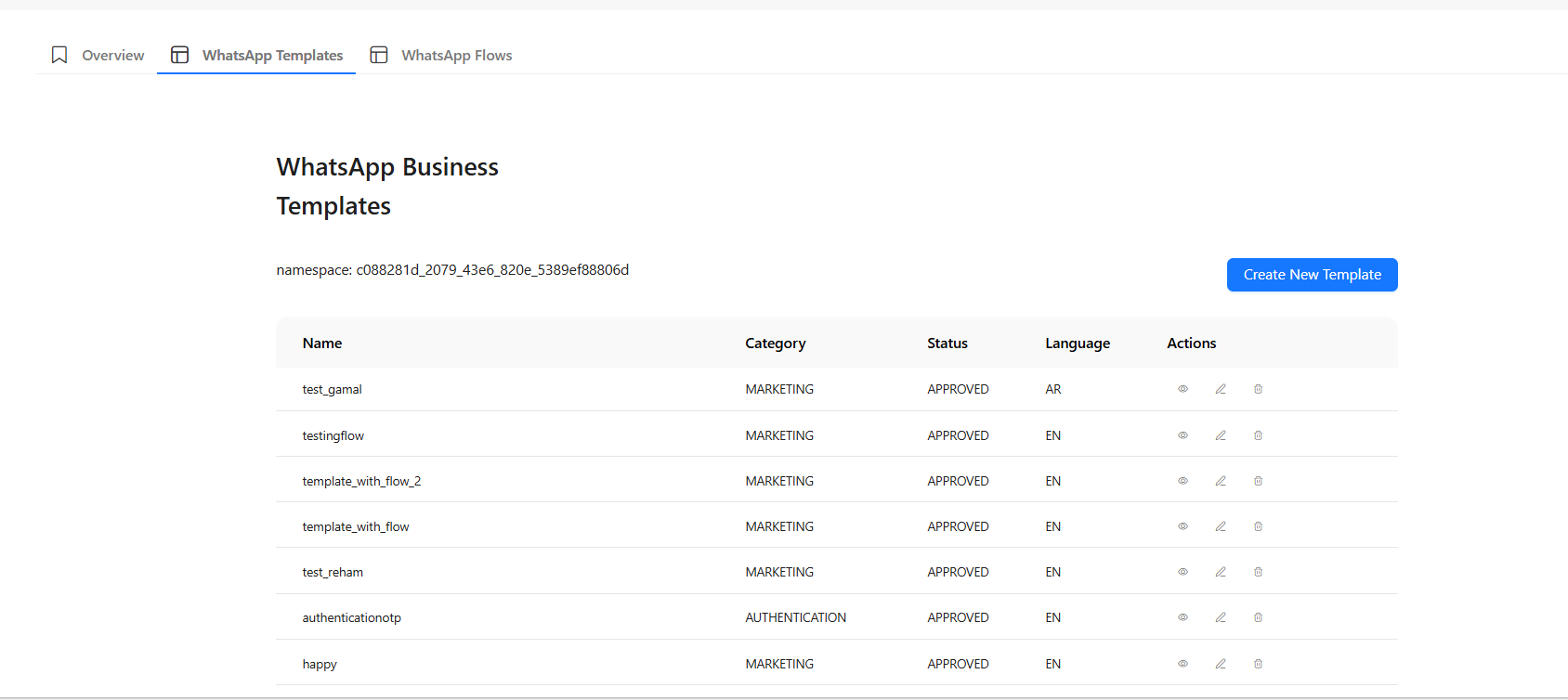
This is your central dashboard for viewing and managing all your WhatsApp templates.
What you’ll see:
- Name: Unique identifier (e.g.,
welcome_message_en) - Category:
MARKETING,UTILITY, orAUTHENTICATION - Status: Typically
APPROVEDafter WhatsApp review - Language: e.g.,
en,es,ar - Actions:
- 🔍 View – Preview the template
- ✏️ Edit – Modify (if editable)
- 🗑️ Delete – Remove unused templates
2. Creating a New Template
Click “Create New Template” to begin.
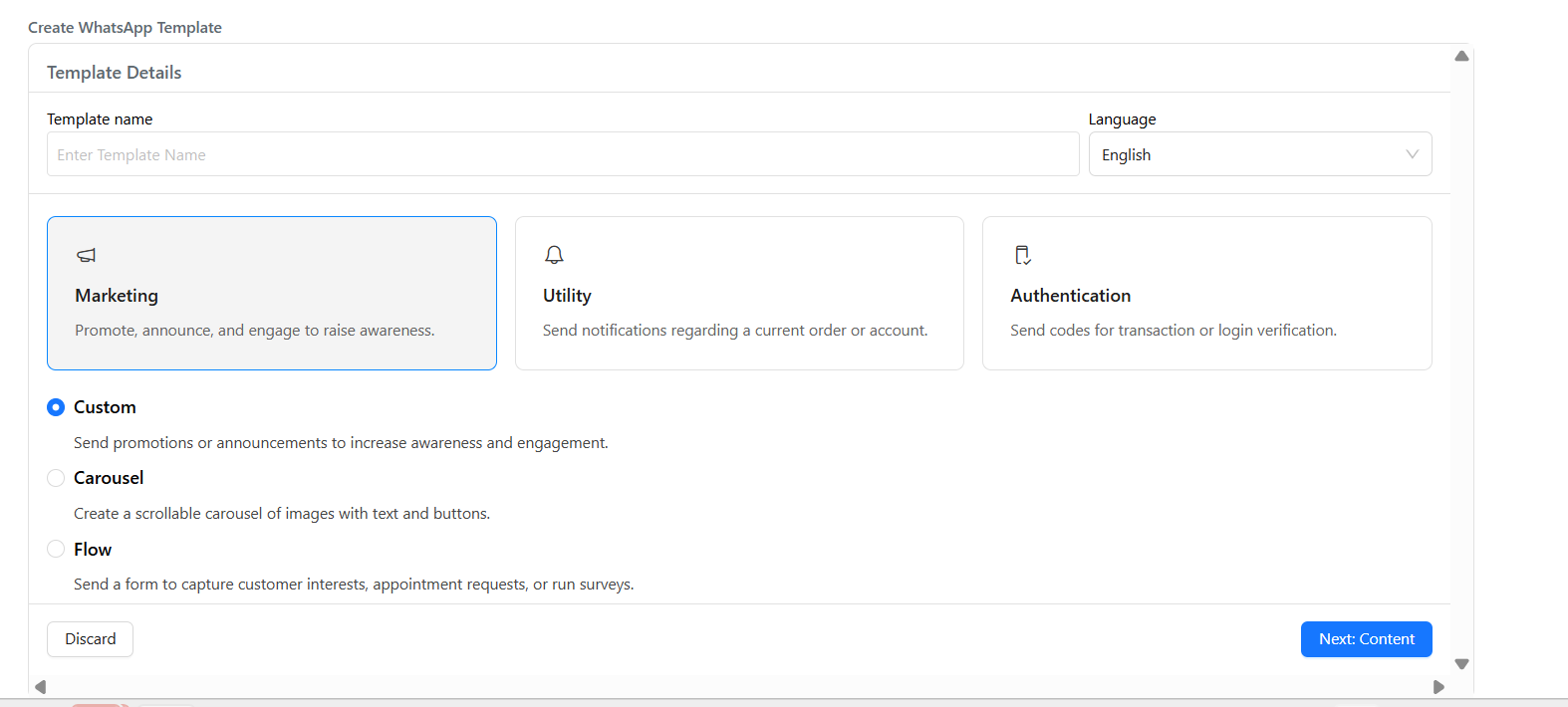
Step 1: Choose Template Category
Select one of the following:
| Category | Purpose | Supported Types |
|---|---|---|
| Marketing | Promotions, announcements, engagement | Custom, Carousel, Flow |
| Utility | Transactional alerts, updates, notifications | Custom, Flow |
| Authentication | One-time passwords (OTPs), login verification | Static text + configuration only |
Note: The category cannot be changed after creation.
Step 2: Choose Template Type (Based on Category)
-
Marketing / Utility:
Custom– Basic message with header/body/footerCarousel– Scrollable rich-media cardsFlow– Links to an interactive WhatsApp Flow
-
Authentication:
- Only one option: Authentication Template
3. Creating a Custom Template (Marketing / Utility)
Used for straightforward text-based messages with optional media.
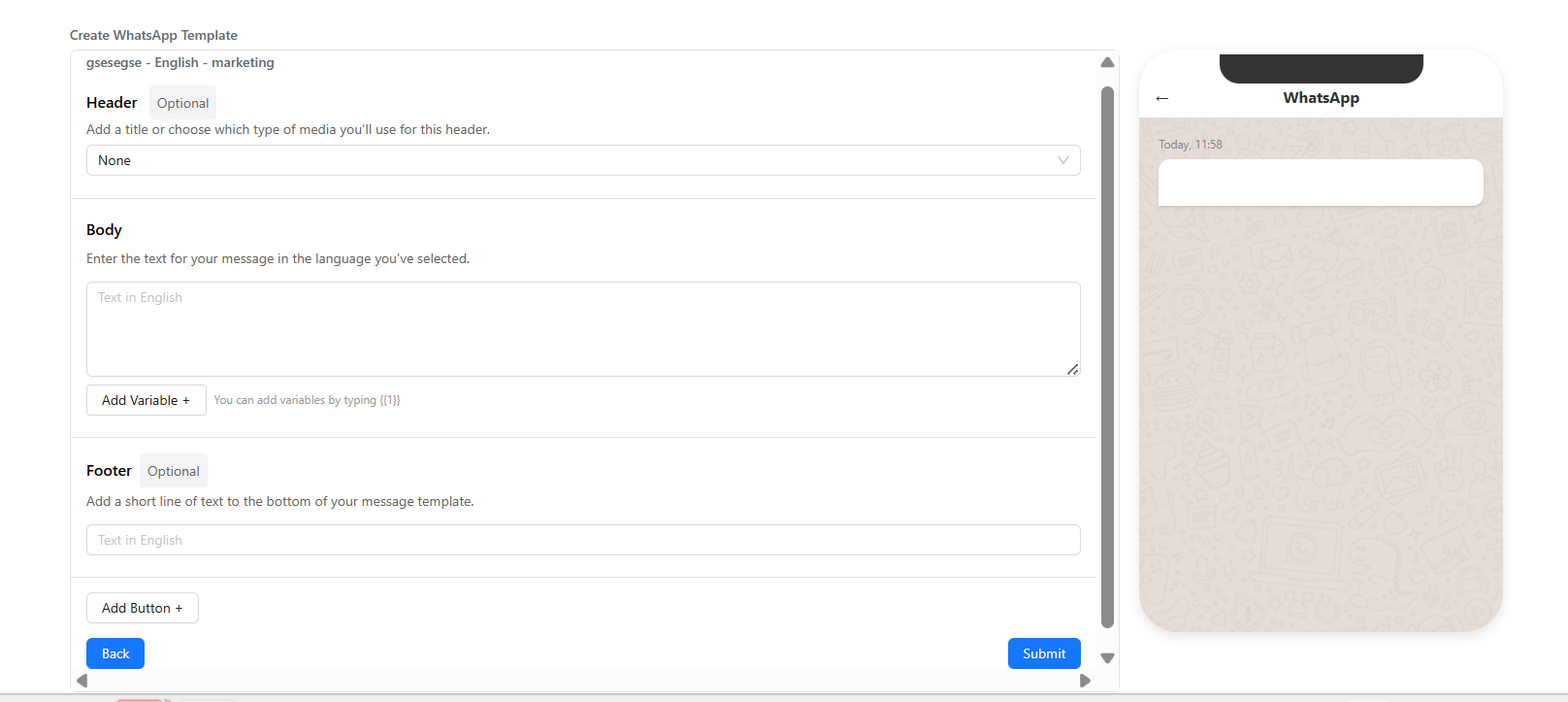
A. Header (Optional)
Choose one:
- None
- Text – Supports variables like
{{1}} - Media – Image or video (not shown in UI screenshot but supported)
Best Practice: Personalize with variables (e.g.,Hi {{1}}!).
B. Body
- Main message content.
- Supports variables:
{{1}},{{2}}, etc. - Max length: 1024 characters.
Example:
Hello
{{1}}, your order #{{2}}is confirmed. Track it:{{3}}
C. Footer (Optional)
- Short disclaimer or legal text.
- Max length: 60 characters.
D. Buttons (Optional)
- Add up to 3 quick reply buttons.
- Only available in Marketing templates.
4. Creating a Carousel Template (Marketing Only)
Displays 3–10 interactive, scrollable cards.
A. Body
- Same as Custom template: supports variables, max 1024 chars.
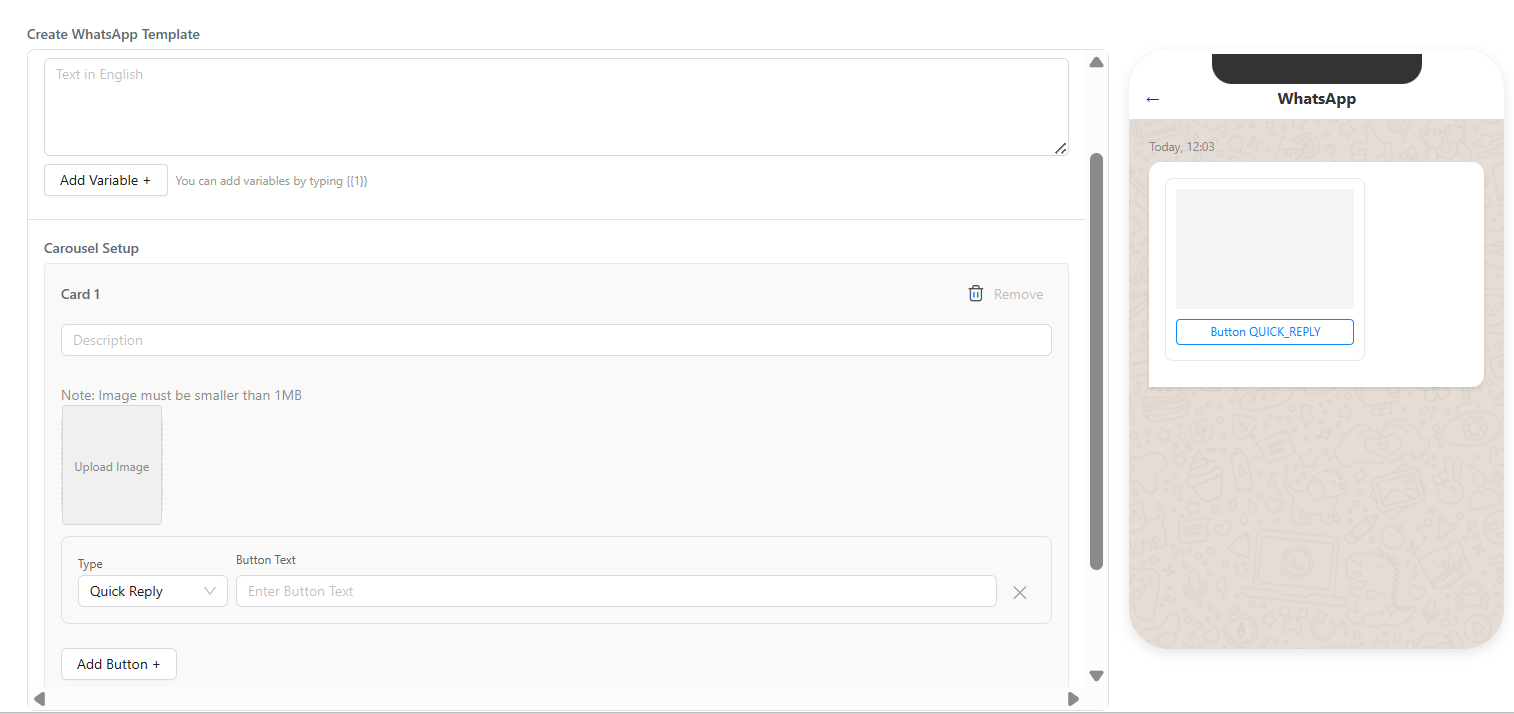
B. Cards (3–10 required)
Each card includes:
- Image – Upload (max 1 MB per image)
- Description – Supports variables
- Buttons (1–3) – Choose from:
- Quick Reply – Sends a predefined message
- Call Number – Opens phone dialer
- Visit Website – Opens a URL
Tip: Maintain visual consistency across card images for better UX.
5. Using Flow Templates (Marketing / Utility)
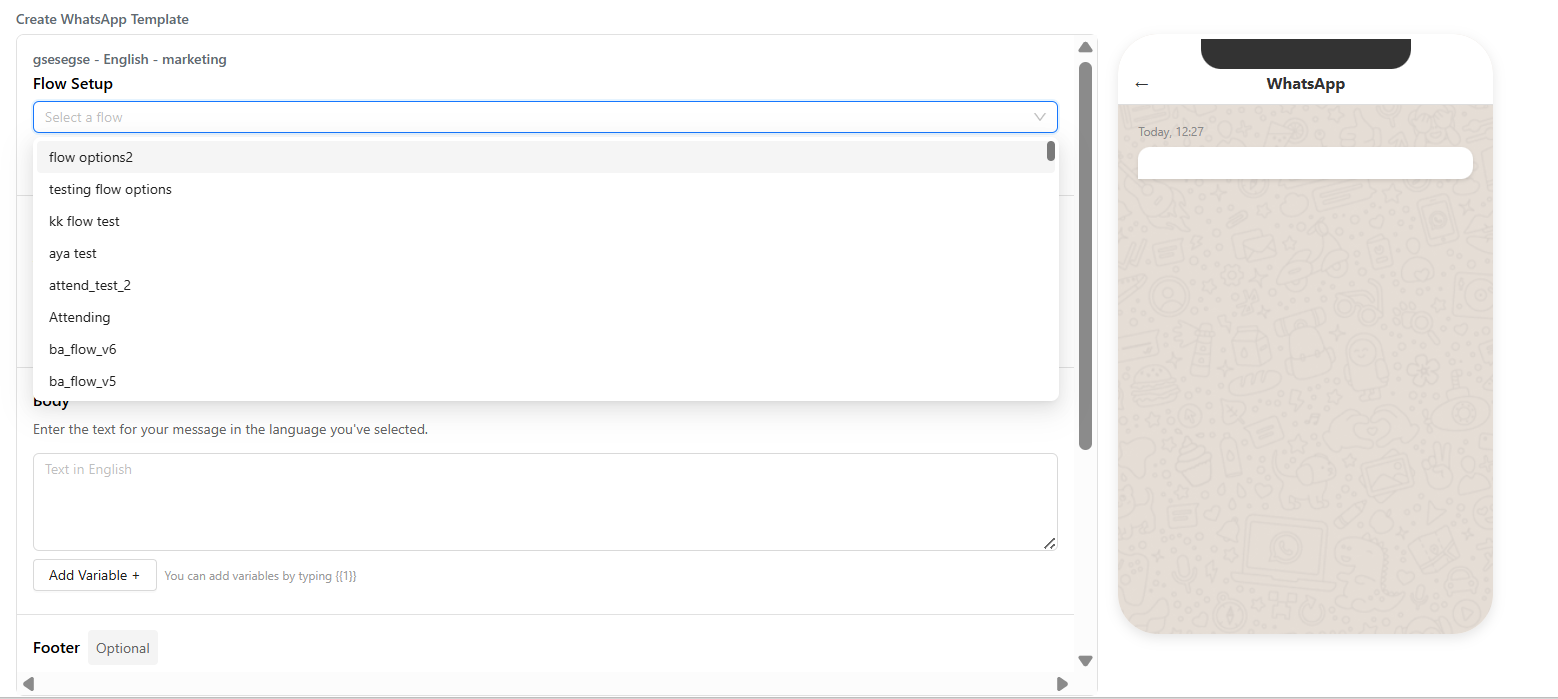
When you select “Flow” as the template type, a new field appears:
Select Flow Name
- Choose from your pre-created WhatsApp Flows (built separately in the Flows section).
- This template will trigger the selected interactive flow when sent.
Requirement: Flows must be created and published before appearing in this dropdown.
6. Creating an Authentication Template
Used exclusively for sending OTPs or verification codes.
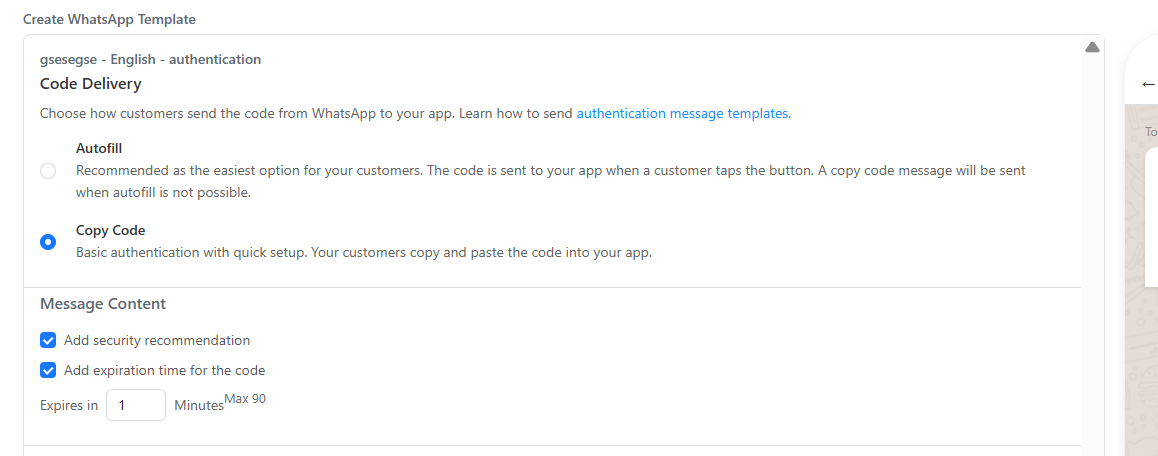
A. Code Delivery Method
- Autofill (Recommended)
→ Automatically fills the OTP into your Android/iOS app (requires app config). - Copy Code
→ User manually copies the code.
B. Message Content Options
Two optional security enhancements:
✅ Add security recommendation
→ Appends: “Don’t share this code with anyone.”
✅ Add expiration time for the code
→ Sets OTP validity (1–90 minutes; defaults to 1 min)
✅ Final Steps & Best Practices
After Configuration:
- Click “Submit” to send for WhatsApp review.
- Wait for approval (typically 24–48 hours).
- Once APPROVED, use the template via API or integration.
General Tips:
- Keep messages concise and user-focused.
- Use variables (
{{1}}) for dynamic content. - Never include promotional text in Utility or Auth templates — they’ll be rejected.
- Test templates thoroughly before going live.
🔧 Troubleshooting Common Issues
Even with careful setup, you might encounter errors during template creation or approval. Below are frequent problems and how to resolve them.
❌ Template Submission Rejected by WhatsApp
Common reasons:
-
Promotional content in Utility/Auth templates
→ Only Marketing templates may include promotions, discounts, or marketing language. Utility and Authentication templates must be strictly transactional or security-related. -
Unsubstantiated claims or prohibited content
→ Avoid phrases like “guaranteed results,” “act now,” or financial incentives unless compliant with Meta’s WhatsApp Commerce Policy. -
Missing or invalid variables
→ Ensure all placeholders (e.g.,{{1}}) are correctly numbered and used only where allowed (not in footers or buttons).
✅ Fix: Review rejection feedback in the Status column of your template list. Edit and resubmit.
🚫 “Invalid Template” Error During API Sending
Symptoms:
Your approved template fails when sent via API with error:
{"error": {"message": "Invalid parameter", "type": "OAuthException"}}
Possible causes:
-
Mismatched parameter count
→ You sent more or fewer variables than defined in the template body.
Example: Template expects{{1}}and{{2}}, but you only provided one value. -
Unsupported characters in variables
→ Avoid newlines, tabs, or unescaped quotes in dynamic content. -
Using template before approval
→ Only APPROVED templates can be used via API. PENDING templates will fail.
✅ Fix:
- Double-check variable count and content formatting.
- Verify template status in the console before sending.
🖼️ Media in Header Not Displaying
Issue:
Image or video in the header appears broken or is missing when the message is received.
Why it happens:
- Media URL is not publicly accessible or lacks proper MIME type.
- File size exceeds 5 MB (for images/videos in headers).
- Media URL uses HTTP instead of HTTPS (WhatsApp requires secure URLs).
✅ Fix:
- Host media on a secure (HTTPS), public endpoint.
- Ensure image is ≤5 MB and in a supported format (JPEG, PNG, etc.).
Note: In your platform, media is usually uploaded directly—ensure the upload completes successfully before submitting.
🎛️ Flow Template Dropdown is Empty
Issue:
When creating a Flow template, the “Select Flow Name” dropdown shows no options.
Cause:
- No WhatsApp Flows have been published in your Flows workspace.
- Flows exist but are in draft state.
✅ Fix:
- Go to the Flows section of your console.
- Open your flow, click Publish, and confirm.
- Return to template creation—the published flow should now appear.
🔤 Character Limit Exceeded
Error during edit:
“Body cannot exceed 1024 characters” or “Footer must be ≤60 characters.”
Tip:
- Variables like
{{1}}count as 1 character each toward the limit. - Line breaks (
\n) also count as characters.
✅ Workaround:
Trim static text or split long messages into multiple templates (if appropriate).
📱 Authentication Template Not Triggering Autofill
Symptoms:
User receives OTP but auto-fill does not work on Android/iOS.
Root causes:
- Incorrect package name or signature hash configured.
- App not installed on the user’s device.
- WhatsApp and your app are not signed with the same certificate (Android).
✅ Verify:
- Use Meta’s App Signature Generator to confirm your hash.
- Test on a real device with your app installed.
🔄 Template Edits Not Saving
Issue:
You click Save or Submit, but changes don’t persist or you see a generic error.
Try this:
- Clear browser cache or try an incognito window.
- Ensure all required fields (e.g., body text) are filled.
- Disable browser extensions (e.g., ad blockers) that may interfere with form submission.
If the issue persists, contact your platform’s support team with:
- Template name
- Screenshot of the error
- Browser and OS version
Updated 10 months ago