
Labels
Overview
Labels are customizable tags that help you categorize and organize conversations. Use labels to mark conversation types, priorities, topics, or any other classification that helps your team work more efficiently.
To access Labels:
- Go to Settings from the sidebar
- Click Chat Assets → Labels
Creating Labels
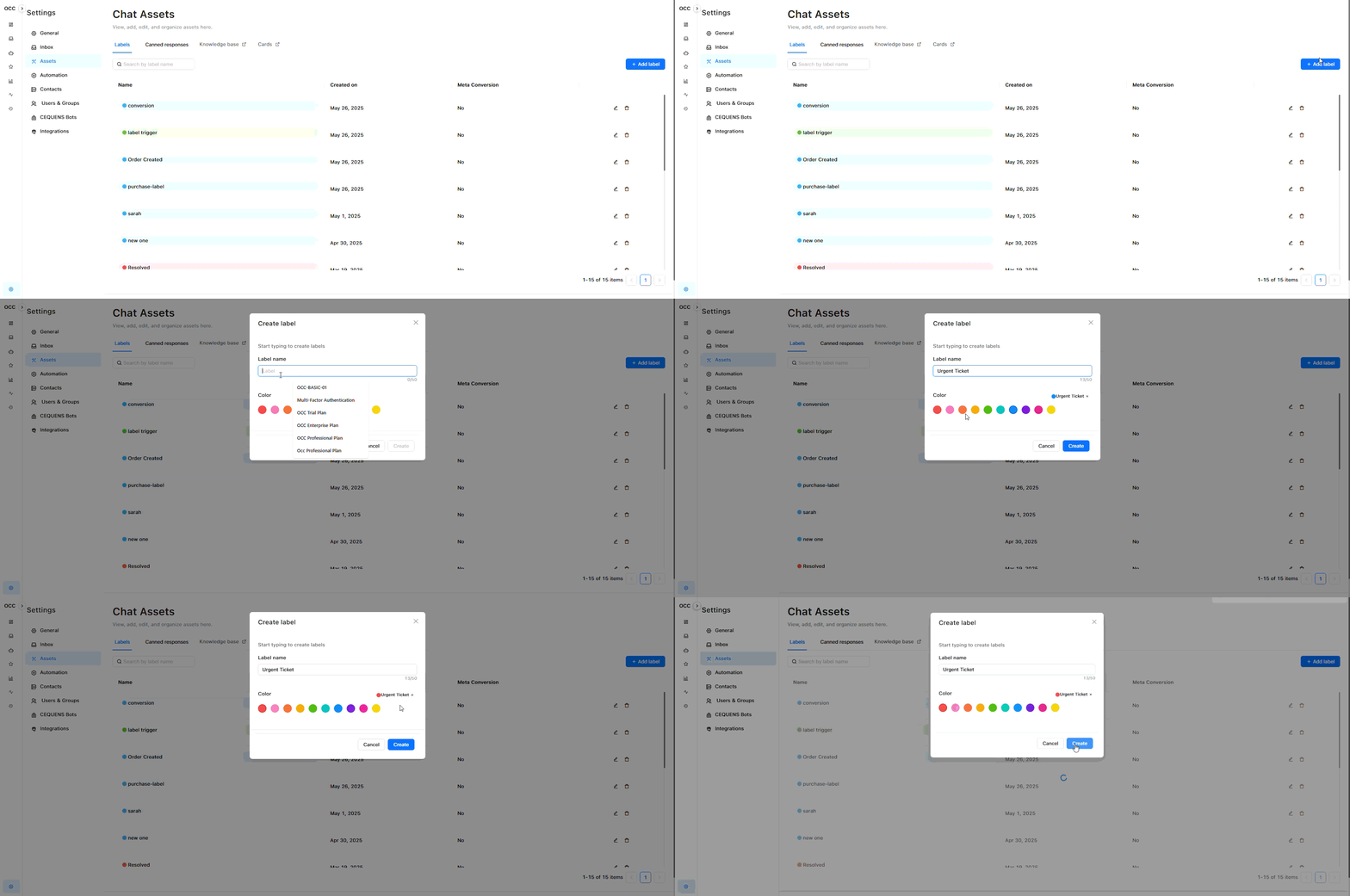
To create a new label:
- Go to Settings → Chat Assets → Labels
- Click "+ Create Label" or "+ New Label"
- Enter a label name (e.g., "Billing," "Technical Issue," "VIP")
- Choose a color to visually distinguish the label
- Click Save
Color options:
- Select from predefined colors (typically 10-15 options)
- Colors help you quickly identify conversation types at a glance
Pro Tip: Use consistent color schemes (e.g., red for urgent, green for resolved, blue for technical).
Label Naming Best Practices
Good label names:
- ✅ "Bug Report" - Clear and specific
- ✅ "Feature Request" - Action-oriented
- ✅ "VIP Customer" - Descriptive
- ✅ "Needs Follow-up" - Indicates required action
Avoid:
- ❌ "Important" - Too vague
- ❌ "Label 1" - Not descriptive
- ❌ "asdfgh" - No meaning
Using Labels in Conversations
Adding Labels to a Conversation
From the Inbox:
- Open a conversation
- Click the "Labels" icon or button
- Select one or more labels from the dropdown
- Labels appear as colored tags on the conversation
From the Dashboard:
- Select one or more conversations using checkboxes
- Click "Bulk Actions" → "Add Label"
- Select the label
- Click Apply
Note: You can add multiple labels to a single conversation.
Removing Labels from a Conversation
To remove a label:
- Open the conversation
- Click the X on the label tag
- The label is removed immediately
Filtering Conversations by Label
To filter by label:
- In Dashboard or Inbox, click the side menu
- Select "Labels"
- Choose one label
Only conversations with those labels will be displayed.
Editing Labels
To edit an existing label:
- Go to Settings → Chat Assets → Labels
- Click on the label you want to edit
- Update:
- Label name
- Color
- Click Save
What happens to existing conversations:
- Conversations with this label are automatically updated
- The new name and color appear immediately
Deleting Labels
To delete a label:
- Go to Settings → Chat Assets → Labels
- Select the label
- Click "Delete" or the trash icon
- Confirm deletion
What happens:
- The label is removed from all conversations
- This action cannot be undone
- Conversations remain, but the label is gone
Warning: Deleting a label removes it from all historical conversations. Consider archiving unused labels instead (rename to "ARCHIVE - Old Label").
Common Label Categories
By Topic:
- Billing Question
- Technical Support
- Product Inquiry
- Feature Request
- Bug Report
- Account Management
By Priority:
- Urgent
- High Priority
- Normal
- Low Priority
By Customer Type:
- VIP Customer
- New Customer
- Returning Customer
- Enterprise Client
By Status:
- Needs Follow-up
- Waiting for Info
- Escalated
- Resolved
By Department:
- Sales
- Support
- Engineering
- Billing
Label Workflows
Example 1: Bug Tracking
- Customer reports issue → Add "Bug Report" label
- Agent investigates → Add "Technical" label
- Escalate to engineering → Add "Escalated" label
- Bug fixed → Add "Resolved" label
- Close conversation
Example 2: VIP Customer Support
- VIP customer contacts → Auto-apply "VIP" label (via automation)
- Prioritize in queue → Filter by "VIP" label
- Handle with priority → Assign to senior agent
- Add follow-up → Add "Needs Follow-up" label
Example 3: Feature Requests
- Customer suggests feature → Add "Feature Request" label
- Collect similar requests → Filter by "Feature Request"
- Review monthly → Export conversations with this label
- Notify customers → When feature is built, search for label
Best Practices
Label Design:
- ✅ Keep total labels under 20-25 (avoid overwhelming agents)
- ✅ Use clear, consistent naming conventions
- ✅ Assign distinct colors for easy recognition
- ✅ Group related labels (use prefixes like "Priority:" or "Type:")
Label Usage:
- ✅ Train agents on when to use each label
- ✅ Make some labels required (via automation or policy)
- ✅ Review label usage monthly to identify unused ones
- ✅ Update label lists as your business evolves
Organization:
- ✅ Create a label guide document for your team
- ✅ Use consistent color coding across label categories
- ✅ Archive old labels instead of deleting them
- ✅ Use automation to apply labels automatically (see Automations)
Troubleshooting
Can't add label to conversation
Check:
- ✅ You have permission to add labels (Agents, Admins can add)
- ✅ The label still exists (wasn't deleted)
- ✅ Conversation is not closed (some systems restrict editing closed conversations)
Label not appearing in filter
Check:
- ✅ At least one conversation has this label
- ✅ You're filtering the correct inbox
- ✅ Refresh the page
Too many labels, hard to find the right one
Solution:
- Review and delete/archive unused labels
- Use naming prefixes for categories (Type:, Priority:, Status:)
- Limit total labels to 15-20 active ones
- Create a labels guide for your team
Updated 8 months ago