
Capture User Reply Action
Intro
To interact with a chatbot, it is crucial to have a tool to get user input and process it in some way. The Capture User Reply (CUR) action is designed exactly for this purpose.
You can use the Capture User Reply action in your existing blocks, in chain with your already existing actions.
To understand how the CUR works, let's create a new project and customize your reply action with a text to ask the user's name.
What we want now is to block the flow until the user replies with their name, then assign the captured name to a flow attribute.
Drag the “Capture User Reply” action into the “welcome” block, just under the above configured Reply action, like in the following two pictures:
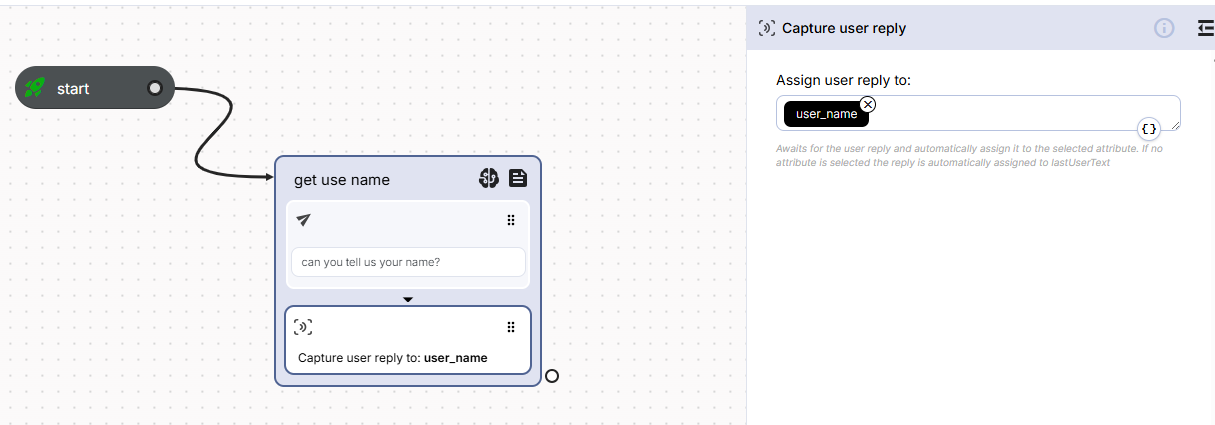
Now, click on the Capture User Reply action to open the corresponding action editor. We want to create a new flow attribute that we'll fill out with the name that the user will provide during the chat. Press the {} button under the “Assign user reply to” field. In the attributes pop-up up press “Add custom attribute”.
Choose the attribute name "user_name". Click on the added attribute so it will be selected in the action editor. The name that the user will provide will be assigned to the user_name attribute.
We want to use the attribute to greet the user soon after he tells us his name. Go to the bottom right corner of the block near the Capture User Reply and create “on the fly” a new Reply action. As soon as the user replies, the automation flow will move to the end of the block (because there are no other actions to execute). The tag on the bottom right corner will connect the block to another block to optionally continue the flow. In this case, this is exactly what we want: after capturing the user name, the flow will continue to the next connected block, and his actions will be executed. Drag the tag with the connector on the stage, a menu will appear where you can keep the Reply action. An enclosing block will be created on the fly.

Updated over 1 year ago