
Users & Groups
Overview
Manage your team by adding users with different roles and organizing them into groups for better collaboration and conversation routing.
To access Users & Groups:
- Go to Settings from the sidebar
- Click Users & Groups
User Roles
OCC supports three user roles:
| Role | Capabilities |
|---|---|
| Owner | Full system access to the CEQUENS account |
| Admin | Full system access: manage settings, users, inboxes, view all conversations, create automations |
| Agent | Handle assigned conversations, use chat tools, and view personal metrics |
Note: The account owner from Console is automatically an Admin in OCC.
Adding Users
To invite a new user:
- Go to Settings → Users & Groups → Users tab
- Click "+ Add User" or "+ Invite User"
- Enter the user's email address
- Select their role:
- Admin
- Supervisor
- Agent
- Click "Send Invitation"
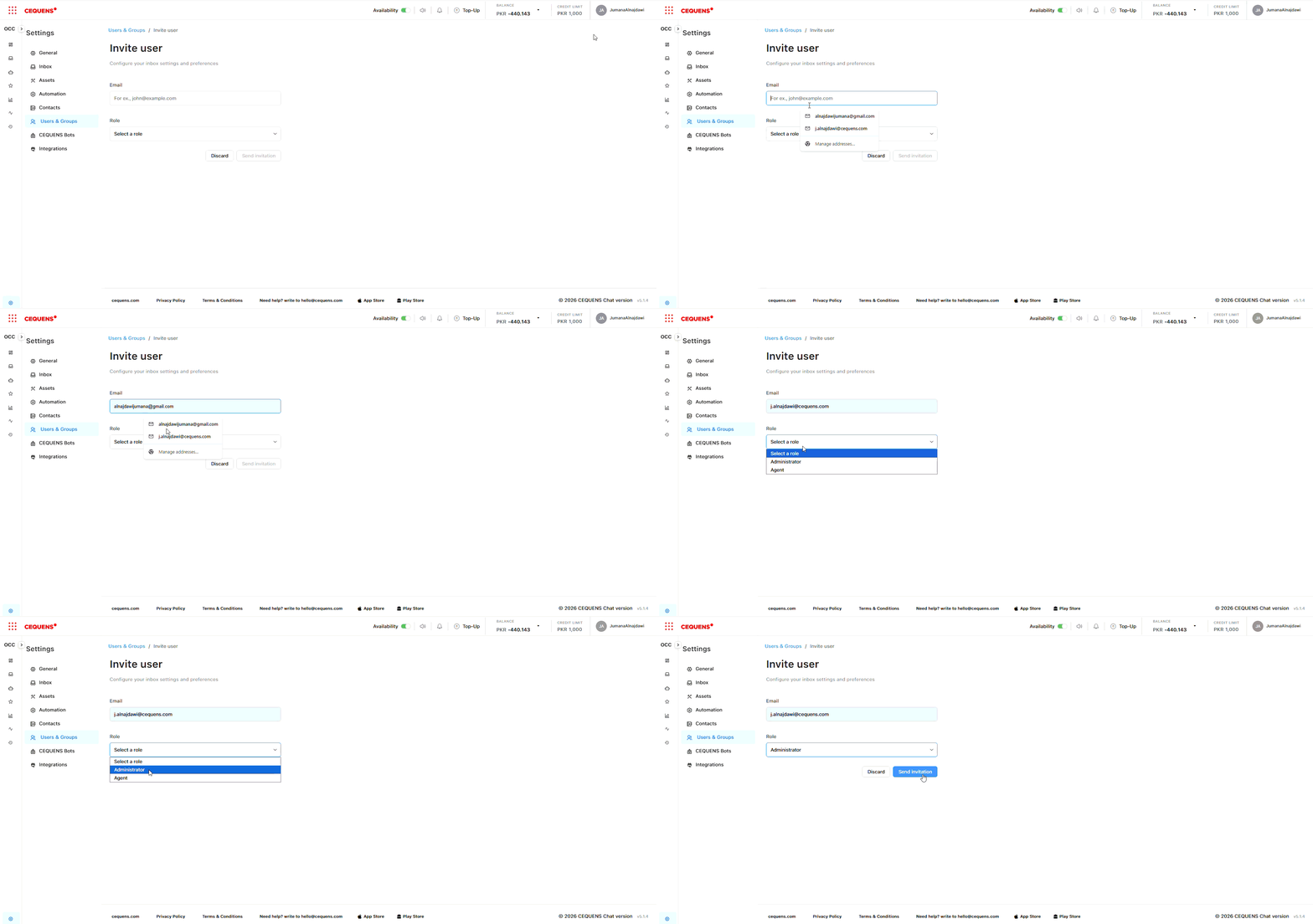
What happens next:
- The user receives an email invitation
- They click the link and set up their password
- They can immediately access OCC with their assigned role
Managing Existing Users
To edit a user:
- In Users & Groups → Users tab
- Click on the user you want to edit
- Update their:
- Role
- Status (Available/not available)
- Click Save
To deactivate a user:
- Select the user
- Click on Deactivate
- Click Save
Deactivated users:
- Cannot log in to OCC
- Stop receiving conversation assignments
- Their past conversations remain visible
- Can be reactivated at any time by adding him again as the normal invitation flow
To remove a user permanently:
- Select the user
- Click "Delete User" or trash icon
- Confirm deletion
Creating Groups
Groups help you organize users and assign them to specific inboxes for better workflow management.
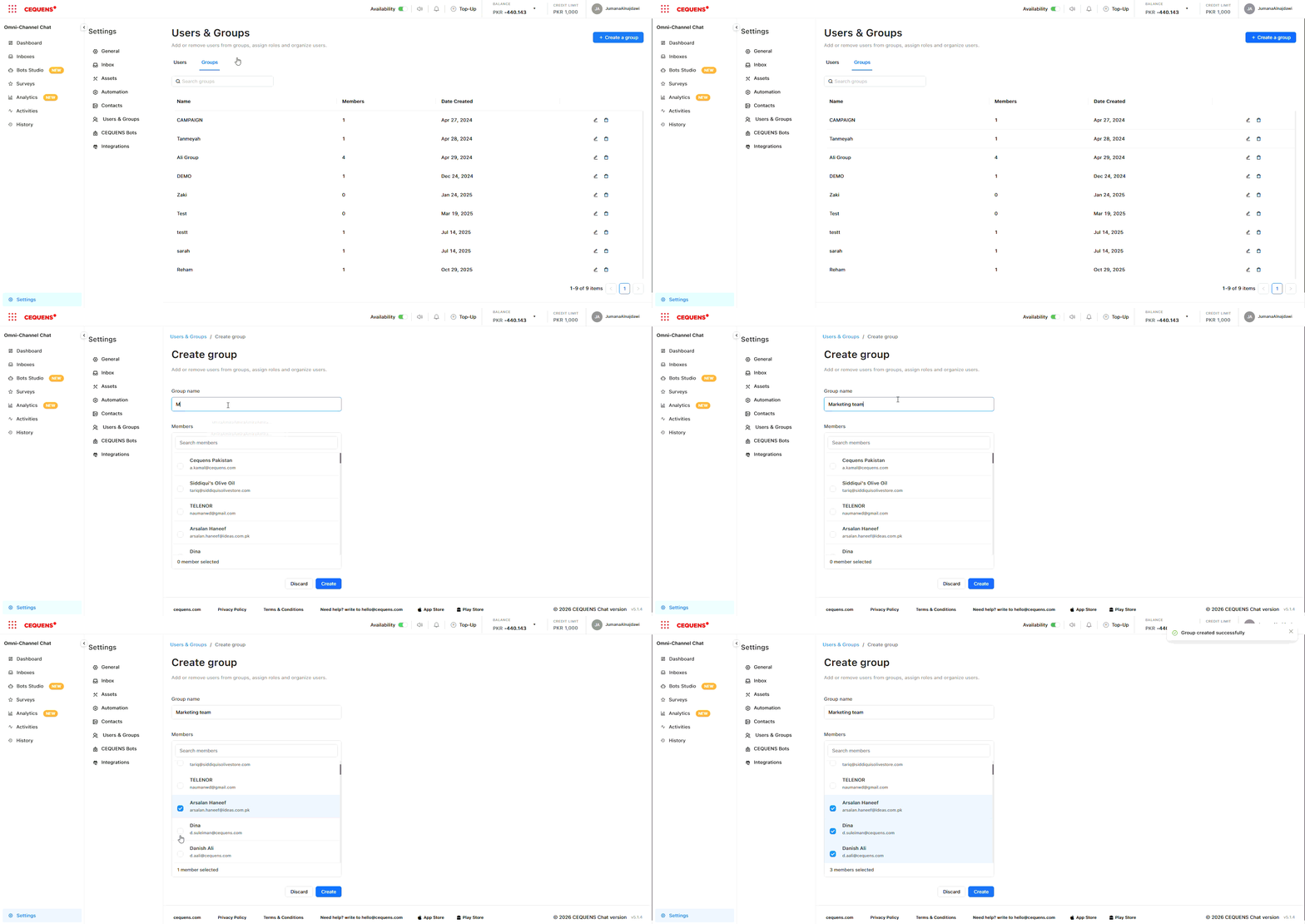
To create a group:
- Go to Settings → Users & Groups → Groups tab
- Click "+ Create Group"
- Enter a group name (e.g., "Support Team," "Sales Team," "Night Shift")
- Add 'Members' (optional)
- Click Save
Adding Users to Groups
To add members to a group:
- In the Groups tab, select your group
- Click "+ Add Members"
- Select users from the list (you can select multiple):
- Admins
- Agents
- Click Add
To remove members:
- Select the group
- Uncheck the checkbox next to the user's name
- Confirm removal
Pro Tip: Users can belong to multiple groups. For example, an agent might be in both "Support Team" and "VIP Customer Group."
Using Groups for Routing
Groups are essential for conversation routing. When you configure routing for an inbox, you select which group will handle those conversations.
Example setup:
- "Support Team" group → Assigned to "Customer Support" inbox
- "Sales Team" group → Assigned to "Sales Inquiries" inbox
- "Billing Team" group → Assigned to "Billing Questions" inbox
See Routing Configuration for details.
Best Practices
User Management:
- ✅ Use descriptive email addresses (e.g., [email protected], not [email protected])
- ✅ Assign roles based on actual responsibilities
- ✅ Regularly review active users and deactivate those who've left
- ✅ Document who has Admin access for security purposes
Role Assignment:
- ✅ Admins: Limit to 2-3 trusted team leads - Team leads who monitor but don't change settings
- ✅ Agents: Frontline support staff
Group Organization:
- ✅ Create groups by function (Support, Sales, Billing)
- ✅ Create groups by shift (Day Shift, Night Shift)
- ✅ Create groups by expertise (Technical, General, VIP)
- ✅ Keep group sizes manageable (5-15 users per group)
- ✅ Use clear, descriptive names
Onboarding New Users:
- ✅ Send an invitation before their first day
- ✅ Add them to the appropriate groups immediately
- ✅ Provide training materials and documentation
- ✅ Start with the Admin role for training, then switch to Agent
- ✅ Monitor their first few conversations
User Permissions Reference
What Admins Can Do:
- ✅ All Supervisor and Agent capabilities
- ✅ Manage all settings (inboxes, routing, SLA, etc.)
- ✅ Add, edit, and remove users
- ✅ Create and manage groups
- ✅ Configure automations
- ✅ Manage integrations
- ✅ View all analytics and reports
- ✅ Delete conversations
What Agents Can Do:
- ✅ View assigned conversations in the Inbox
- ✅ Reply to customers
- ✅ Use conversation tools (labels, canned responses, AI, media)
- ✅ Add internal notes and mentions
- ✅ View personal performance metrics
- ✅ Close conversations
- ❌ Cannot access settings
Troubleshooting
User didn't receive the invitation email
Check:
- ✅ Email address is correct (no typos)
- ✅ Check spam/junk folder
- ✅ Resend invitation from Users & Groups → Users tab
- ✅ Verify email delivery isn't blocked by the corporate firewall
User can't see conversations
Check:
- ✅ User is added to the appropriate group
- ✅ Group is assigned to the inbox
- ✅ For Agents: conversations must be assigned to them (unless pooled routing)
- ✅ User is set to Active status
- ✅ Routing configuration is correct
Can't delete a user
Possible reasons:
- User is the account owner (cannot be deleted)
- User has active conversations assigned
- User is the only Admin
Solution:
- Reassign their conversations first
- Deactivate instead of deleting
- Add another Admin before removing this one
Updated 9 months ago