
SMS Templates
Creation
- Click the "Create New Template" button on the Multi-Factor Authentication (MFA) page.
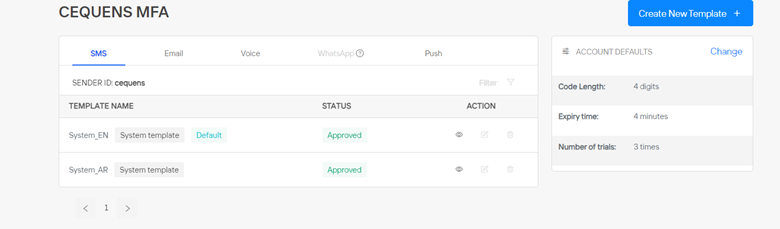
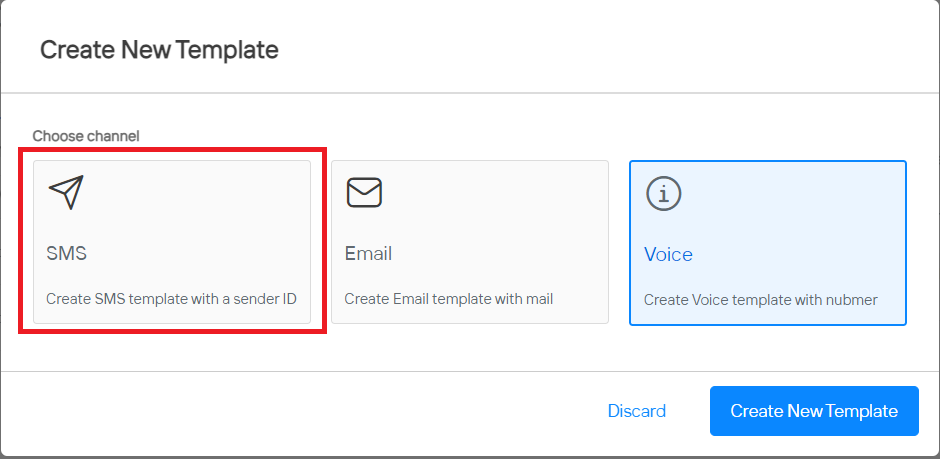
- A pop-up will prompt you to select the channel type. Choose SMS and click the "Create New Template" button.
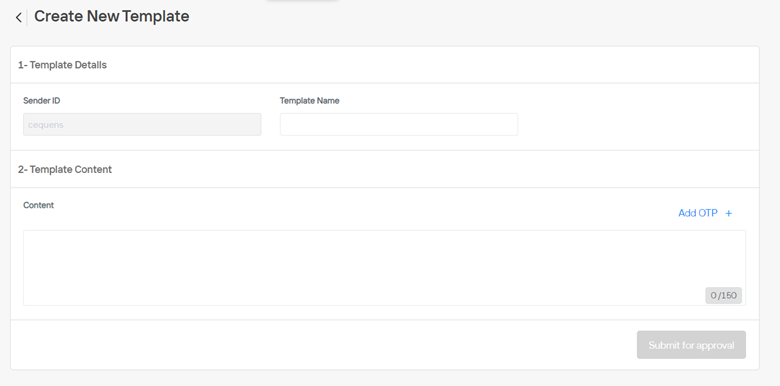
- You will be directed to a page to input template details. Select the sender ID if you have multiple sender IDs, enter the template name, and provide the template content.
- In the content section, click the "Add OTP" button. The placeholder 'XXXX' will appear in the content, reflecting the code length. However, the actual message will display a system-generated OTP code.
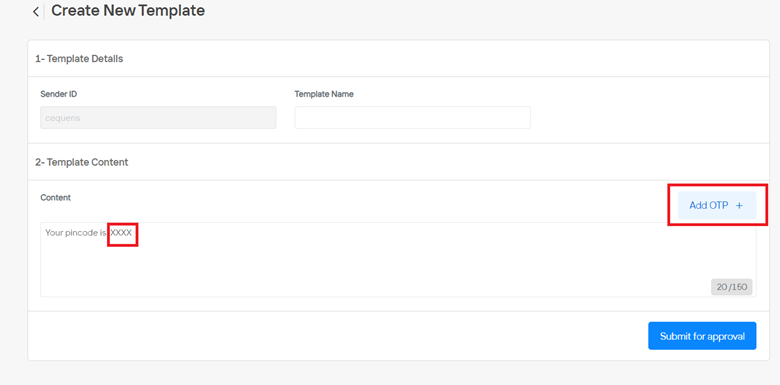
- After completing the content, click the "Submit for Approval" button. The template will undergo review and will become available for use upon approval.
Listing View
- All created SMS templates will be displayed in the SMS tab on the Multi-Factor Authentication (MFA) page.
- To view a specific SMS template, click on the eye icon in front of the template name.
- A pop-up window will appear, where you will find the template ID necessary for API usage.
Edit
- Templates can be edited directly from the templates listing page.
- To edit a template, click on the edit icon next to the template name.
- You can then modify the details of the template and resubmit it for approval.
- It's important to note that if an approved template is edited, it will undergo the approval process once again.
Delete
- Templates can be deleted directly from the template listing page.
- To delete a template, click on trash icon next to the template name.
Updated over 1 year ago