
Reply Action
Intro
The Reply action is the “core” of conversational automations. It helps you to correctly reply to the user, creating what is the perceived end-user UI on their chat application. The Reply Action can send to the user different pieces of content, some non-interactive as simple text or images, and some others interactive, like buttons. It can also send back to the user multimedia contents like video or (it depends on the channel, obviously) entire small web applications contained inside an iframe.
Moreover, consider that all the components sent back to the user can adapt automatically to the channel that the user is using to chat. For example, WhatsApp chats only support up to three buttons, but if you send more than three buttons, the reply adapts the conversation automatically to show the buttons with a pop-up menu instead of single buttons.
It's time to see how the Reply action works.
Working with replies
When you work with replies (and other Actions), you will always have two different “views” of the action.
- Action preview
- Action editor
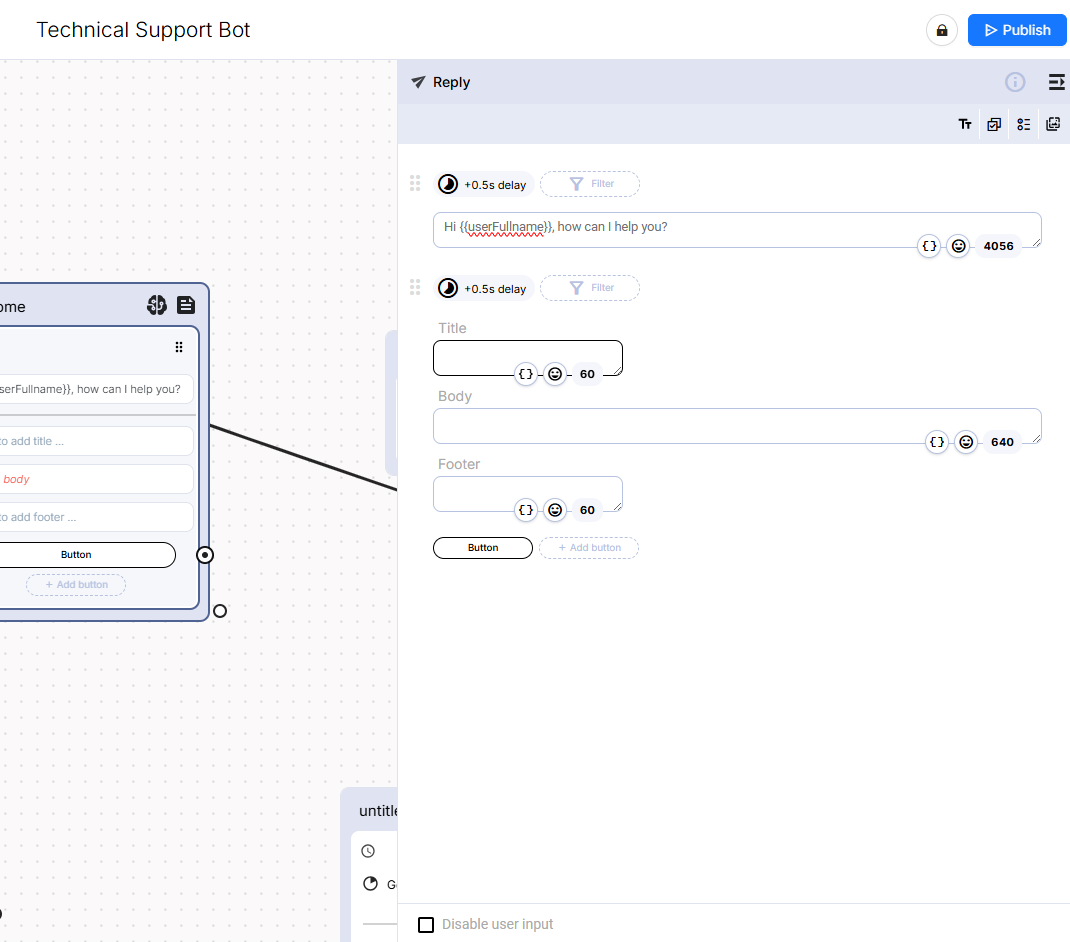
The Action preview represents a syntetic view of the action inside the stage. It is very useful to have a good preview of the action in the stage to a get a good understanding of the whole flow when you have many blocks. Some action previews, like the Reply Action itself, are also interactive. For example you can easily create and connect a button directly from the preview, without the need to open the editor.
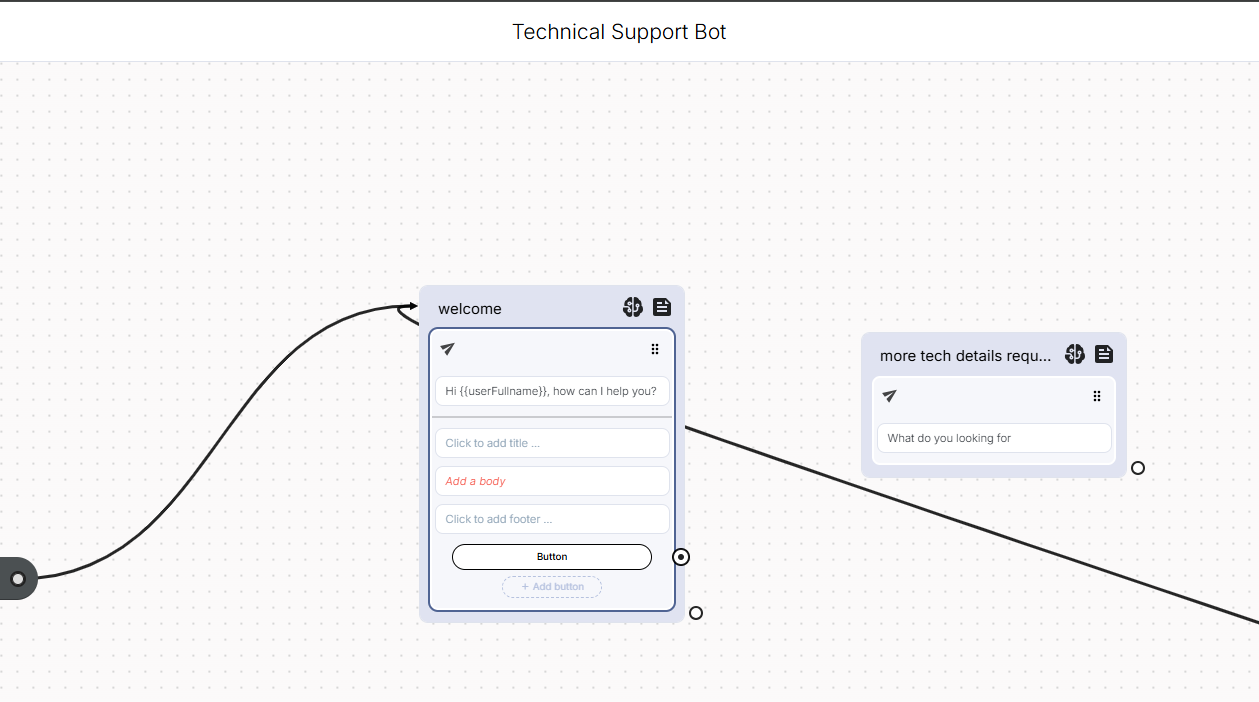
The Action Editor represents the detailed view of the action and allows you to edit and set up your actions with all the needed and supported details.
Text replies
If you want to reply with simple text, the default Reply dragged on the stage is ready for the task. You only have to fill out the shown text field with the desired phrase:
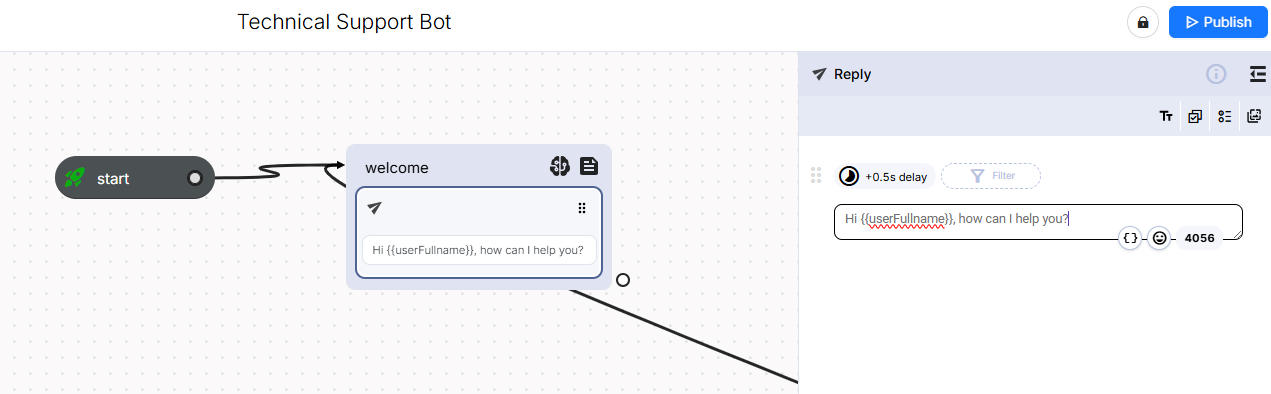
Let's try. Test it!
| Messenger | |||
|---|---|---|---|
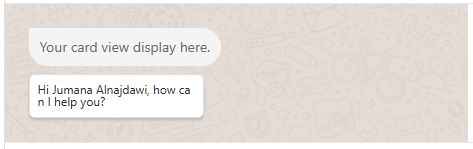 | 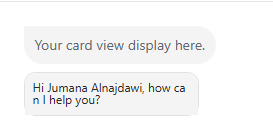 | 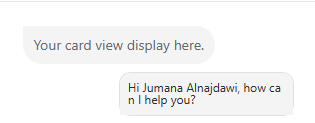 |
We got our text as the welcome message.
Interactive Call-To-Action
Adding buttons to your reply is very easy, too. Simply click on the 'Add button' to add more buttons, up to three buttons.
Set up your CTA message.
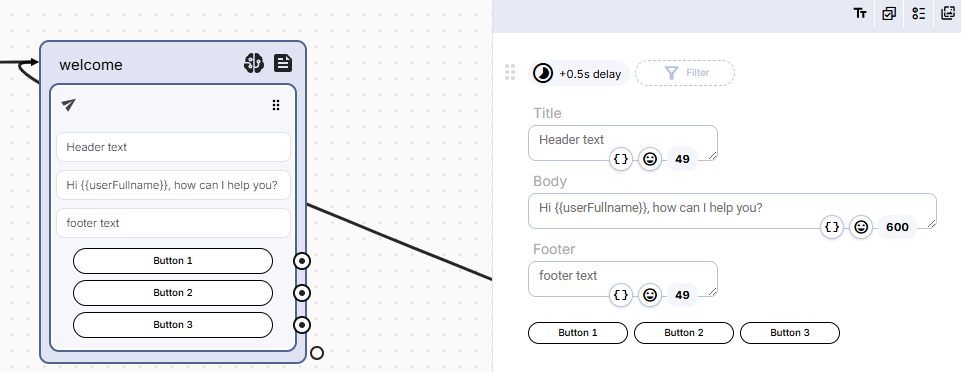
The test it again. Your CTA displays in the welcome message.
| Messenger | ||
|---|---|---|
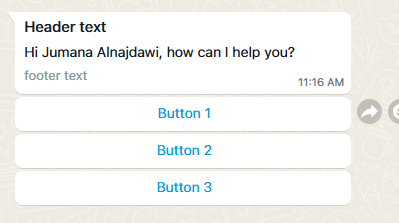 | 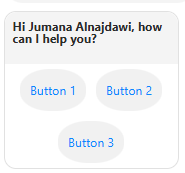 | 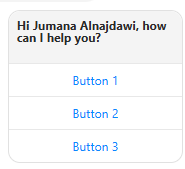 |
As you can see, the Header and footer texts are not shown in Instagram and Messenger, as per the channel's support.
Interactive List
Adding buttons to your reply is very easy, too. Simply click on the 'Add button' to add more buttons, up to 10 buttons.
Set up your list message.
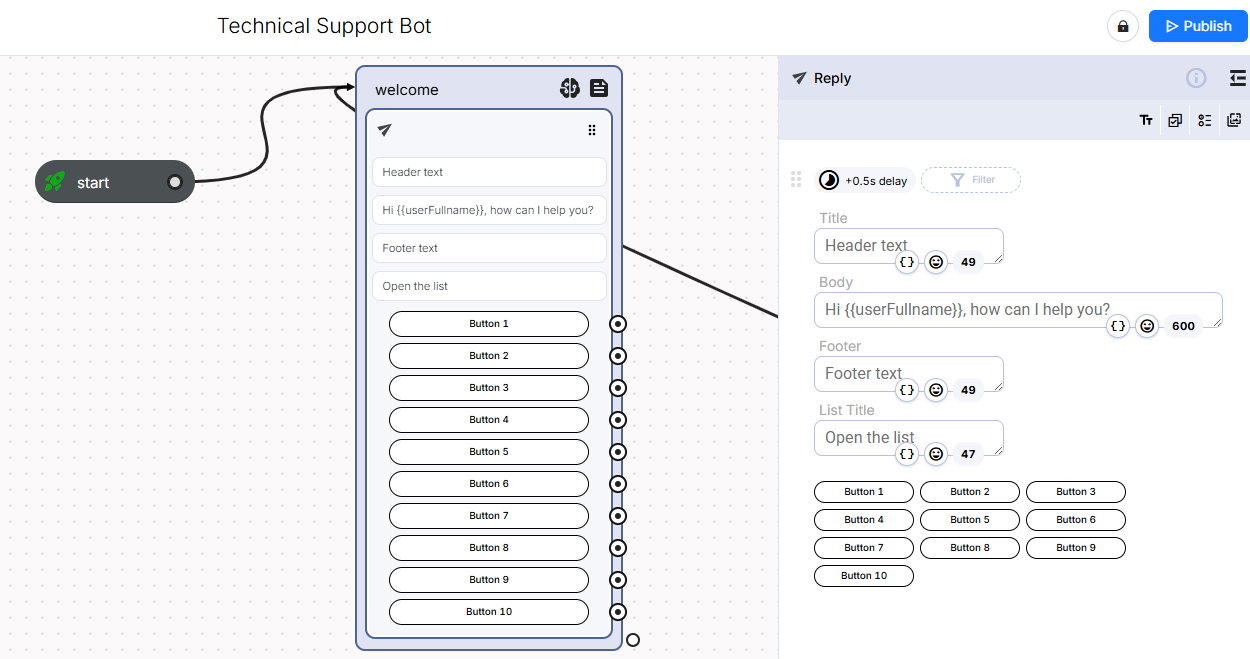
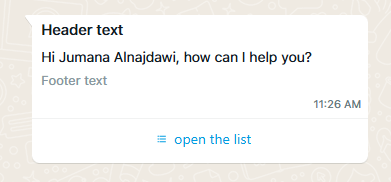
The test it again. Your list displays in the welcome message.
| Messenger | ||
|---|---|---|
 | Not Supported | 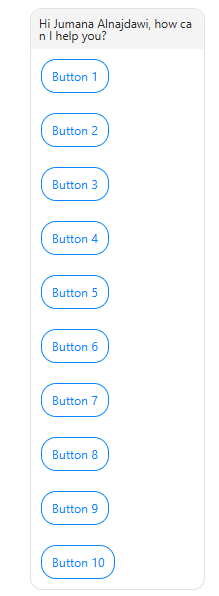 |
As you can see, the Header, footer, and list title texts are not shown in Messenger, as per the channel's support.
On the other hand, the Instagram channel doesn't support the list message.
Interactive Reply Buttons
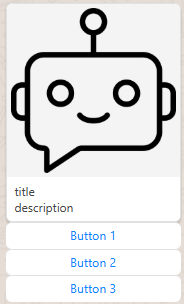
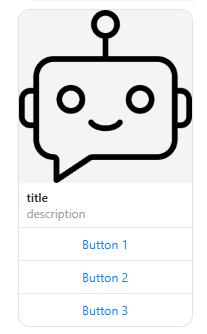
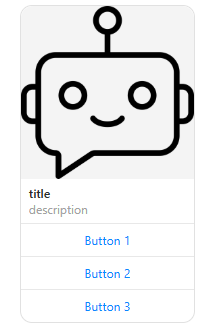
Adding images and buttons to your reply is very easy, too. Simply click on the 'Add button' to add more buttons, up to three buttons.
Set up your interactive reply buttons message.
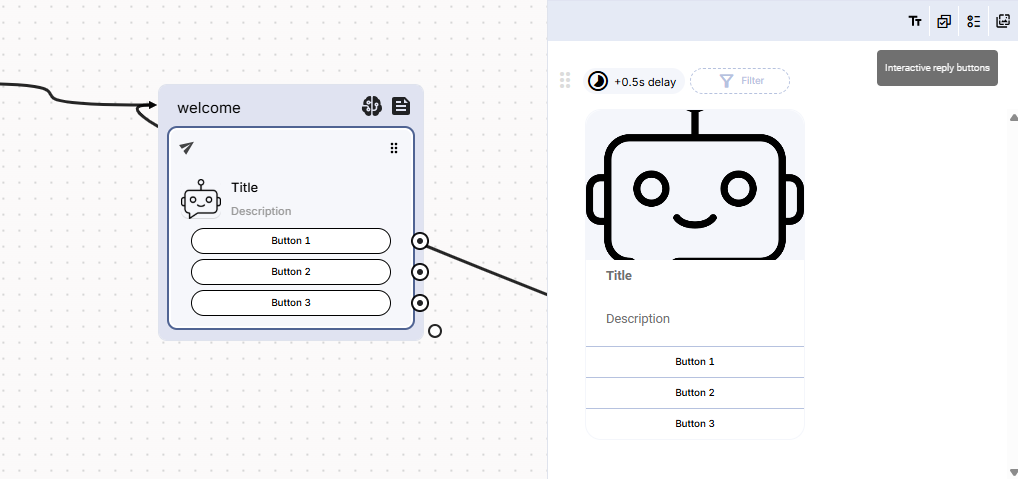
The test it again. Your interactive reply buttons display in the welcome message.
| Messenger | ||
|---|---|---|
 |  |  |
Filters
Filters are a special way to hide/unhide specific sections of a Reply Action based on the flow attributes' values.
You can use Filters to reduce the number of branches in the flow, simply by building a Reply that automatically adapts the shown contents based on the values of some attributes.
A good Use case to understand Filters is for multi-language. You can create a single Reply serving multiple languages. In this way, when the multilingual use case is not too complex, you can approach a viable solution with Filters.
Updated over 1 year ago