
Bots
The "Bots" section in CEQUENS Chat settings enables users to integrate and manage automated bot assistance for handling customer inquiries effectively. You can configure three types of bots FAQ Bot, CEQUENS Bot or External Bot.
- To harness the assistance of bots for managing customer inquiries in CEQUENS Chat, navigate to the "Bots" section accessible from the left menu.
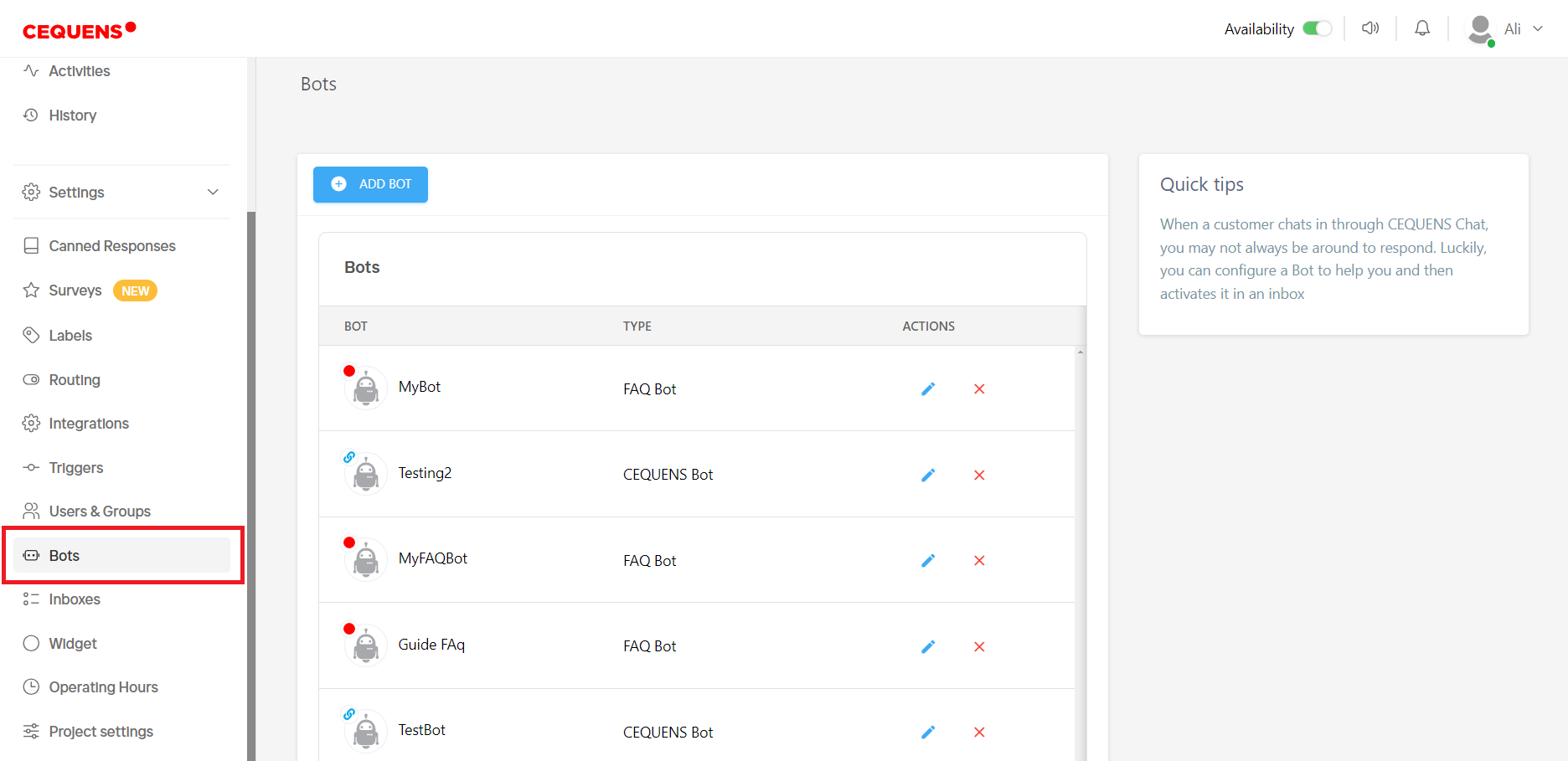
- Upon arrival, existing bots are showcased on the bots listing page, detailing their types with options to edit or delete.
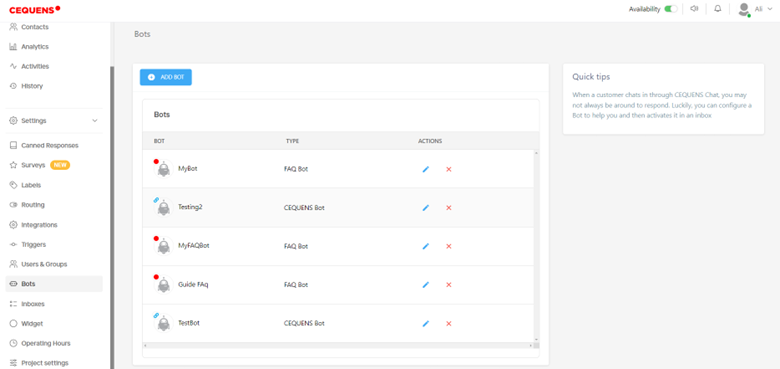
- To incorporate a new bot, initiate the process by clicking the "Add Bot" button.
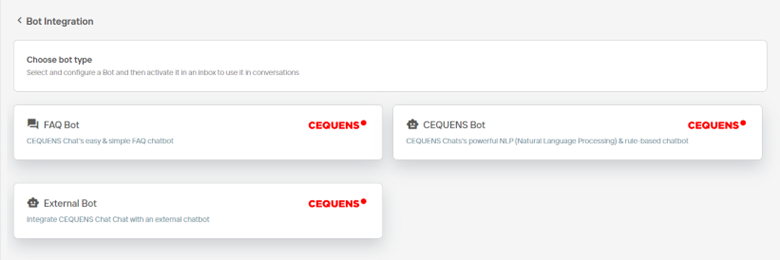
- Select the appropriate bot type from the options available: FAQ Bot, Cequens Bot, or External Bot.
FAQ Bot
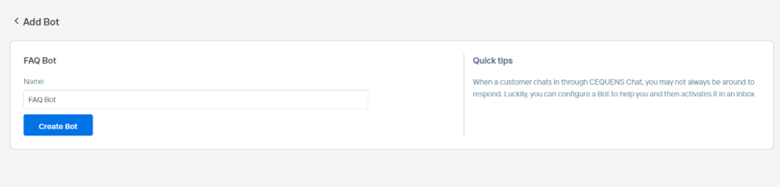
- To create a FAQ Bot, select the "FAQ Bot" option, input the desired bot name, and finalize by clicking "Create Bot."
- Upon creation, proceed to add an image and define questions and corresponding answers.
- Click Upload image to select image from files.
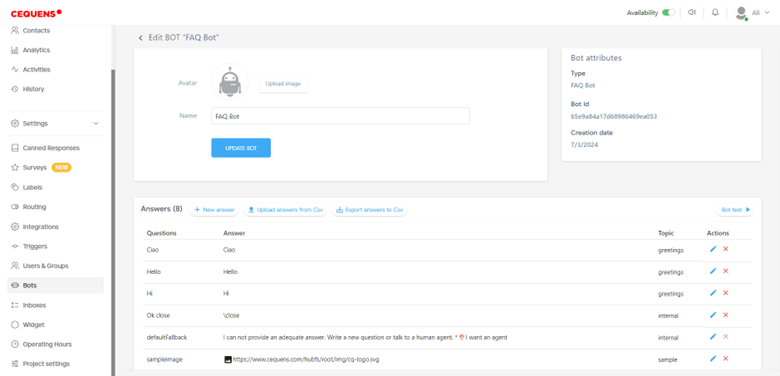
- Existing answer templates are visible on the listing page.
- Answers can be added manually on the chat console or imported via a CSV file.
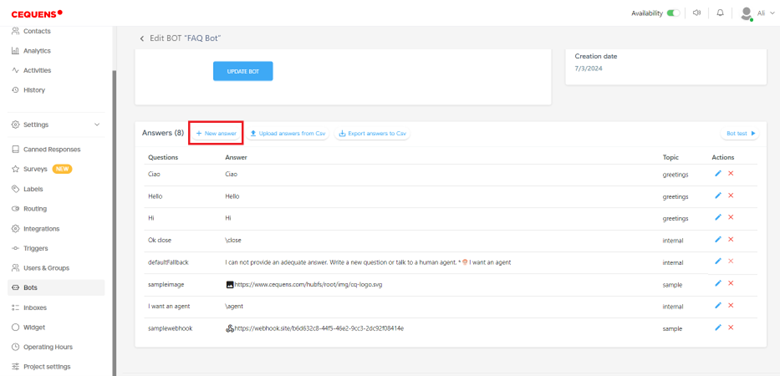
- To manually add an answer, click the "New Answer" button and input questions and responses accordingly.
- Add the questions in the question field. One or more questions can be added separated by a line.
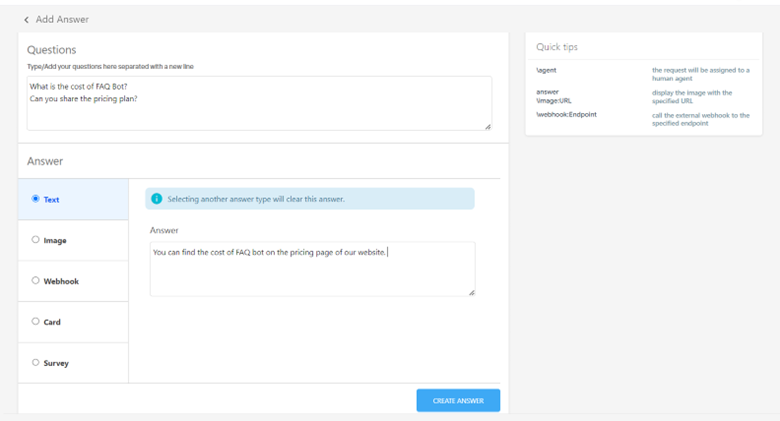
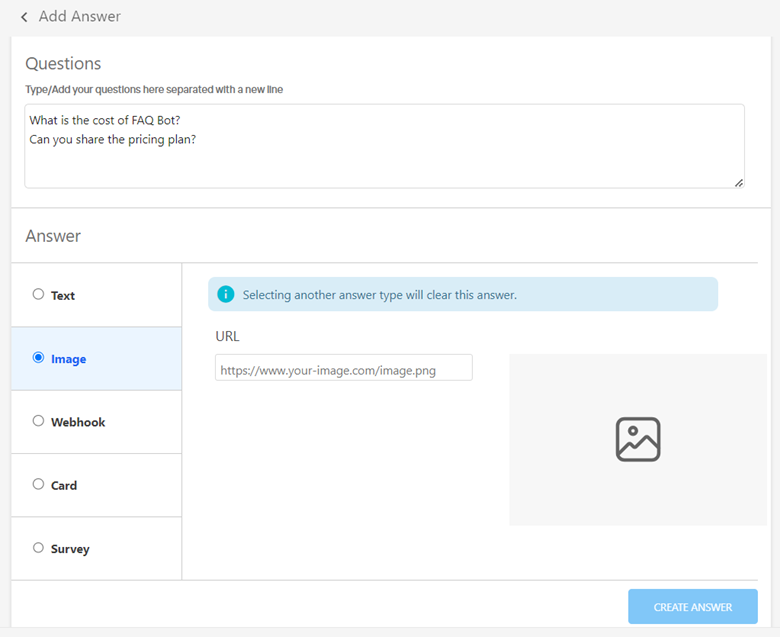
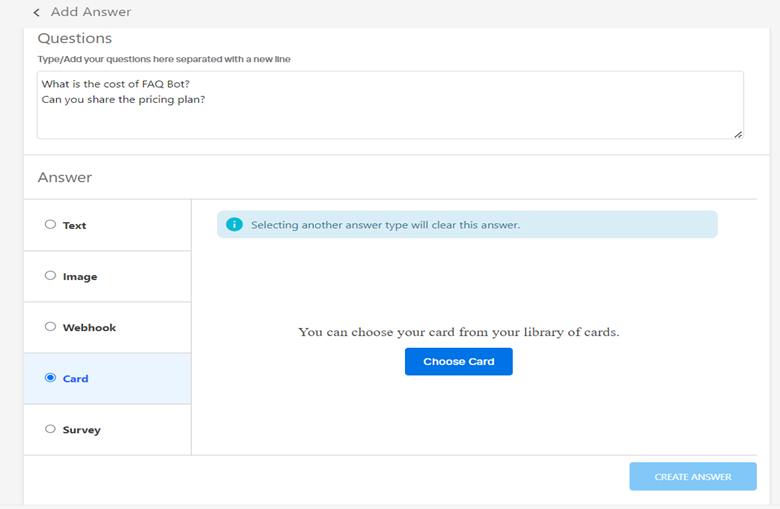
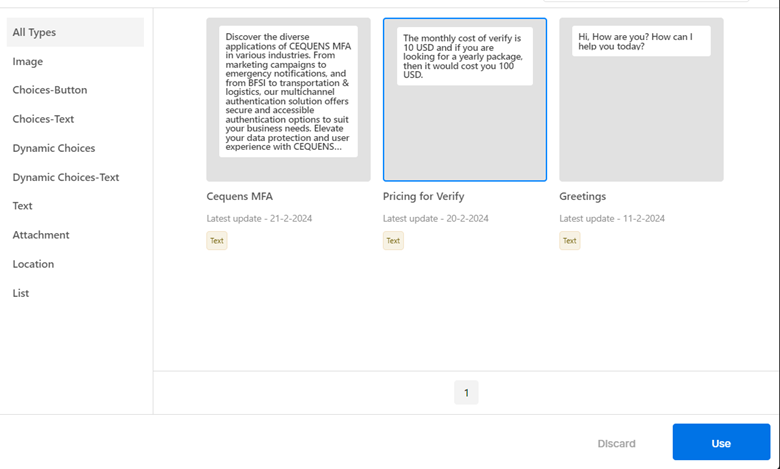
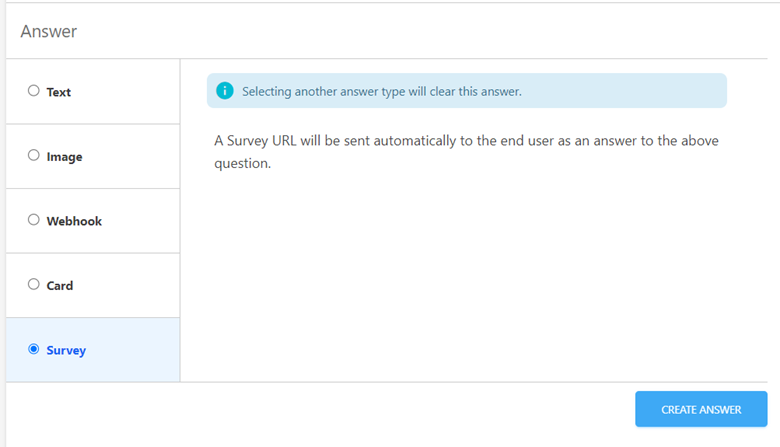
- Various response types are supported including text-based, image-based, webhook, card, or survey.
Image-Based
Webhook
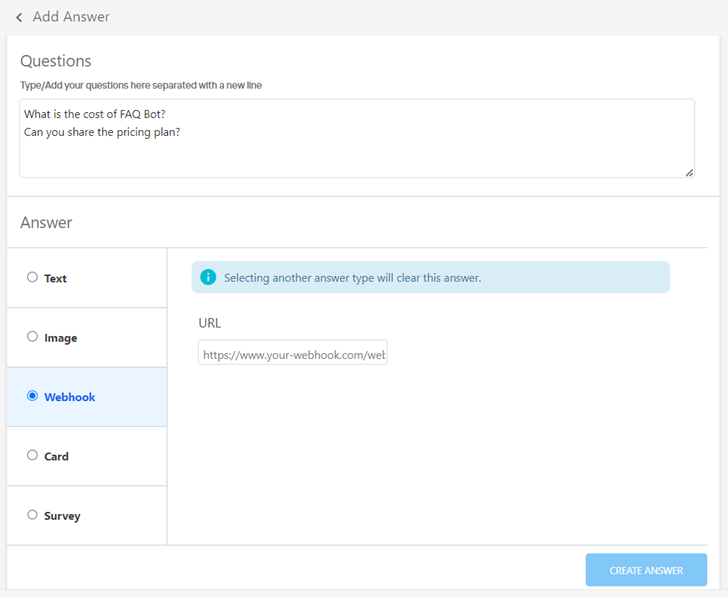
Card
Survey
- Alternatively, answers can be uploaded from a CSV file by selecting "Upload Answers from CSV."
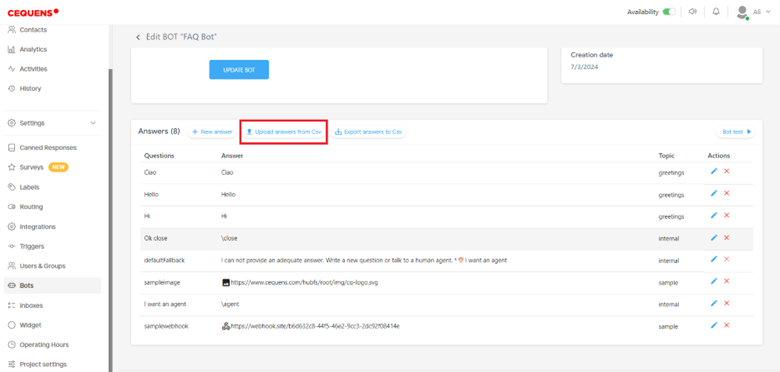
- A sample CSV file is available for download for guidance. Click on Download Exmaple.CSV file.
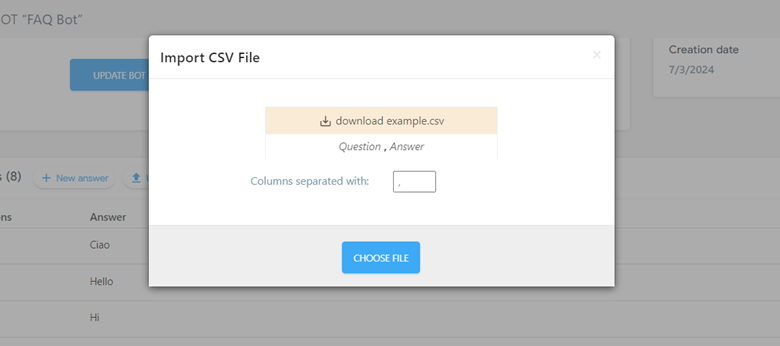
- After populating the CSV file with questions and answers, upload it by clicking Choose File button.
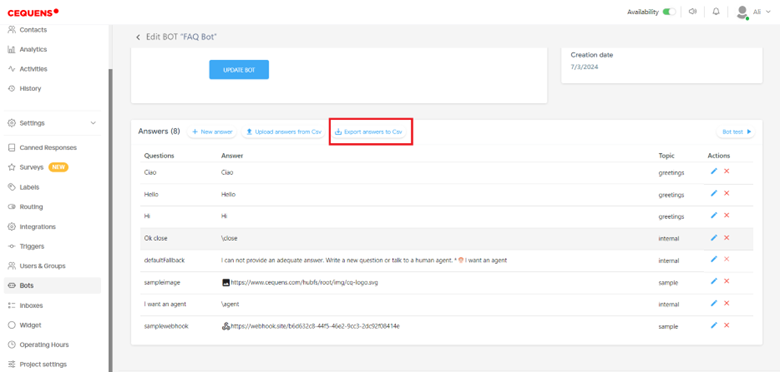
- For management purposes, the export of questions and answers to a CSV file is facilitated through the "Export Answers to CSV" button.
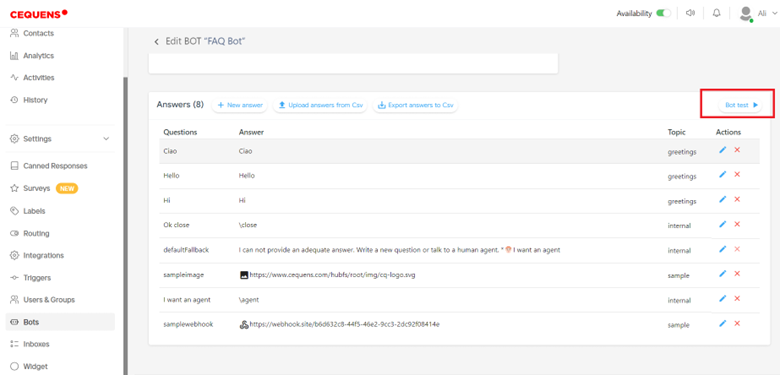
Bot Test
- Bots can be tested for functionality by clicking the "Bot Test" button, which initiates a testing environment.
- Queries can be submitted, and the bot's responses evaluated.
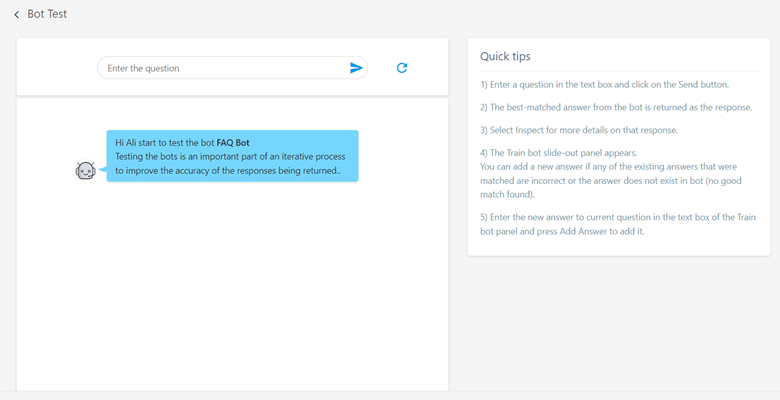
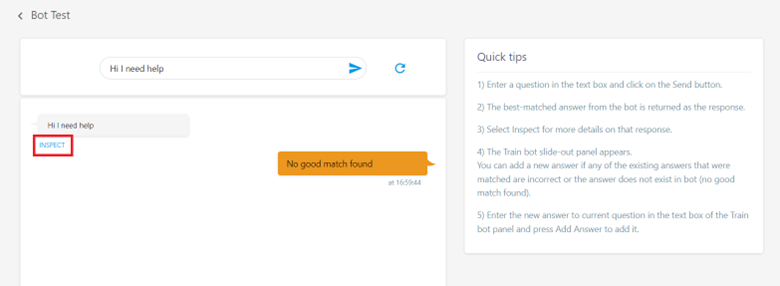
- Inaccurate or missing responses can be rectified by adding new answers within the "Train bot" panel by clicking on Inspect.
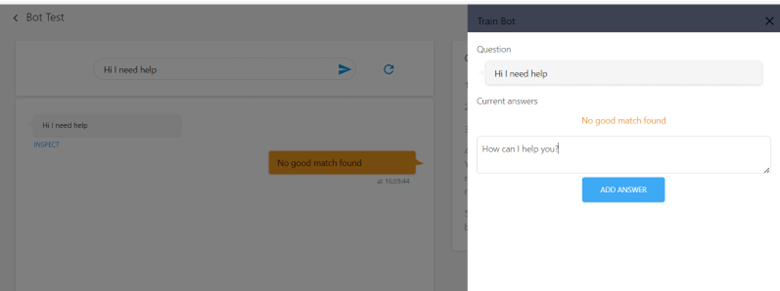
- A side panel will appear, where you can add the answer to the question.
CEQUENS Bots and External Bots
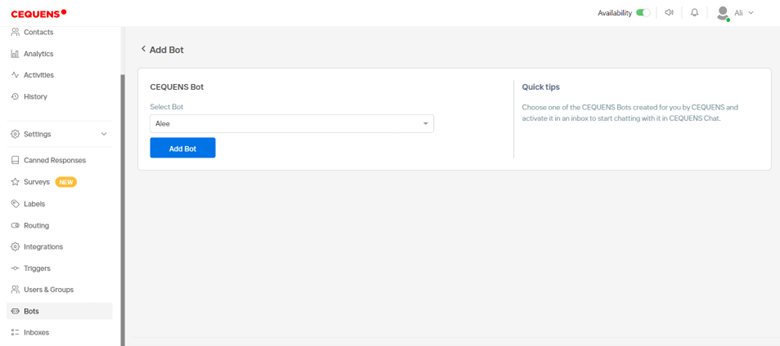
- When selecting the CEQUENS Bot option from the Bots main page, a dropdown menu appears for selecting a bot previously created through the CEQUENS console.
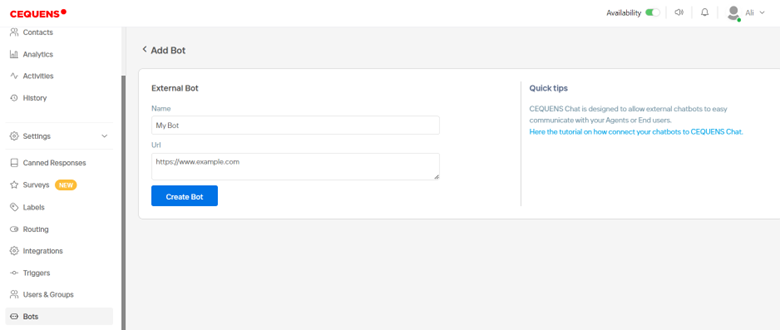
- Configuring an External Bot involves specifying a name and providing the external bot's URL during the bot creation process.
Updated 6 months ago