
Chat Widget
The "Chat Widget" feature in CEQUENS Chat settings offers users a streamlined method to integrate and customize a chat widget on their website.
- To configure a chat widget for seamless integration on your website, navigate to the "Widget" section accessible from the left menu.
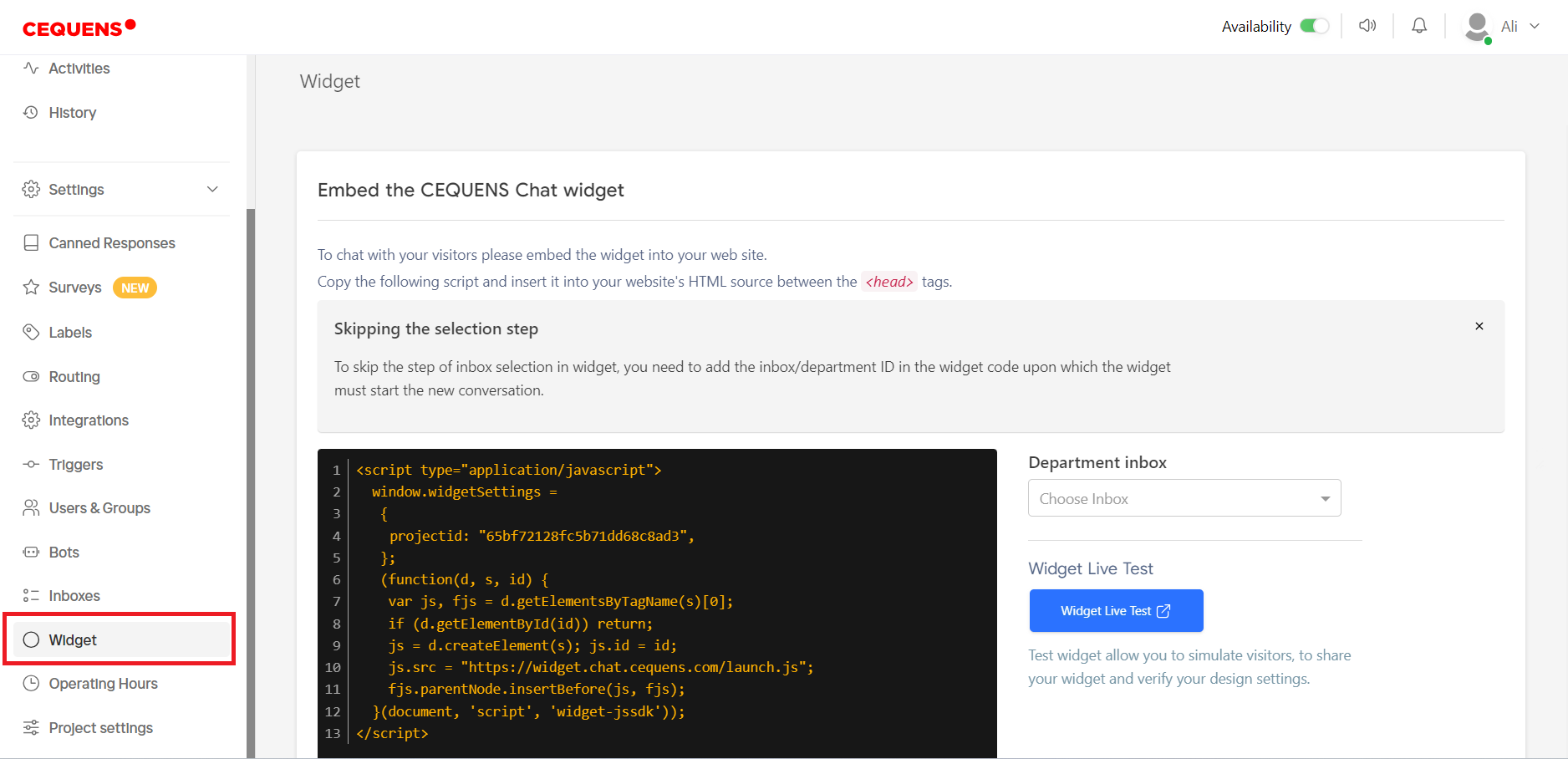
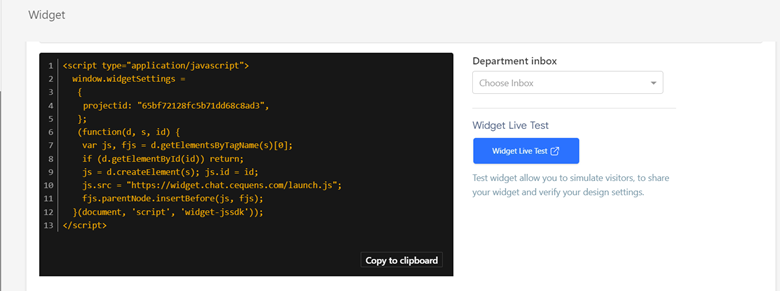
- Upon entering the Widget page, you'll find the script snippet, copy it and paste it in your website's HTML source code between the <head> tags.
- Customize the widget by selecting an inbox and optionally adding the inbox/department ID in the widget code to designate where new conversations should commence.
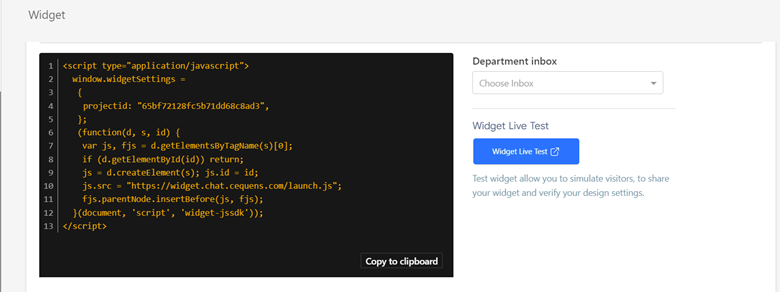
- Test the live widget's functionality by clicking the "Widget Live Test" button. This allows you to interact with the chat widget by posting questions in the provided chat box.
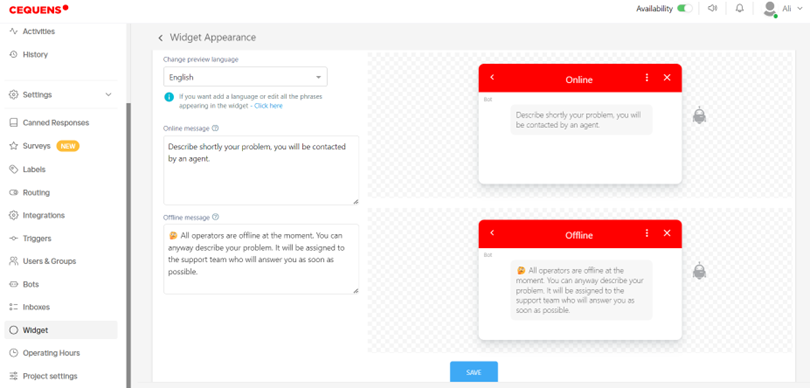
- Enhance user engagement with a personalized touch by setting up greetings on a chat widget.
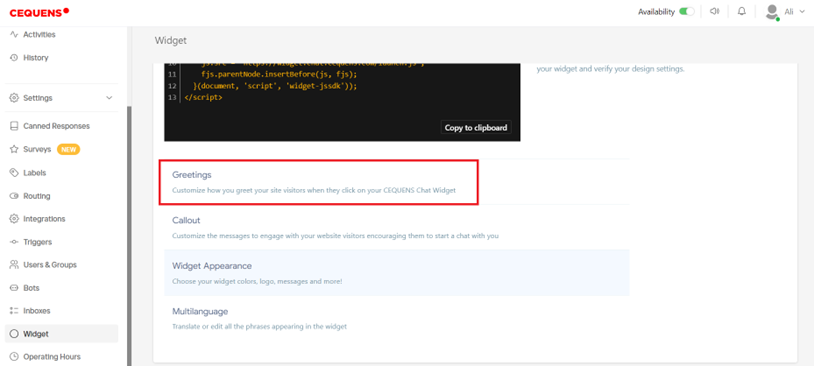
- Under the Greetings tab, specify the language preference and adjust the online and offline messages visible to visitors on the chat widget. Save your changes once configured.
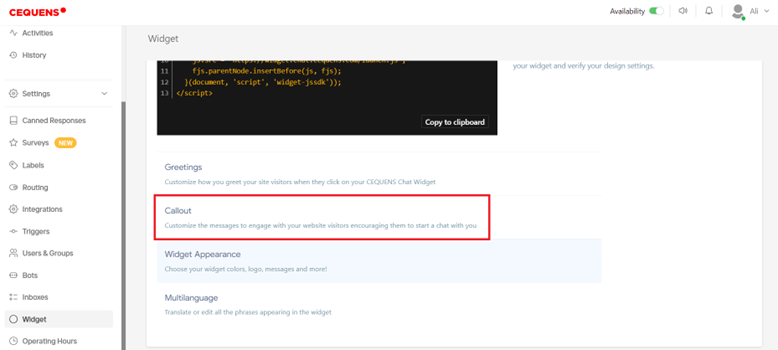
- Utilize the Callout option to provide additional information or prompts on the chat widget.
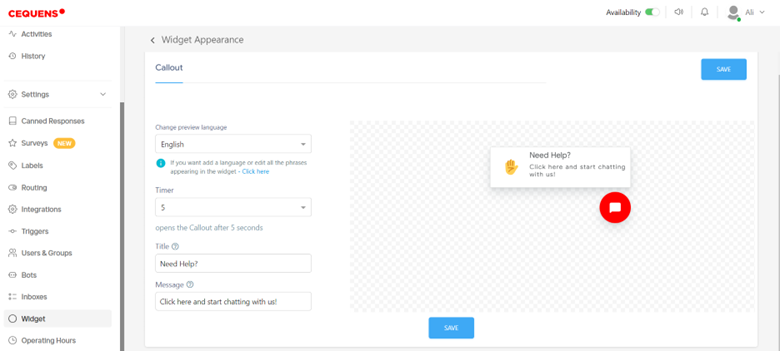
- Specify language preferences and timers, then customize the title and message accordingly. Save your settings to implement the updates.
- Tailor the appearance of the widget to align with your brand's aesthetic by selecting Widget Appearance option from Widget page.
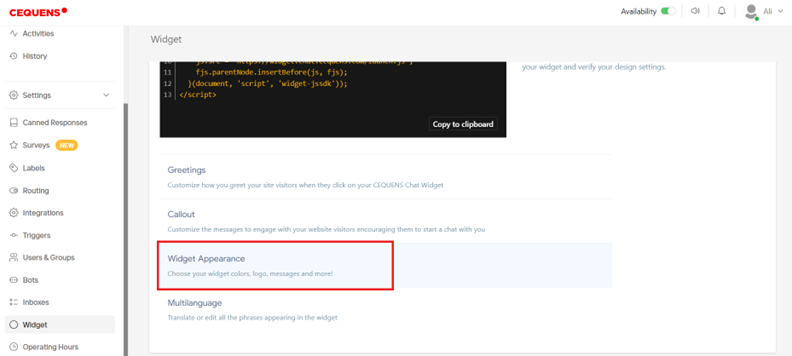
- Under the Widget Appearance section, adjust primary and secondary colors using color codes or preset options. Toggle the display of your logo and provide the logo URL if desired.
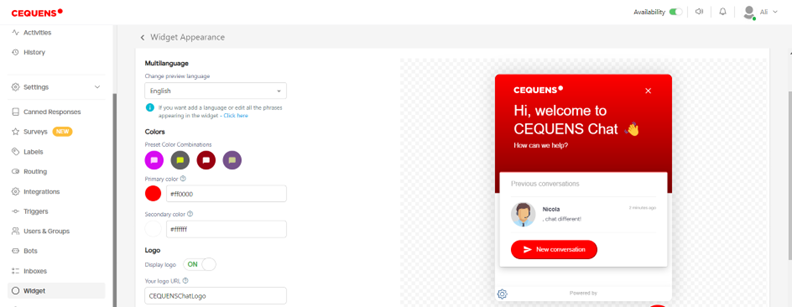
- Craft a welcoming message and team introduction to enhance the user experience. Specify the text in their respective fields to be displayed within the chat widget.
- Determine the placement of the widget on your website, whether bottom left or bottom right, to optimize visibility and accessibility for visitors.
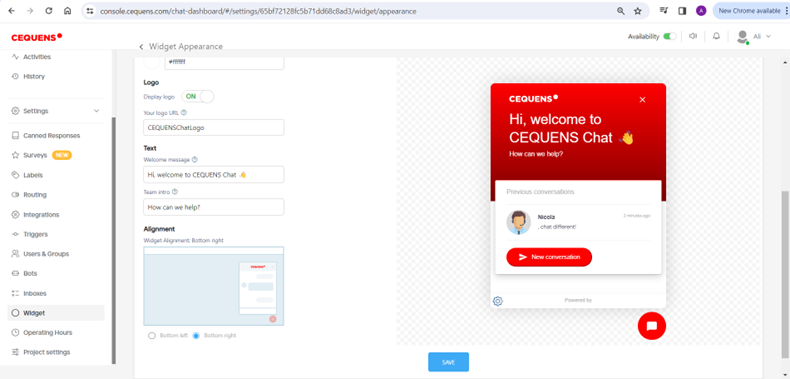
- Save your modifications by clicking the "Save" button to ensure that your updates are applied.
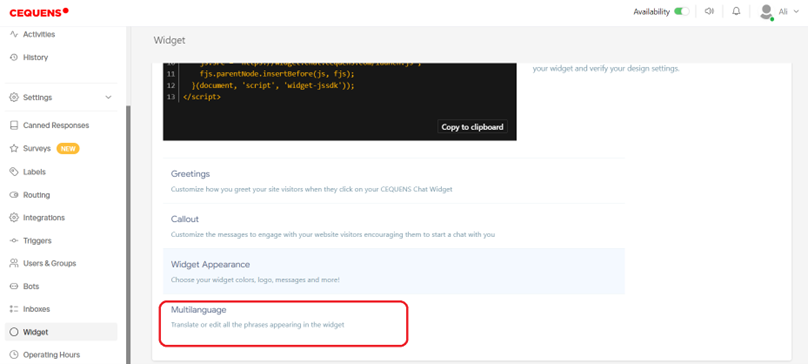
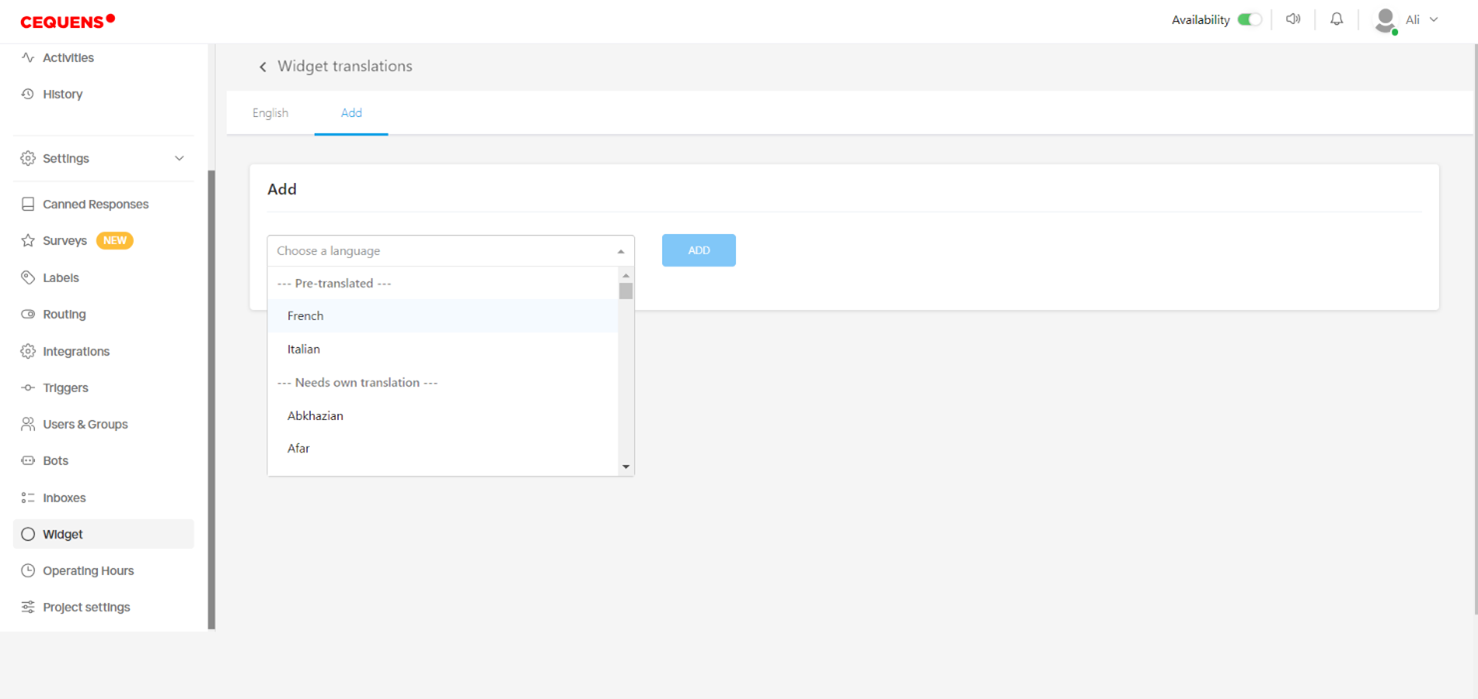
- For multilingual support, navigate to the Multilanguage option on the widget page.
- Provide the English phrases in the English tab to be used in chat widget.
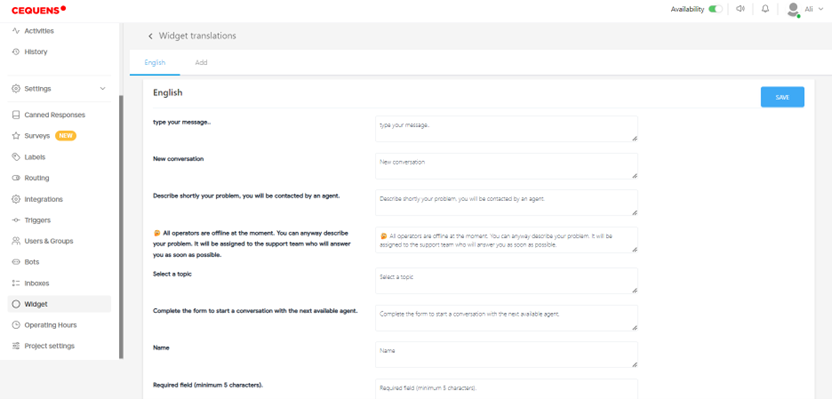
- Add additional languages as needed by going into the Add tab. Choose a language from the dropdown. Once completed, click the "Save" button to enact the changes.
Updated 8 months ago