Contacts
The Contacts feature in CEQUENS allows users to efficiently manage and organize their customer contacts. Users can easily add contacts by importing them from CSV or Excel files, as well as export contacts for external use.
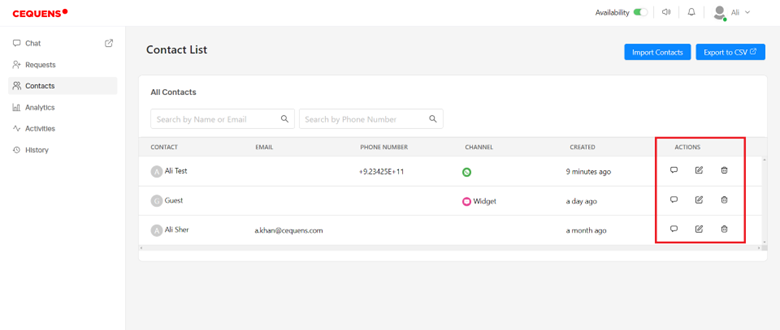
- Navigate to the Contacts page from the left menu. Here, you'll find a list of individuals who have contacted you.
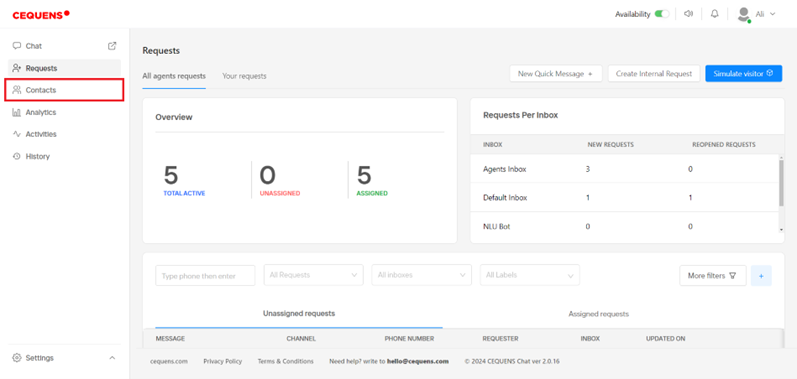
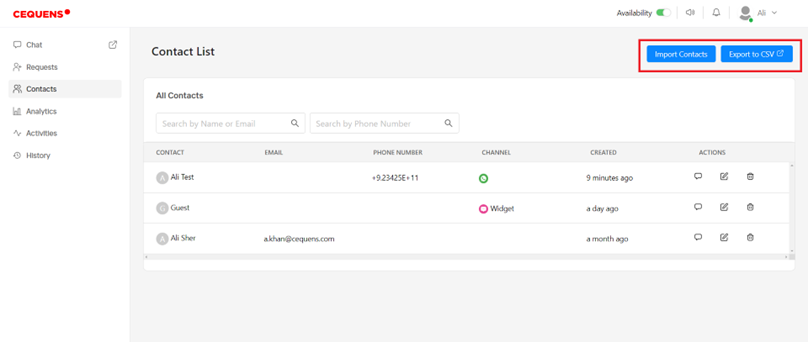
- Easily add contacts by importing them through a CSV or Excel file. You can also export contacts to a CSV or Excel file by clicking the respective buttons.
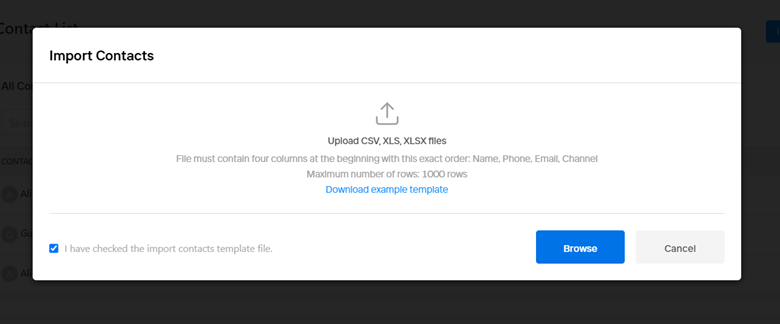
- To import contacts, click on the "Import Contacts" button. Follow the prompts to download a sample template file. Fill in the contact details according to the template, removing any instructions. Check the box confirming the file's accuracy, then upload the file. Upon successful upload, the contacts will appear on the listing page.
- For exporting contacts, click on the "Export to CSV" button to download a file containing all contacts.
- Use the search function to find contacts by Name, Email, or Phone Number.
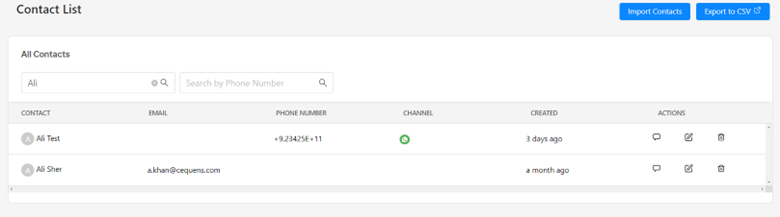
- In the "Actions" column, you can view contact requests, edit contact details, or delete contacts by clicking the respective icons. Note that editing a contact does not affect any associated contact requests.
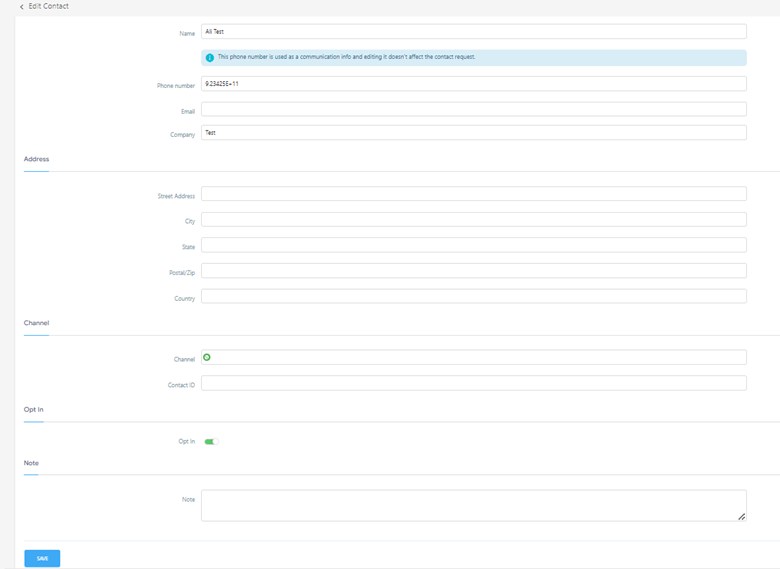
- Click on the edit icon, now you can add the additional details of the contact and can edit the existing details. Click Save to save the changes.