
Labels
The Labels feature in CEQUENS Chat simplifies request organization by allowing users to create customizable labels. These labels serve as tags that can be applied to customer requests and internal inquiries, aiding in efficient categorization and management of communication.
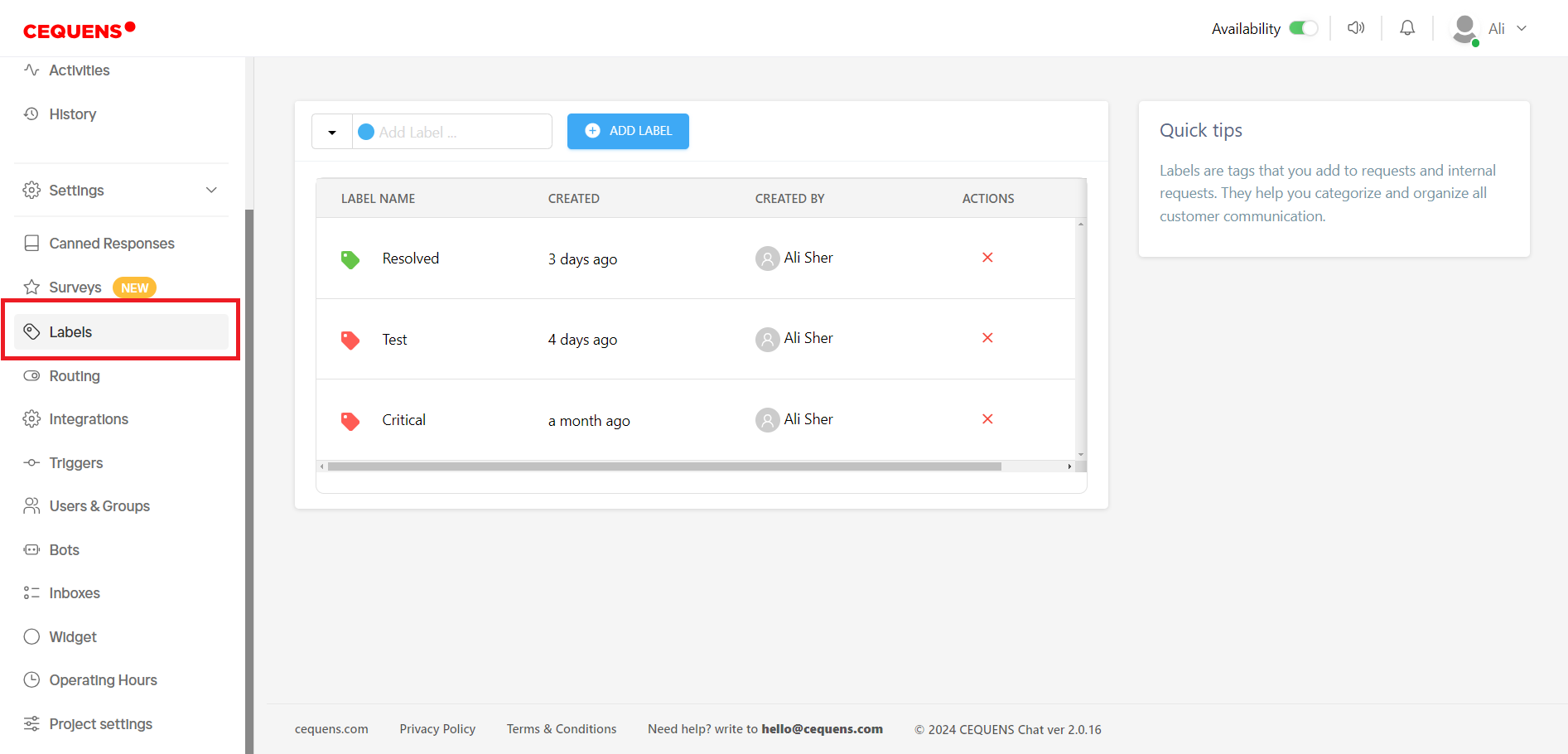
- Clicking on "Labels" from the left menu allows you to create labels for organizing your requests. Labels serve as tags that you can attach to both customer requests and internal inquiries, aiding in categorizing and managing customer communication effectively.
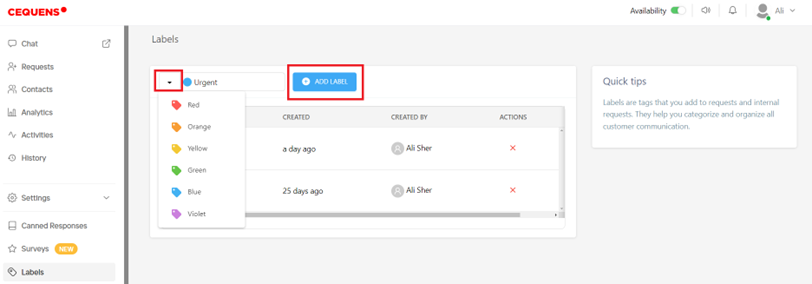
- To create a new label, select a color from the dropdown menu and enter the desired name for your label. Click on "Add Label" to save the newly created label.
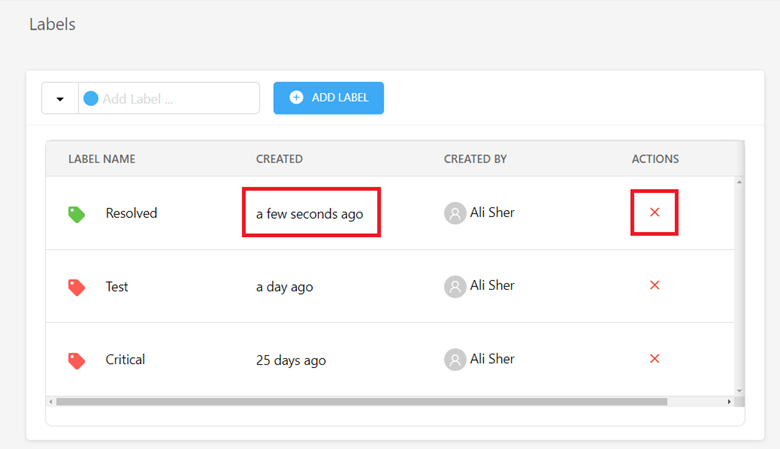
- On the listing page, you can view all labels created within the system along with their creation date and the creator's name. You also have the option to delete labels as needed by clicking on the 'X' icon in the actions column.
- These labels are highly useful within the chat console, enabling you to easily categorize and manage customer requests according to their respective labels.
Updated about 1 month ago