
Requests
The "Requests" feature in CEQUENS Chat Console enables users to manage and interact with customer inquiries efficiently.
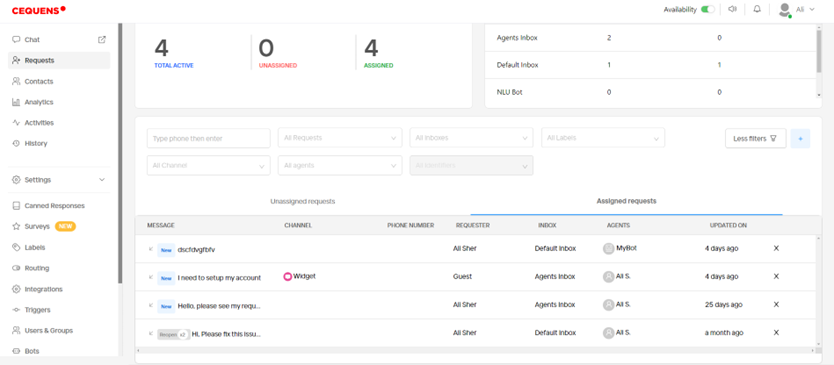
- Click the Requests from the left menu. Within the platform, you can view an overview of all agent requests. If a request is assigned to you, you can easily filter it by navigating to the "Your Requests" tab.
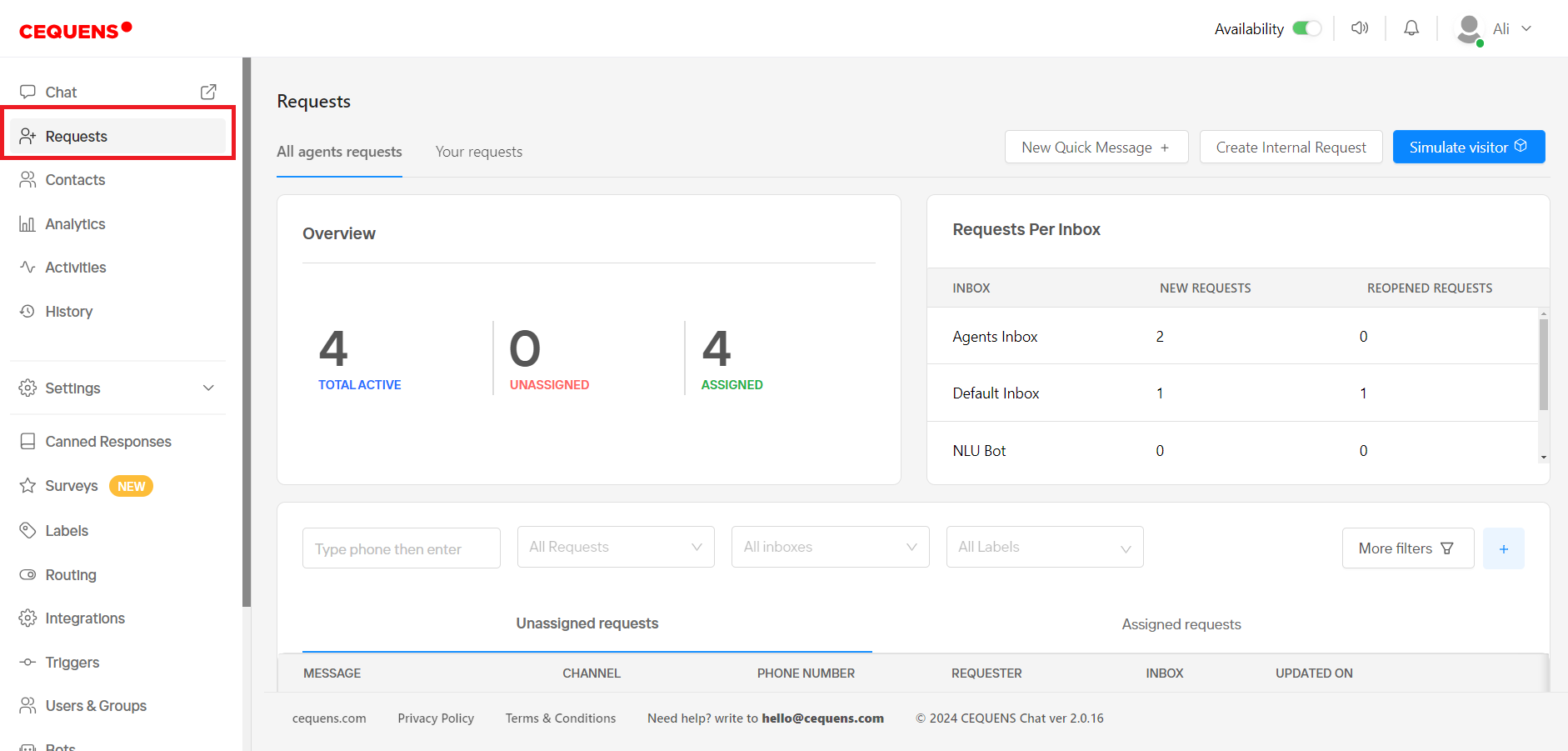
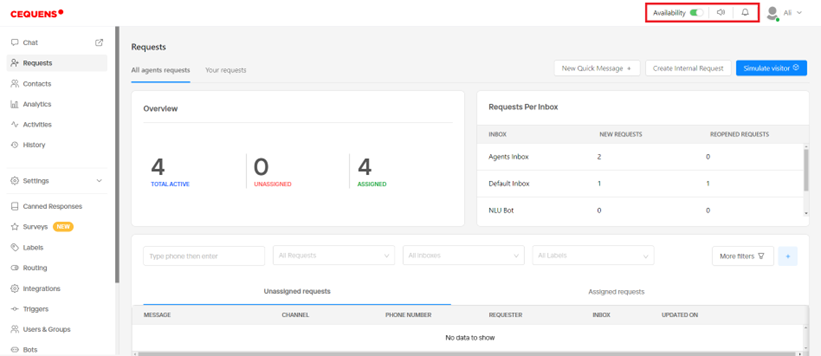
- From the top bar, you have the option to specify your availability by toggling the availability switch on or off. Additionally, you can mute the chat console by clicking the speaker icon adjacent to the availability toggle.
- You'll find essential account options in the top bar, including a notifications bell icon and an account name dropdown menu. From the dropdown menu, you can access options to view your profile or logout.
- You can efficiently send messages to customers directly from the homepage by clicking on the "Quick Message" button. If WhatsApp integration is enabled, a pop-up will prompt you to select a WhatsApp template for sending.
- Easily create internal requests by clicking on the "Create Internal Request" button. A pop-up will appear, allowing you to enter details such as the subject, inbox, and message. Once created, the request will be directed to the selected inbox.
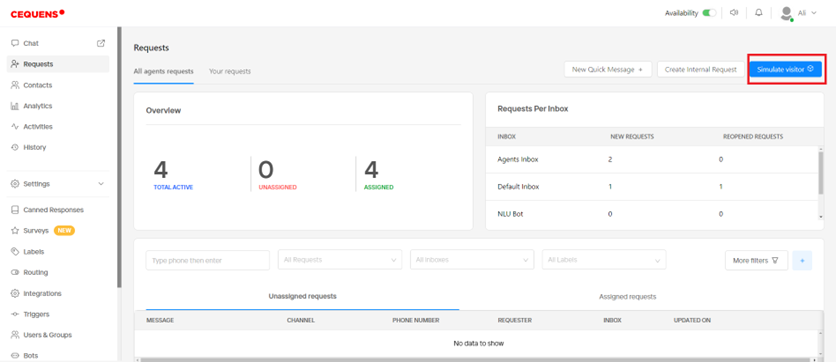
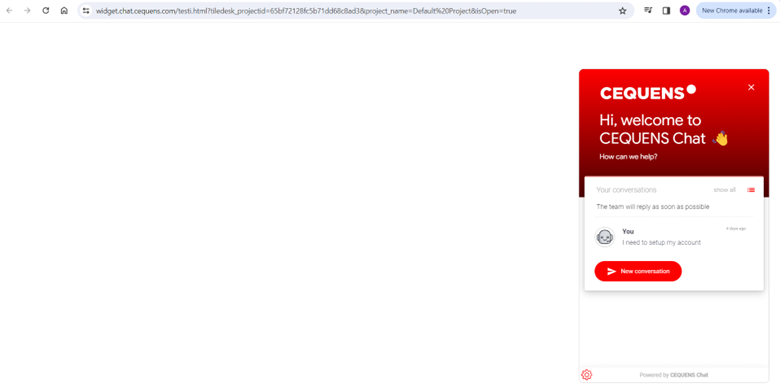
- To preview the customer's chat widget appearance, click on the "Simulate Visitor" button.
- A new page will open, and you can see the chat widget that will be shown to the visitor.
- You can track unassigned and assigned requests in the table listing. Utilize filters to refine results by inboxes, labels, channels, and agents.
Updated 8 months ago