
Routing
The Routing section in CEQUENS Chat offers comprehensive settings for managing inbox operations, chat handling, and bot utilization. Users can activate bots to handle visitor inquiries before agent intervention, selecting from existing bots or creating new ones.
- Navigate to the "Routing" section from the left menu to access configuration settings related to inbox management, chat handling, and bot usage.
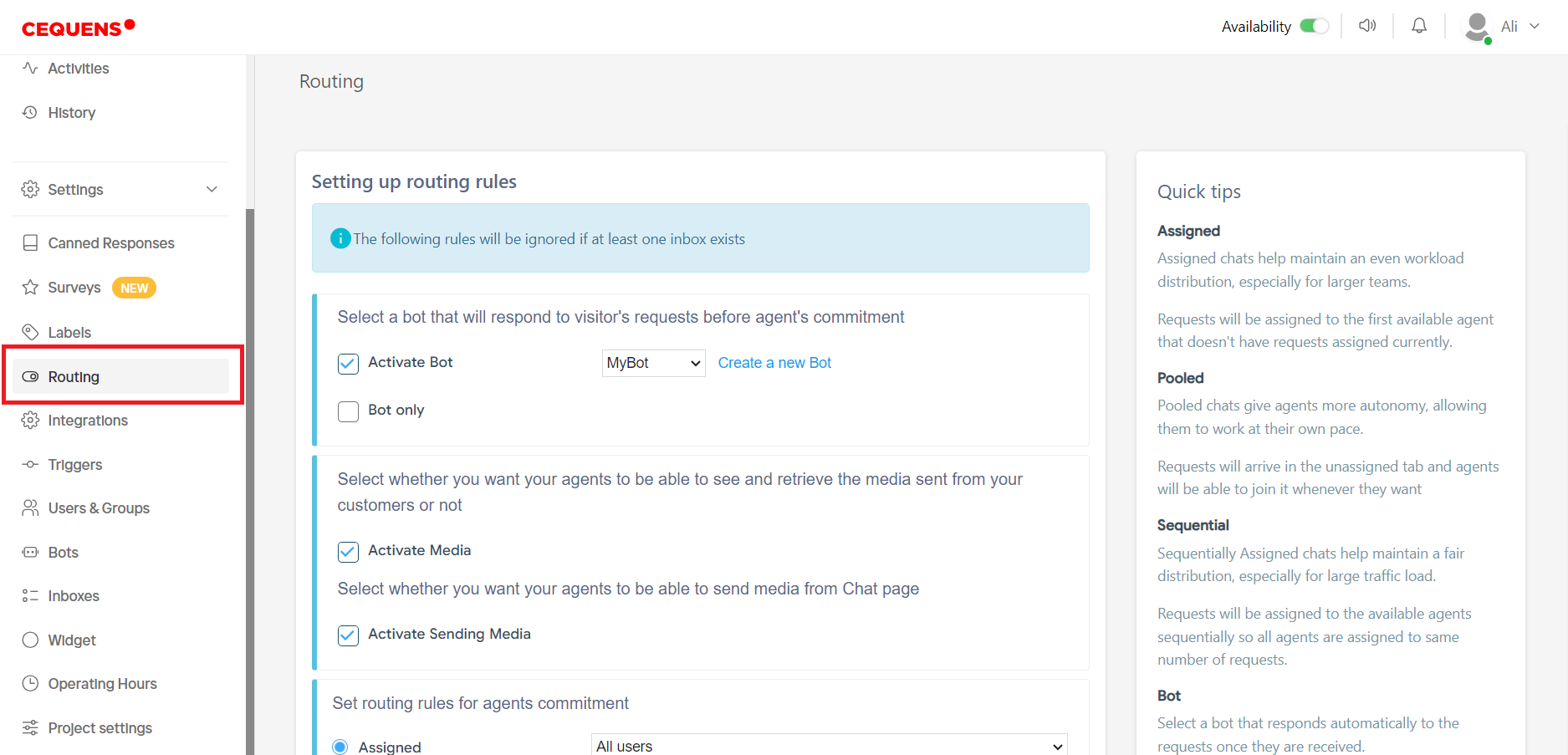
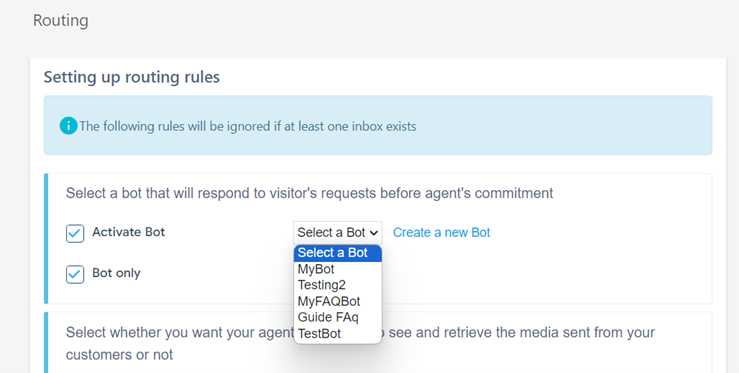
- Tick the "Activate Bot" checkbox if you wish to deploy a bot to address visitor inquiries before agents intervene. You'll then be prompted to choose an existing bot from the dropdown menu or create a new one if none is available. Selecting the "Bot Only" option ensures that the bot exclusively interacts with customers. If you have selected the option Bot Only, you cannot use the routing rules settings.
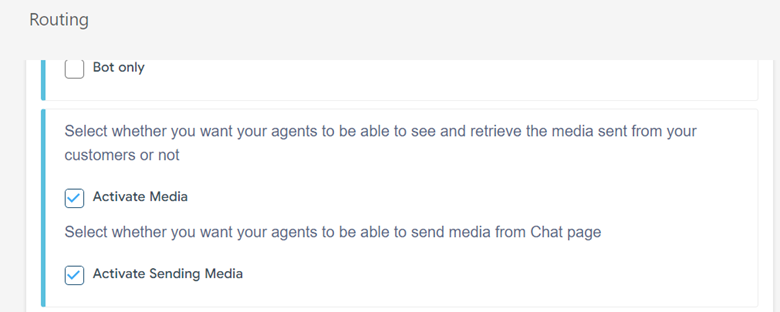
- Mark the "Activate Media" checkbox to grant agents access to view and retrieve media files sent by customers. Additionally, enable the "Activate Sending Media" checkbox to allow agents to send media files from the Chat page.
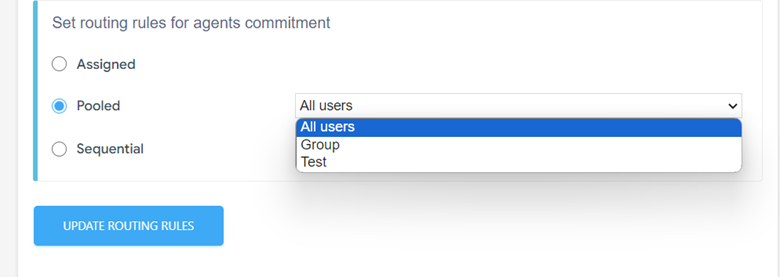
- Define routing rules to govern agent engagement:
- Assigned: Requests are automatically assigned to the first available agent without any prior assignments. This method is suitable for evenly distributing workload among larger teams.
- Pooled: Requests initially remain unassigned and are available for agents to pick up at their discretion, providing them with more autonomy.
- Sequential: Requests are assigned to agents in a sequential order to ensure an equitable distribution of workload across all agents.
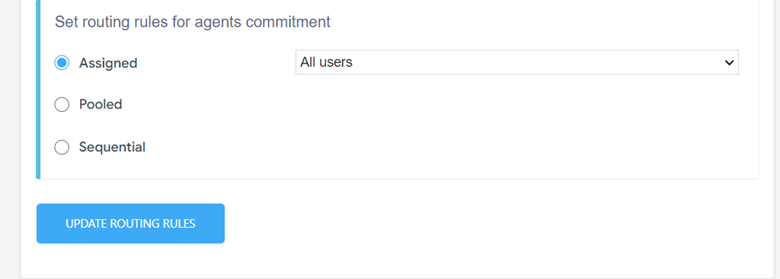
- Specify which group of agents will adhere to the selected routing rules. This allows for customized routing configurations based on team preferences and requirements. Click Update Routing Rules button to save the changes.
Updated about 1 month ago