
SLA Management Feature
The Dynamic SLA Timer is designed to help agents manage response times effectively by displaying a countdown timer within the chat interface and conversation cards. This timer visually indicates the remaining time to resolve a conversation in accordance with the configured SLA (Service Level Agreement). The timer starts automatically whenever a conversation is opened.
Steps to Enable the SLA Feature
- Navigate to the Inbox Configuration Settings in the Omni-Channel Chat platform.
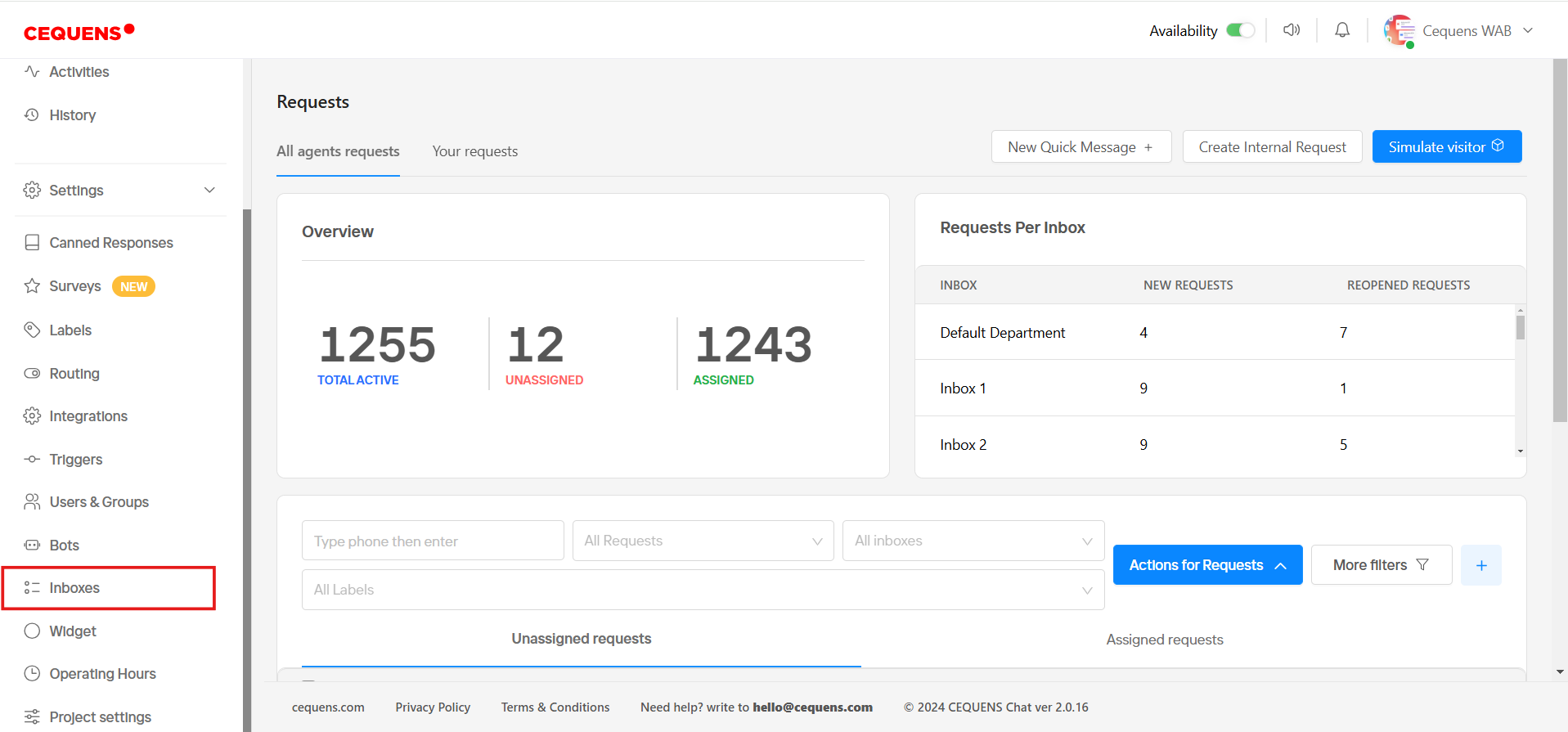
Enable SLA for a New Inbox:
- Click the ‘Add New Inbox’ button.
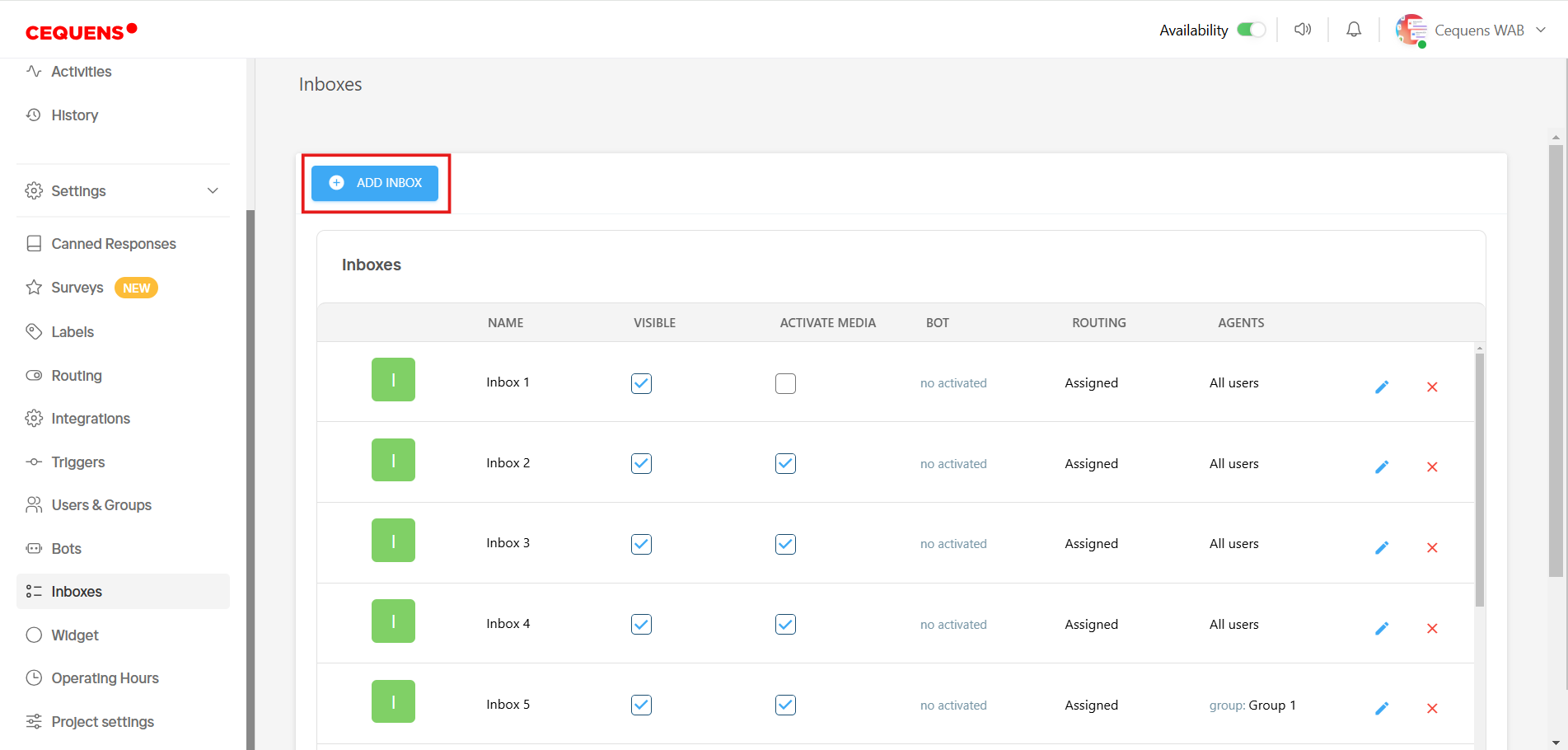
- Or edit an existing inbox from the list of inboxes.
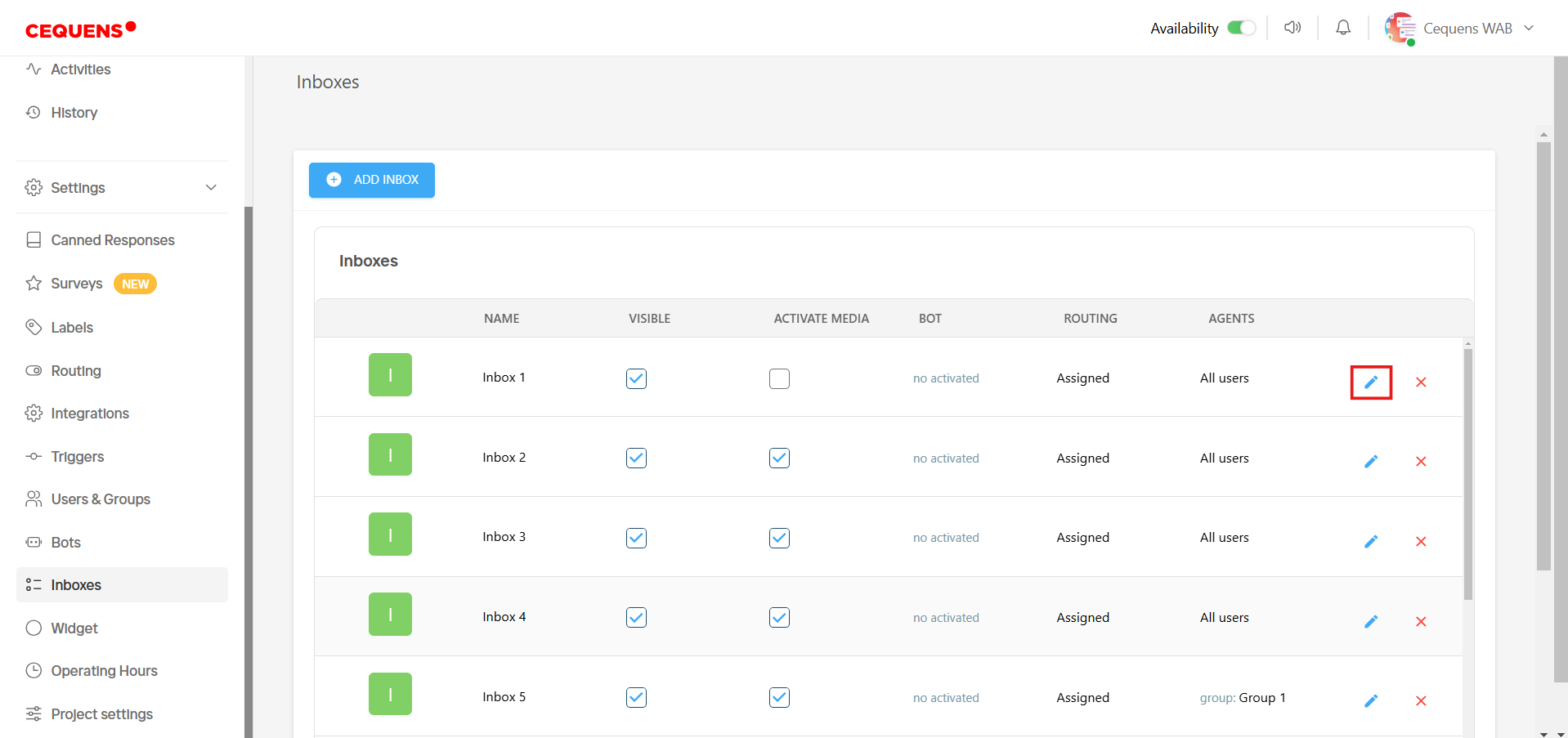
- Locate the inbox you want to configure.
- Click the edit icon next to the inbox name.
- Scroll down to the SLA Timer section.
- Check the box to enable the SLA Timer.
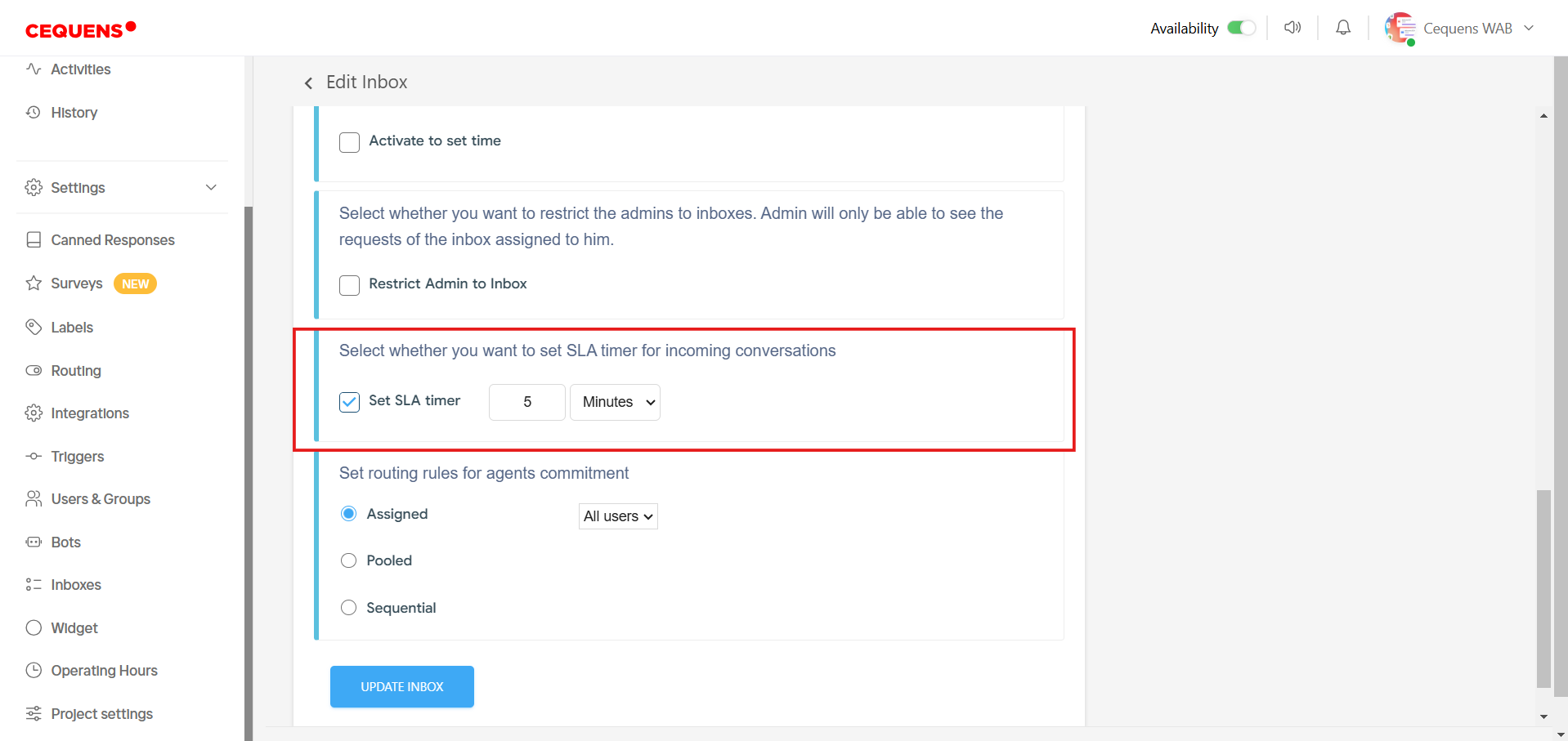
- Specify the time limit in minutes or hours.
- Click the ‘Update Inbox’ button.
- The SLA timer will now be active for all new conversations in this inbox.
How the SLA Timer Works
Conversation Cards:
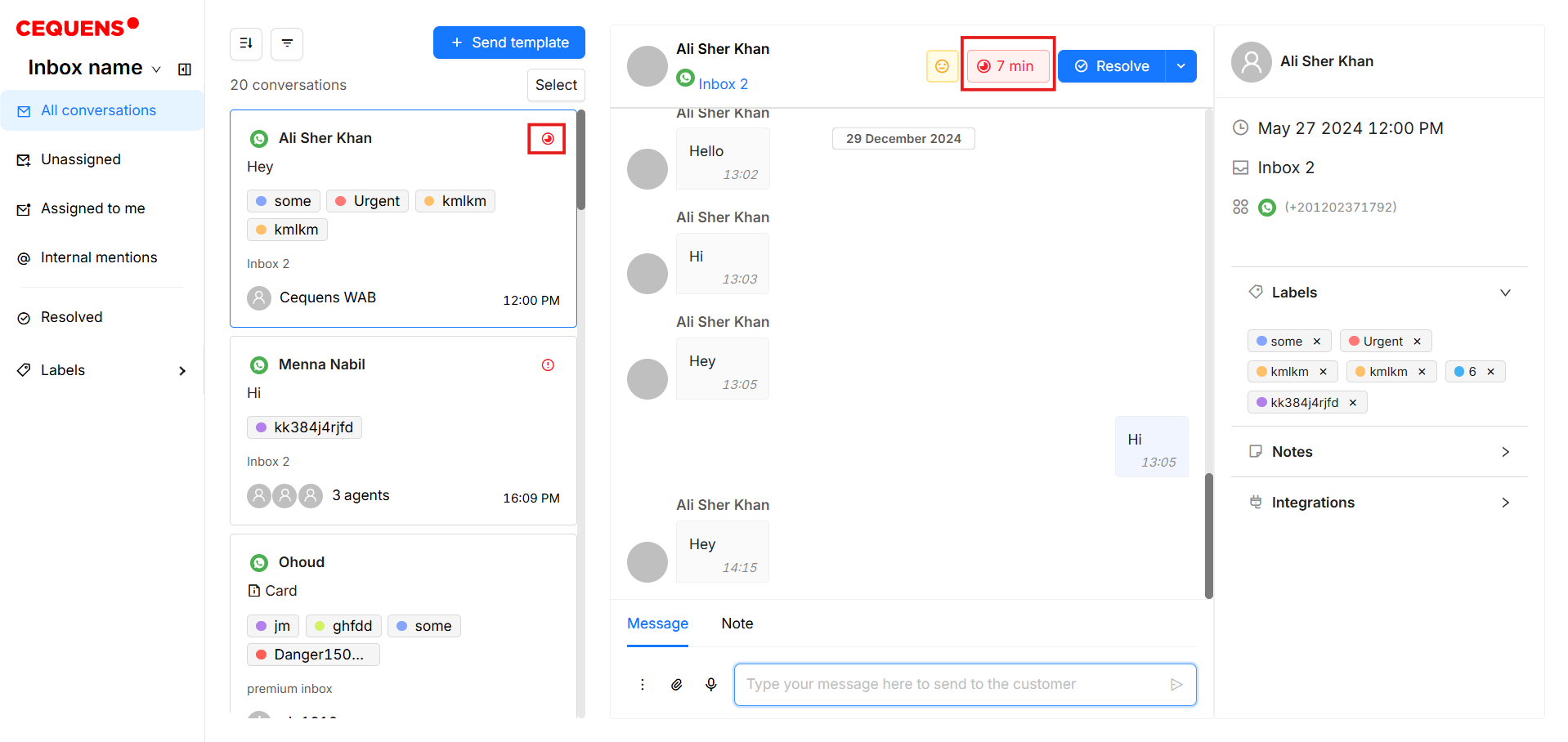
- Each new conversation in the configured inbox will display a timer icon on its conversation card whenever a new conversation is received.
- When you open a conversation, the countdown timer will appear at the top of the chat interface.
Color-Coded Timer Indicators:
Green: The clock icon remains green during the first 30% of the SLA time, indicating that the response time is well within the SLA limit.
Yellow: The icon changes to yellow as the timer enters the second 30% of the SLA period, signaling that the agent should prioritize this request soon.
Orange: The icon shifts to orange during the third 30%, indicating that the response time is becoming critical.
Red: The icon turns red during the final 10% of the SLA time, serving as an urgent warning that immediate action is required.
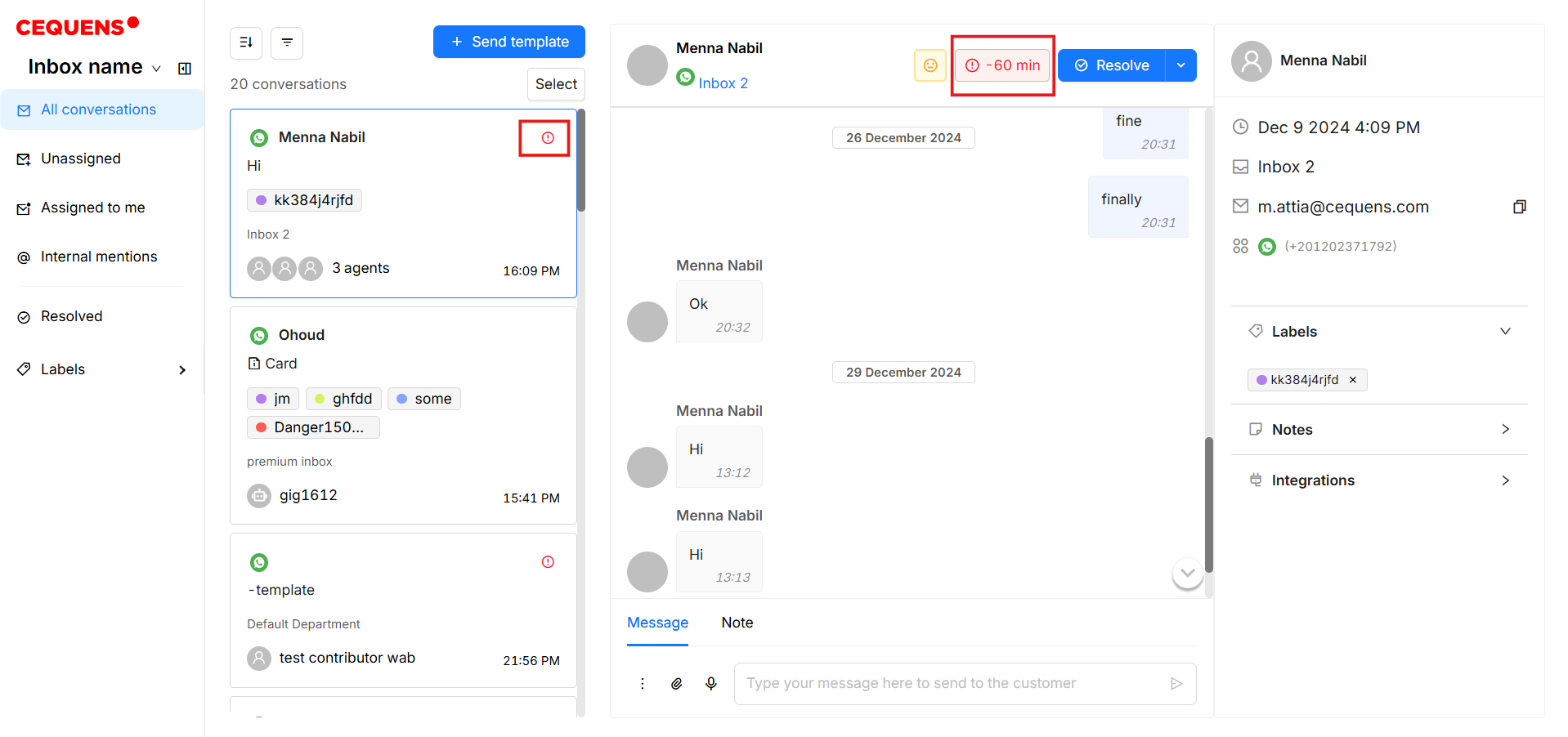
Red Exclamation: If the SLA time is exceeded, the icon changes to a red exclamation mark, and the timer starts counting upwards in negative time, displaying how long the SLA has been breached.
Post-SLA Actions:
- The timer will indicate SLA Met if the agent was successful in resolving the conversation within the configured time.
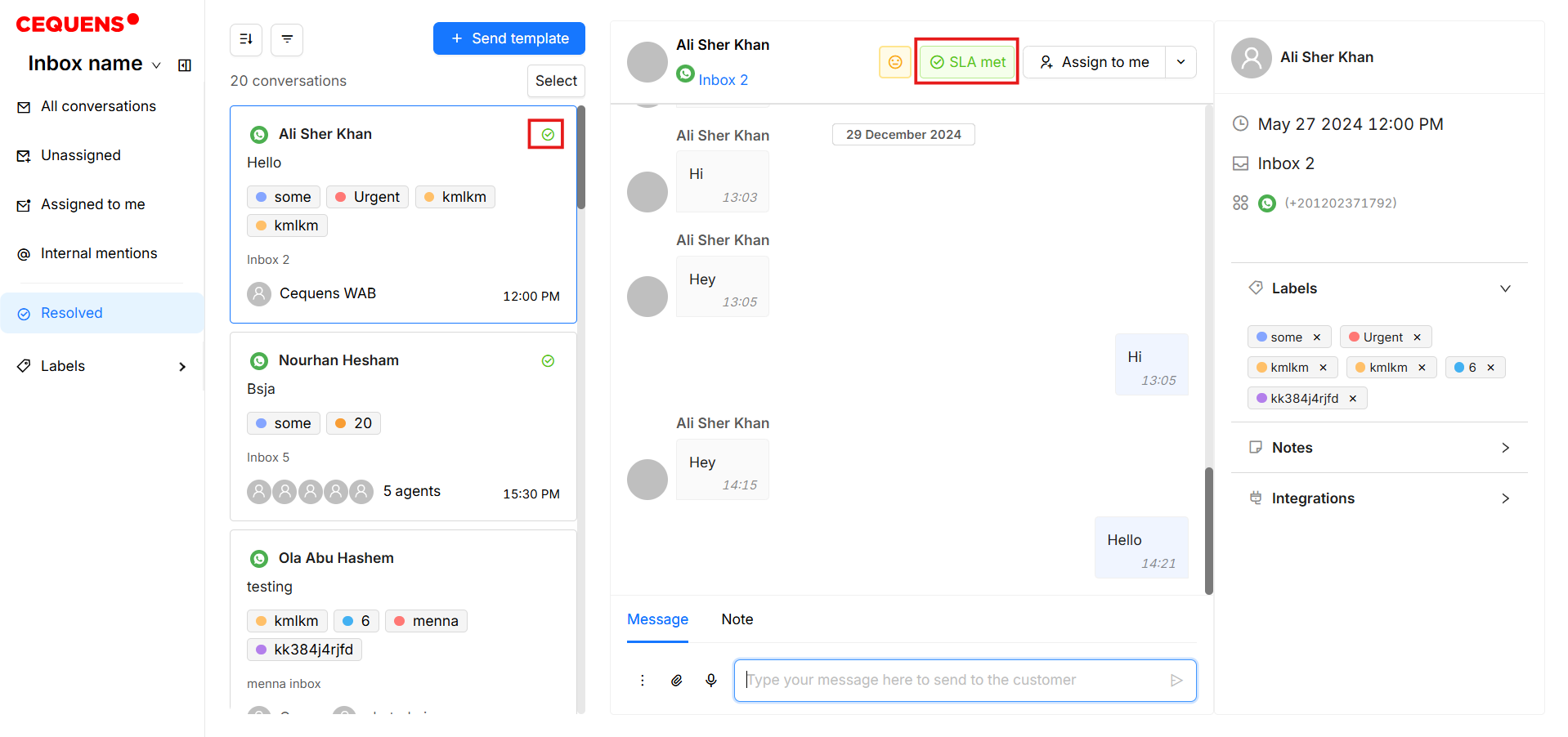
- An exclamation mark icon will appear on the conversation card if the SLA was breached and conversation was not marked as resolved within the specified time.
- The timer will begin counting in negative to indicate how much time has passed since the SLA was breached.
This feature empowers agents to prioritize and address conversations effectively, ensuring timely resolutions and better compliance with service expectations.
Updated 6 months ago