Surveys
Surveys in CEQUENS Chat enable businesses to gather valuable feedback from customers, helping to measure satisfaction levels and identify areas for improvement.
- Click on "Surveys" from the left menu. Surveys help gauge customer satisfaction.
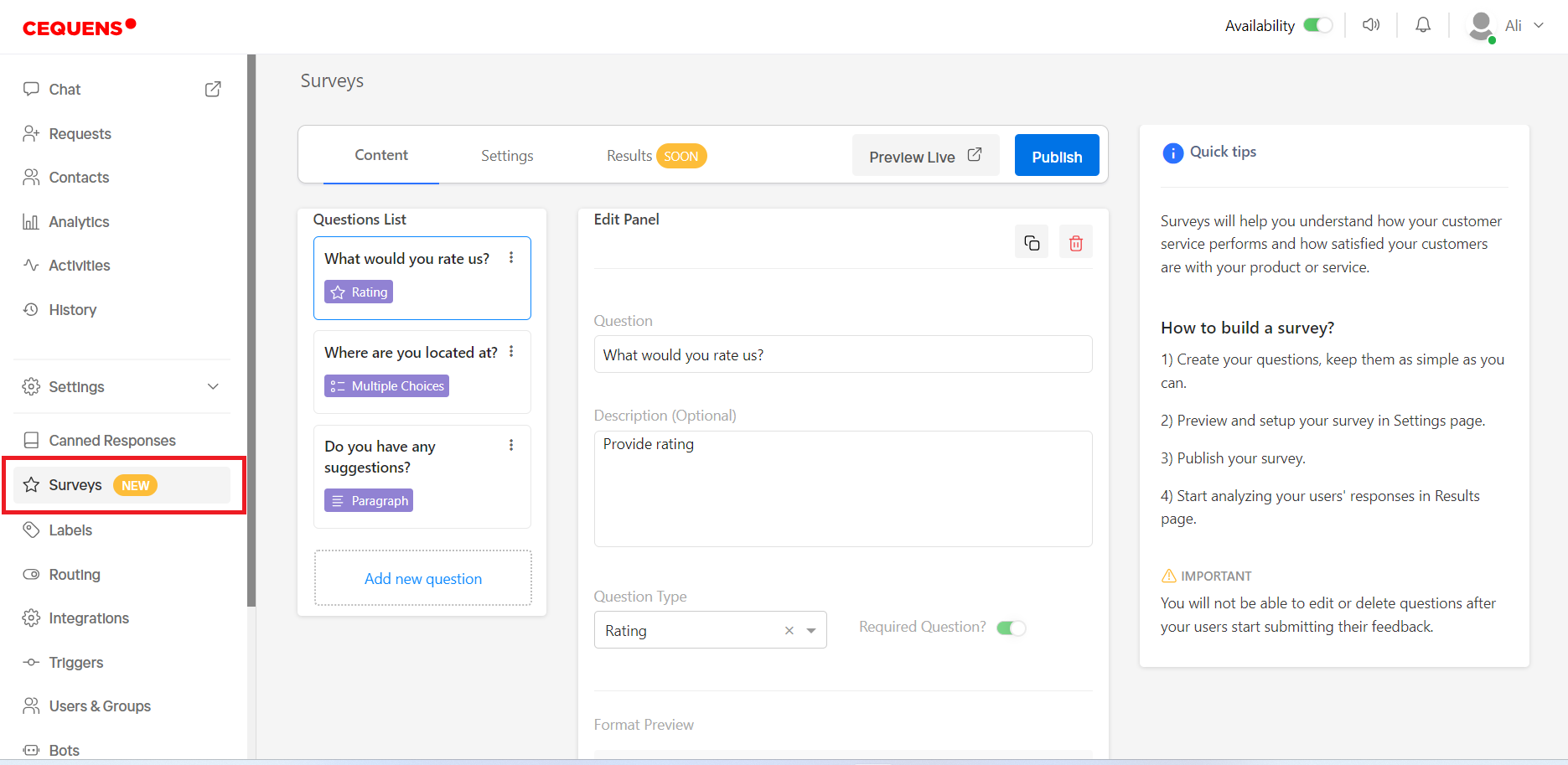
- Three tabs: Content, Settings, and Results.
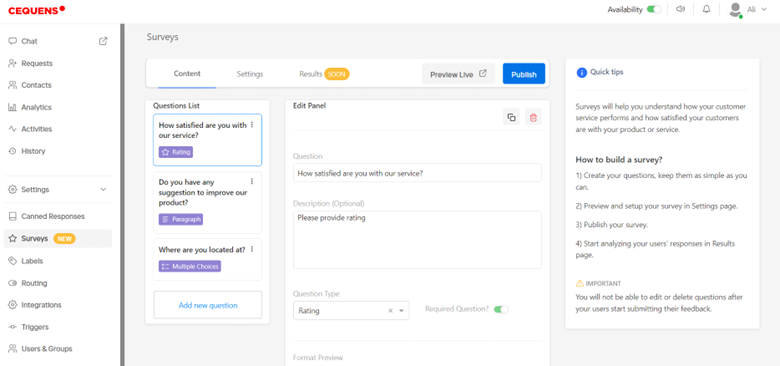
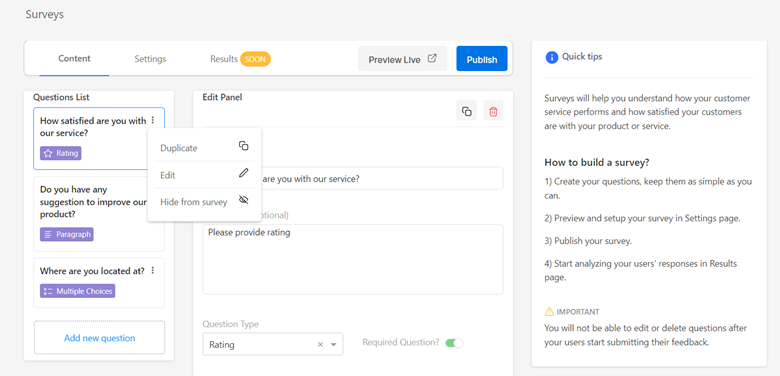
- Content Tab: Create questions. Edit or duplicate questions before feedback submission. Click on the three-dot menu next to a question to edit or duplicate it. Questions cannot be edited or deleted after users start submitting feedback.
- Click "Add New Question" to create a question. Enter title, description, question type (short answer, paragraph, multiple choice, rating).
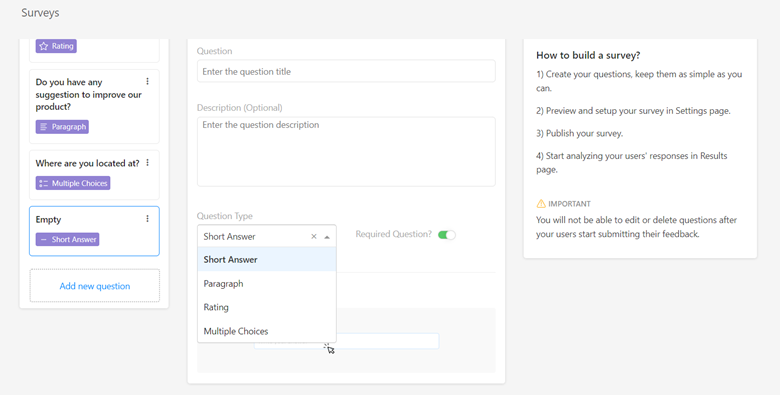
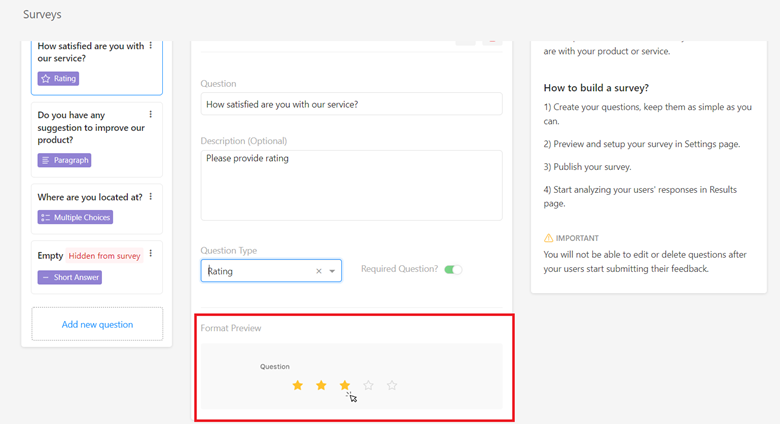
- Preview question in format preview section.
- Settings Tab: In this tab, you can adjust settings related to the design of your survey. This includes changing the color scheme, adding a logo, and selecting an inbox.
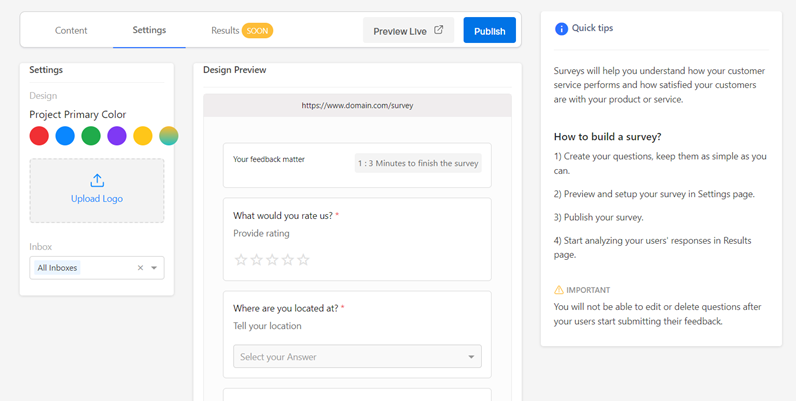
- Click on Upload Logo to select a logo from your files.
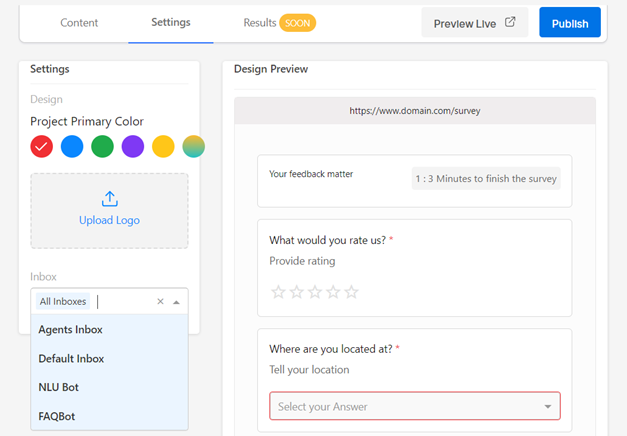
- Select the relevant inbox where you want to send the survey from.
- Results Tab: Here, you can analyze the responses from your survey. This provides valuable insights into customer feedback and satisfaction levels.
- You can preview the live survey by clicking on the "Preview Live" button. This allows you to see how the survey will appear to respondents.
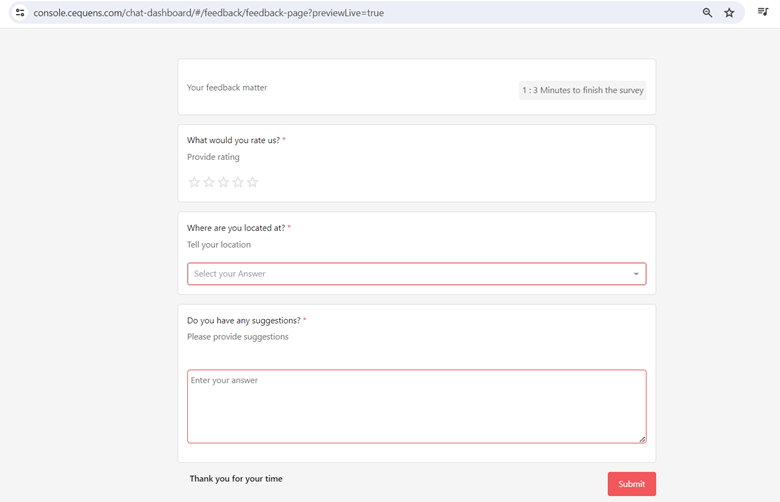
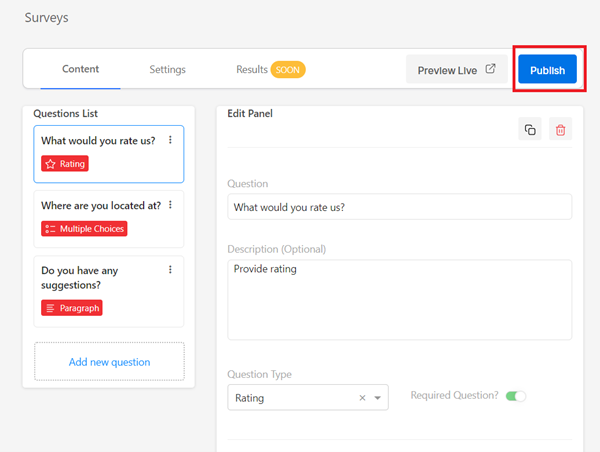
- Once you're satisfied with your survey template, click "Publish" to save it. This enables you to use the survey in conversations with customers, gathering valuable feedback to improve your service.